The Phone Declutter Checklist: Clean Up Your Smartphone in 30 Minutes
Your phone is the most-used object in your life and probably the most cluttered. Dozens of unused apps, thousands of photos you’ll never look at, hundreds of unread notifications, and a home screen that looks like a junk drawer. The good news: you can fix most of it in about 30 minutes with this phone declutter checklist.
Set a timer, work through the steps in order, and don’t skip ahead — each step builds on the last. By the end, your phone will be faster, calmer, and genuinely easier to use.
Phone Declutter Checklist: 2-Minute Prep
- Charge to at least 50% (or plug in). Some steps — photo backups, OS updates — need power.
- Connect to Wi-Fi. You’ll be updating apps and possibly backing up photos.
- Check your storage baseline. iPhone: Settings → General → iPhone Storage. Android: Settings → Storage. Screenshot it so you can compare after.
Step 1: Delete Unused Apps (5 minutes)
Apps are the fastest win. Most people use a small handful of apps daily but keep dozens installed.
- iPhone: Go to Settings → General → iPhone Storage. The list is sorted by size — tap any app you don’t recognize or haven’t used in months and hit Delete App.
- Android: Go to Settings → Apps. Sort by “Last used” or “Least used” if your phone offers it, and uninstall from there.
- The 90-day rule: If you haven’t opened it in 90 days and it’s not a utility (banking, health, travel), delete it. You can always reinstall.
- Kill duplicates: Two photo editors? Three note apps? Two weather apps? Keep your favorite, delete the rest.
- Remove preinstalled bloat: Most phones now let you remove or disable carrier and manufacturer apps you never asked for.
Don’t forget games you finished, event apps from last year’s conference, and “free trial” apps still sitting there. For a deeper dive on iPhone specifically, see our iPhone storage full: what to delete first guide. If you’d rather automate the review, these declutter apps that do the heavy lifting can flag unused apps for you.
Step 2: Tame Notifications (4 minutes)
The average person gets dozens of notifications a day, and most of them are noise. This phone declutter checklist step alone can meaningfully reduce your daily stress.
- iPhone: Settings → Notifications. Go through the list app by app. Turn off “Allow Notifications” for anything that isn’t a human contacting you or genuinely time-sensitive.
- Android: Settings → Notifications → App notifications. Same process — be ruthless.
- Keep notifications on for: calls, texts, calendar, banking/fraud alerts, smart home security.
- Turn off for: social media likes, news apps, shopping deals, game reminders, most email.
- Use notification summaries: iPhone’s Scheduled Summary (Settings → Notifications → Scheduled Summary) batches non-urgent notifications into 2–3 daily digests. Android’s notification history and snoozing features help similarly.
After this step, your lock screen should be boring. Boring is the goal.
Step 3: Clean Up Photos and Videos (8 minutes)
Photos are usually the biggest storage category. You won’t finish a full photo library cleanup in 8 minutes, but you can make a serious dent.
- Delete screenshots: Search “screenshots” in your gallery and bulk-delete the ones you don’t need. Screenshots are the #1 photo clutter category.
- Delete duplicates and bursts: Remove near-identical shots and burst sequences — keep the best one or two.
- Delete blurry and accidental photos: Sort by oldest or scroll quickly; delete the obvious duds.
- Clear old screen recordings and memes: Funny once, storage-hogging forever.
- Empty “Recently Deleted”: On iPhone, deleted photos sit in Recently Deleted for 30 days still taking up space. Go to Photos → Albums → Recently Deleted → Delete All. On Android, check the Trash in Google Photos.
- Turn on storage optimization: iPhone: Settings → Photos → Optimize iPhone Storage. This keeps thumbnails on your phone and full versions in iCloud. Android/Google Photos: open Google Photos → profile → Photos settings → Backup → use “Storage saver” quality.
For the full photo organization system — naming, albums, backups — read our guide on how to organize digital photos.
Step 4: Clear Messages and Messaging Apps (4 minutes)
Messaging apps silently accumulate gigabytes of photos, videos, voice notes, and documents.
- iMessage (iPhone): Settings → General → iPhone Storage → Messages. Review “Top Conversations,” Photos, Videos, and GIFs. Delete large attachments from old threads.
- WhatsApp: Settings → Storage and Data → Manage Storage. It shows chats sorted by size — bulk-delete large files from chats you don’t need to preserve.
- Telegram: Settings → Data and Storage → Storage Usage → Clear Cache. In Telegram, set ‘Keep Media’ to 3 days, 1 week, or 1 month so old cached media auto-deletes.
- Old conversations: Archive or delete dead group chats, one-time event threads, and spam conversations.
- Voicemail: Delete old visual voicemails you no longer need.
Step 5: Organize Your Home Screen (3 minutes)
A chaotic home screen creates decision fatigue every time you unlock your phone.
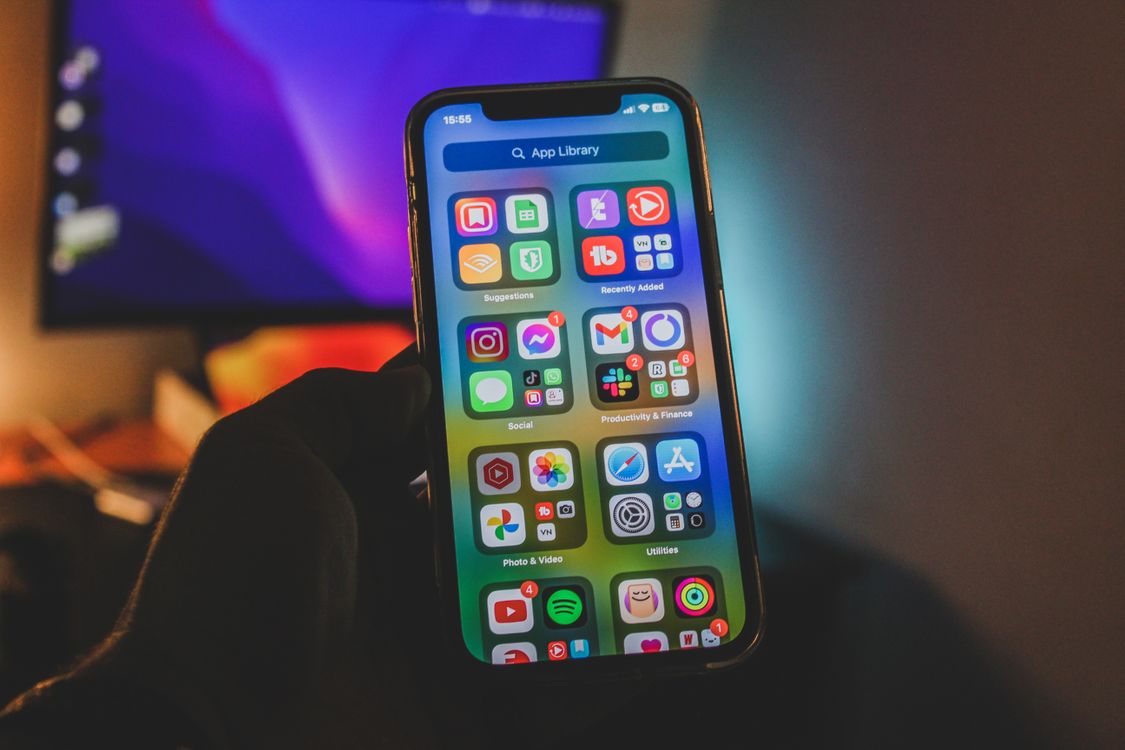
- One home screen if possible. Move everything else to the App Library (iPhone) or app drawer (Android).
- Keep only daily essentials visible: phone, messages, camera, maps, calendar, and your 3–5 most-used apps.
- Use folders for the rest: Group by function — Finance, Travel, Health, Shopping, Work.
- Remove widgets you ignore. Keep one or two genuinely useful ones (calendar, weather).
- Set a calm wallpaper. A simple, dark, or minimal wallpaper reduces visual noise and can even save battery on OLED screens.
- iPhone bonus: Use Focus modes to show different home screens for Work, Sleep, and Personal time.
Step 6: Clean Downloads, Files, and Offline Content (3 minutes)
- Downloads folder: Open Files (iPhone) or My Files/Downloads (Android) and delete installers, old PDFs, and files you already used.
- Offline maps: Google Maps → profile → Offline maps. Delete regions from trips you’ve already taken.
- Streaming downloads: Netflix, Spotify, YouTube, podcast apps — remove downloaded episodes and playlists you already finished. Re-download when you need them.
- Browser downloads and cache: Clear old downloads in Chrome/Safari, and clear browsing data if you haven’t in a while.
Step 7: Review Subscriptions and Accounts (2 minutes)
- iPhone: Settings → [your name] → Subscriptions. Cancel anything you’re paying for but not using.
- Android: Play Store → profile → Payments & subscriptions → Subscriptions.
- Delete accounts for dead services: Old shopping accounts, expired trials, apps you deleted in Step 1 — close or delete the accounts so they stop emailing you too.
Step 8: Update and Secure (2 minutes)
Finish strong: a decluttered phone should also be an updated phone.
- Install pending OS updates: Settings → General → Software Update (iPhone) or Settings → System → System update (Android).
- Update all apps via the App Store / Play Store.
- Review app permissions: Settings → Privacy — revoke location, microphone, and camera access from apps that don’t need it.
- Turn on automatic backups: iCloud Backup (iPhone) or Google One backup (Android), so you never have to panic about losing anything again.
After the Phone Declutter Checklist: Keep It Clean
The phone declutter checklist works — but only if clutter doesn’t creep back. Three tiny habits keep your phone clean permanently:
- Weekly 5-minute sweep: Every Sunday, delete the week’s screenshots, clear notifications, and remove apps you tried and didn’t like.
- Monthly storage check: Glance at Settings → Storage once a month. If a category is ballooning, you catch it early.
- One-in, one-out: Every new app installed means an old one gets deleted. Every new photo album means reviewing an old one.
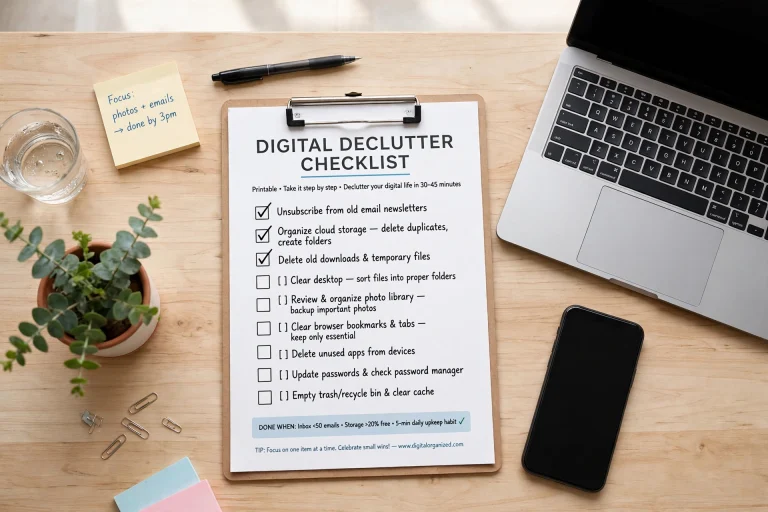
If your phone is part of a bigger digital mess — overflowing inbox, chaotic computer, messy cloud drive — work through our digital declutter checklist next. It covers every device and account in one systematic pass, and our guide to digital decluttering and organizing your digital life explains the mindset that makes it all stick.
Frequently Asked Questions
How often should I declutter my phone? Do the full 30-minute phone declutter checklist every 3–6 months, plus a 5-minute weekly sweep of screenshots and notifications. Heavy photo/video users should check storage monthly.
Will deleting apps delete my data? It depends. On iPhone, “Offload App” removes the app but keeps its data; “Delete App” removes both (though cloud-synounced data like Google Drive or iCloud files survives). On Android, “Clear storage” wipes data while uninstalling removes the app and its local data. When in doubt, check the app’s cloud sync first.
What’s the difference between offloading and deleting apps on iPhone? Offloading removes the app binary but preserves documents and data, so reinstalling restores everything. Deleting removes both. Offload apps you might need again; delete apps you’re done with.
How do I declutter my phone without losing photos? Back up first (iCloud, Google Photos, or a computer), verify the backup, and then delete local copies or enable storage optimization. Never bulk-delete photos without a confirmed backup — check out our photo organization guide linked above for the safe workflow.
Why is my phone slow even after decluttering? Check for a pending OS update, restart the phone, and look at battery health (Settings → Battery → Battery Health on iPhone). If storage is still nearly full, “System Data” may be bloated — see our guides on how to clear system data on iPhone and how to free up space on Android.
Should I use a phone cleaner app? Generally no. iPhone doesn’t allow true cleaner apps, and most Android cleaner apps are adware or redundant — Android’s built-in storage tools do the same job safely. Manual cleanup following this checklist is more effective.
How many apps should I have on my phone? There’s no magic number, but most people thrive with 30–50 total and fewer than 15 on the home screen. If you can’t name what an app does without opening it, that’s a delete candidate.
Conclusion
Thirty minutes, eight steps, one dramatically better phone. The phone declutter checklist isn’t about minimalism for its own sake — it’s about removing the friction between you and the things your phone is actually for: communicating, capturing memories, and getting things done.
Do it today, then protect your progress with the weekly 5-minute sweep. And when you’re ready to extend the calm to the rest of your digital life, our types of digital clutter guide shows you exactly where to look next.