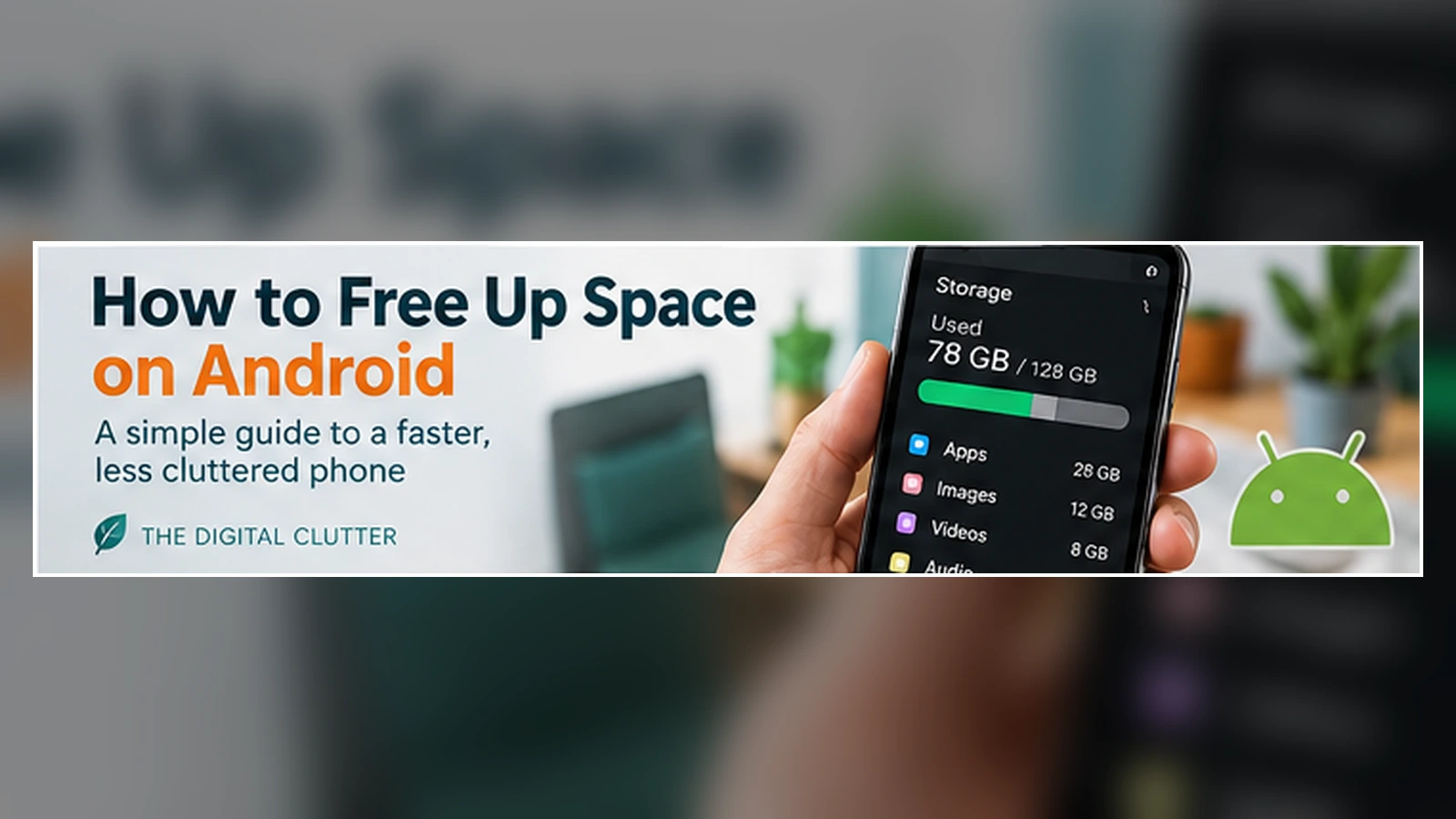
How to Free Up Space on Android Without Deleting Important Files
How to Free Up Space on Android Without Deleting Important Files
Android phones fill up quietly. Downloaded shows, chat videos, screenshots, app caches, and old files accumulate until an update fails or the camera refuses another photo. The safest cleanup starts with things you can replace, then moves toward personal files only after backup.
Open Settings → Storage and see which category is largest. Remove downloaded media, junk files, unused apps, duplicate files, and old screenshots first. Files by Google can help identify cleanup candidates. Android also supports app archiving on supported devices, and backed-up Google Photos items can be removed locally after you verify the backup.
1. Check What Is Actually Using Storage
Google recommends starting with the Storage screen. Categories differ by phone maker, but you should be able to see whether apps, video, images, documents, or another category is responsible.
2. Use Files by Google for Low-Risk Cleanup
Files by Google can surface junk, duplicates, screenshots, large files, and unused apps. Review the suggestions rather than tapping through automatically. Google notes that deleted files can be permanent.
3. Remove Offline Downloads
Netflix, YouTube, Spotify, podcasts, and map downloads can consume gigabytes. Because the content can usually be downloaded again, these are good first targets.
4. Archive Apps You Rarely Use
On supported Android devices, app archiving removes the app while keeping personal app data so you can restore the app later. It is a useful middle ground between keeping everything and deleting everything.
5. Clear Cache Carefully
Google distinguishes Clear cache from Clear storage. Cache is temporary. Clear storage can remove the app’s data and effectively reset it. If you are not sure, do not tap Clear storage.
6. Back Up Photos Before Removing Local Copies
If Google Photos backup is complete, its “Free up space” feature can remove local copies that are already backed up. Confirm the photos are visible in your cloud library before you proceed.
7. Clean Downloads and Screenshots
Sort Downloads by size and date. PDFs, ZIP files, memes, installers, and old videos are often easy wins. Screenshots deserve their own pass because many are temporary information rather than memories.
8. Move Important Files Instead of Deleting Them
If a file matters but does not need to live on your phone, move it to a computer, external drive, or trusted cloud service. Cleanup should create space, not regret.
Final Thoughts
Android storage cleanup gets easier when you separate replaceable clutter from personal data. Delete downloads first, archive what you rarely use, verify backups, and treat “Clear storage” as a deliberate action rather than a casual button.