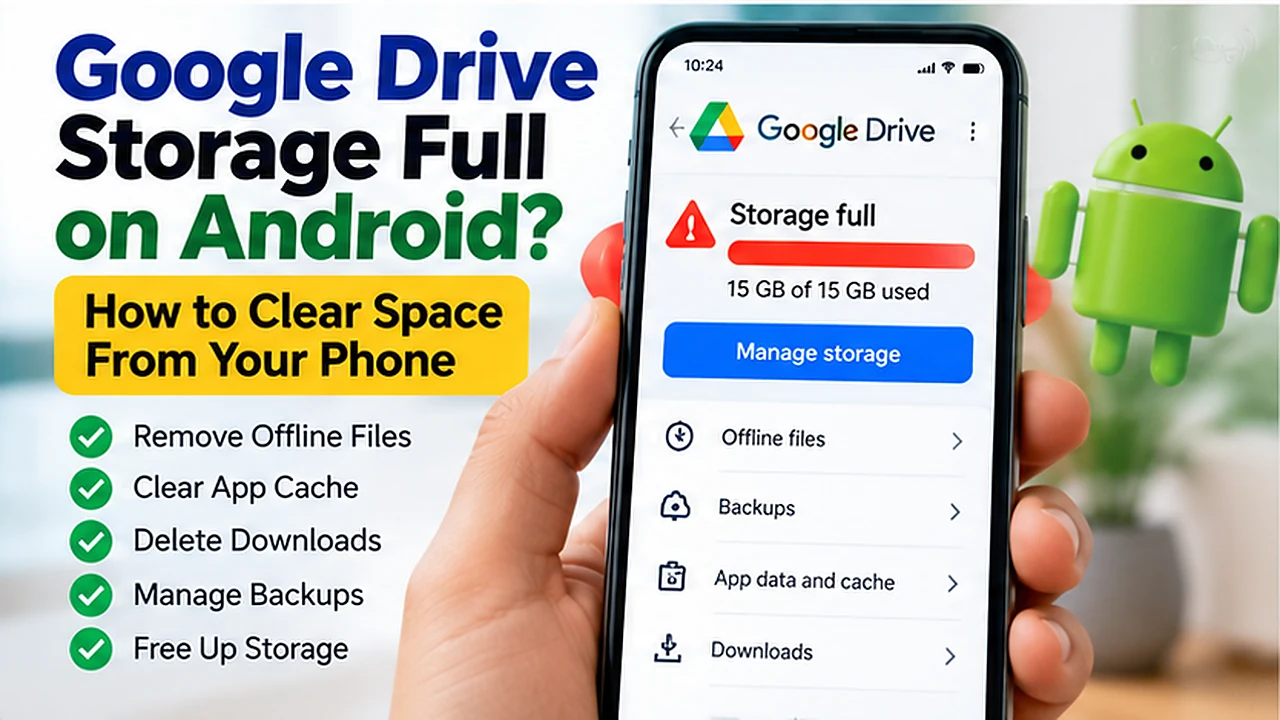
Google Drive Storage Full on Android? How to Clear Space From Your Phone
A “storage full” message on an Android phone can mean two completely different things, and mixing them up is why so many people get stuck. If your Google Drive storage is full on Android, the problem is usually your Google Account’s cloud space. If your phone says it has no room, the problem is the device’s internal memory. The fixes are different, and sometimes you need both.
This guide shows you how to tell which problem you have, how to clear Google Drive storage from your phone in a few taps, and how to stop Android backups, WhatsApp and Google Photos from filling your account again. It applies to Pixel, Samsung, Motorola, OnePlus and other Android devices in the US, UK, Canada, Australia and everywhere else.
First, work out which storage is full
Before you delete a single photo, check which kind of storage is the issue.
Cloud storage (your Google Account)
This is the 15 GB shared between Google Drive, Gmail and Google Photos. You will see a banner in Drive, Photos or Gmail, or an email from Google, saying your account is almost full or over its limit. When this storage is full, Google says you cannot upload new files to Drive, Photos cannot back up new pictures and videos, and Gmail can have trouble sending and receiving mail. Deleting files on your phone does not fix this, unless the deletion also removes the item from the cloud.
Device storage (your phone’s memory)
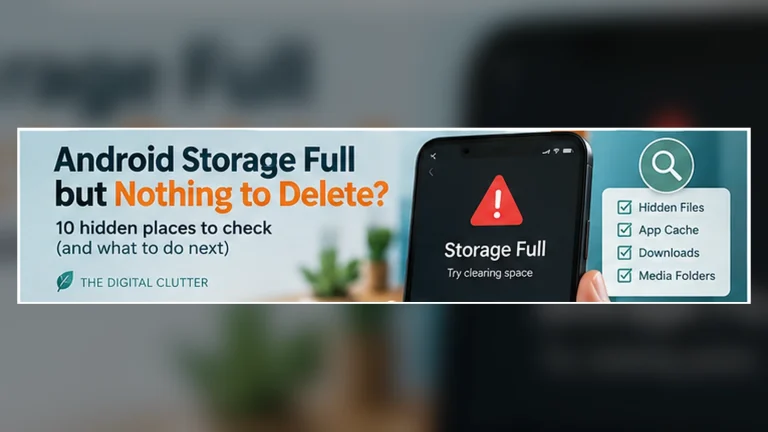
This is the space inside the phone itself. When it is full, you see “Storage almost full” in notifications, apps stop updating, and the camera may refuse to take pictures. To check, open Settings, then Storage (on some phones it is under Battery and device care or Device care). You will see a breakdown by apps, images, videos and other files. If that is your problem, our guides on how to free up space on Android and Android storage full but nothing to delete are the better place to start.
A good rule of thumb: if the warning mentions Google Account, Drive, Gmail or Photos, it is cloud storage. If it appears in Settings under the phone’s own storage, it is device storage.
How to see what is using your Google storage from your phone
The fastest way to see your breakdown is to let Google show you.
- Open the Google Drive, Google Photos or Gmail app.
- If a banner appears, tap Clean up space or Manage storage. Otherwise open the app menu and look for the storage option.
- Tap usage details to see how much is used by Photos, Drive and Gmail.
This opens the Google One storage manager, which works for everyone whether or not you pay for a plan. We cover it in detail in our Google One storage manager guide. Under the cleanup options you can choose Photos, Drive, Gmail or Trash, and review the largest items first.
How to clear Google Drive storage on your phone
Once you know where the space is going, work through these steps. They are listed from the quickest wins to the most thorough.
Step 1: Empty the Drive trash
Files you delete in Drive move to the trash and keep counting against your storage until they are removed. In the Drive app, open the menu, tap Trash, then use the three-dot menu to Empty trash or select items and delete them forever. This is the single most common reason a cleanup “does not work”.
Step 2: Find your biggest files
In the Drive app, open the menu and look for Storage or sort your files by size where the option is offered. Large videos, screen recordings, scanned PDFs and ZIP files usually sit at the top. Open the three-dot menu on a file, choose Download if you want to keep a copy, then Remove.
If your Drive looks empty but you are still full, the space is almost certainly in Gmail, Photos or hidden backups. Our guide to Google Drive storage full but no files explains how to track those down.
Step 3: Remove offline files and clear the Drive cache
Files you mark as available offline are saved on your phone, which uses device storage rather than cloud storage. To free that space, open a file’s three-dot menu and turn off Available offline. You can also clear the app’s temporary data: open Settings in the Drive app and choose Clear cache, or go to your phone’s Settings, Apps, Drive, Storage, and tap Clear cache. Clearing cache never deletes your files, though Drive may need to re-download previews.
Step 4: Clean up Google Photos
For most Android users, Photos is the biggest source of cloud storage use. Since June 2021, new photos and videos count against your 15 GB, even if you use Storage saver quality. In Photos, review large videos, screenshots, memes and duplicates, and delete what you do not need. Then empty the Bin, since deleted items keep counting until they leave it.
There is also a separate Free up space option in the Photos settings. Be careful with this one: it removes local copies of photos that are already backed up, which helps your phone’s memory but does not reduce your Google Account usage. It is the right tool for device storage, and the wrong tool for cloud storage. For a bigger library cleanup, see our guide to organizing digital photos.
Step 5: Stop backing up folders you do not need
Photos can back up more than your camera roll, including screenshots, downloads, WhatsApp media and other app folders. In the Photos app, open your profile picture, then Photos settings, Backup, and Back up device folders. Switch off folders that you do not want in the cloud. This is one of the most effective ways to stop the problem returning.
Step 6: Clean up Gmail on your phone
Gmail’s search works the same on Android as on the web. Try has:attachment larger:10M to find heavy emails, or category:promotions older_than:1y to find old promotions. Delete the results, then empty Trash and Spam. For a complete plan, read how to clean up Gmail.
Android backups and WhatsApp: the hidden storage hogs
Some of the biggest items in your account never appear in My Drive. They live in a hidden backup area, and they are the most common explanation when people say, “I deleted everything and I am still full”.
Old phone backups
Android can back up app data, settings, call history and more to your Google Account. Each device you have used may have left a backup behind. On a computer, open drive.google.com/drive/backups to see them. Backups for phones you no longer own are usually safe to delete. Before you delete the backup for your current phone, make sure it is not your only copy of important app data.
To change what your phone backs up, open Settings, then Google, then Backup. The exact name varies by manufacturer, but you can usually review what is included and when the last backup ran.
WhatsApp chat backups
WhatsApp backups on Android go to your Google Drive storage, and they can be large if you receive many videos. In WhatsApp, open Settings, then Chats, then Chat backup. Here you can switch off Include videos, lower the backup frequency, or turn backup off if you prefer another method. Deleting old media inside chats before the next backup makes the file smaller too.
Free up phone storage and cloud storage at the same time
If both are full, tackle them in a sensible order so you do not undo your own work.
- Back up or download anything you cannot replace.
- Clear cloud storage first, starting with trash folders, large videos and old device backups.
- Use Files by Google or your phone’s storage tool to remove junk files, unused apps and large downloads.
- Only then use Photos’ Free up space option to remove local copies that are safely backed up.
- Restart the phone and check both storage numbers.
If you are still unsure how much space you actually need, our phone storage calculator shows how photos, video, apps and music add up, and our phone declutter checklist gives you a 30-minute routine.
Google Drive storage settings worth changing
A few settings reduce future storage use without requiring any daily effort.
- Photo upload size. In Photos settings, Storage saver reduces the size of new uploads compared with Original quality. It still counts toward your storage, but it uses less of it.
- Backup folders. Choose only the folders you truly want in the cloud.
- WhatsApp backup frequency and video inclusion. Lower both if you have limited space.
- Auto-delete rules in Gmail. Create filters that automatically trash promotional emails after a time.
- Storage notifications. Leave them on. Early warnings give you time to clean up before uploads stop.
Free ways to get more Google storage on Android
People often search for Google Drive storage that is free. Here is the honest picture. Every personal account gets 15 GB for free, and that is the only permanent free allowance. You can make it go further without paying:
- Delete before you buy. A cleanup usually frees several gigabytes.
- Move old files to your computer or an external drive. Our guide to archiving files shows a safe method.
- Use a second free account for separate purposes. For example, keep a dedicated account for backups of a particular app. This is a workaround, not a perfect solution, so manage each account carefully.
- Check device promotions. Some new phones include a trial of a paid storage plan for a limited time. It ends, so note the renewal date.
If you do need more space, a small paid plan is often cheaper than losing time on constant cleanup. Plans and prices vary by country, so check the current options at one.google.com/about/plans before you decide.
Is the Android storage warning real?
Scammers love storage warnings because they work on everyone. If you see a pop-up in your browser saying your Google storage is full and you must act now, or you receive an email with a button to upgrade immediately, do not tap it. Open the Drive, Photos or Gmail app directly, or go to one.google.com in your browser, and check there. A real warning will appear inside your account. For a complete checklist, read our guide to the Google Drive storage full scam.
A monthly Android storage routine
Ten minutes once a month keeps both storage types under control. Put it in your calendar.
- Empty the Drive trash, Gmail Trash and Spam, and the Photos Bin.
- Delete the largest videos you do not need from Photos and your phone.
- Review WhatsApp media and delete old forwards and memes.
- Remove apps you have not opened for three months.
- Check drive.google.com/drive/backups for stale device backups.
Our monthly digital cleaning routine expands this into a full maintenance plan, and the main Google Drive storage full guide covers the web and desktop side.
Pixel, Samsung and other phones: where the menus differ
Android is not one single interface, so the labels you see can differ from the steps above. The underlying options are the same, but they sit in different places.
- Google Pixel: Settings, then Storage, shows device usage. Google backup options sit under Settings, Google, Backup.
- Samsung Galaxy: Device storage is often under Settings, Battery and device care, Storage. Samsung also has its own cloud service, so check that duplicate backups are not running to both Samsung and Google.
- Other brands: Look for a Storage or Phone Manager section in Settings. Searching the Settings app for the word “storage” is usually the fastest route.
If you cannot find an option, search inside the app instead. Both Drive and Photos have a search bar and a settings page that are laid out the same on every brand, because they are Google’s apps rather than the manufacturer’s.
Still full after cleaning up on Android?
If you have emptied the trash and deleted large files but the warning will not go away, check these causes one at a time.
- The wrong account. Many Android phones are signed in to more than one Google Account. Tap your profile picture in Drive or Photos and confirm which account you are cleaning.
- Photos is still backing up. If backup is on, new pictures keep arriving as you delete old ones. Pause backup while you clean up, then adjust the folders.
- The trash is not empty. Check the Drive trash, Gmail Trash, Gmail Spam and the Photos Bin. That is four separate places.
- Hidden backups remain. Visit drive.google.com/drive/backups on a computer and look for old devices and apps.
- The counter has not refreshed. Give it several hours, then close and reopen the app.
- It is device storage after all. If your phone, not your account, is the problem, use Settings, Storage, or Files by Google to clear junk, large files and unused apps.
When none of this explains the numbers, a computer makes diagnosis much easier, because the web versions of Drive and the storage manager show more detail than the apps do.
Use a computer to finish the job
Phones are fine for quick fixes, but a bigger screen makes a big cleanup faster. On a computer, open one.google.com/storage for the breakdown, drive.google.com/drive/quota to see your files sorted by size, and drive.google.com/drive/backups for device backups. Searching Drive for is:unorganized owner:me will also reveal orphaned files you own that do not sit in any folder.
If you want a long-term plan rather than a one-off fix, our guides to decluttering Google Drive fast and organizing Google Drive help you build a simple folder system so that clutter does not return. And if you would like a single printable routine for every device you own, the digital declutter checklist covers phones, computers and accounts together.
Frequently asked questions
Why is my Google Drive storage full on Android when I have few files?
Because your 15 GB is shared with Gmail and Google Photos, and it also includes phone backups and WhatsApp backups. A small Drive does not mean a small account.
How do I clear Google Drive storage on my phone?
Empty the Drive trash, delete your largest files, remove old backups, and clean up Photos and Gmail. Clearing the Drive app cache and removing offline files frees space on the phone itself.
Does deleting photos from my phone free up Google storage?
Only if the deletion also removes the photos from Google Photos. Using Free up space on the device keeps the cloud copies, so it does not reduce your Google Account usage.
Where do WhatsApp backups go on Android?
They are stored in your Google Drive storage and count toward your Google Account limit. You can reduce them by excluding videos or changing the backup frequency in WhatsApp settings.
What happens if I ignore the storage full warning?
You will not be able to upload to Drive or back up photos, and Gmail may stop sending and receiving. Clean up promptly to avoid losing access to new uploads.
How do I manage Google storage settings from my phone?
Open Drive, Photos or Gmail and tap Manage storage or Clean up space to reach the storage manager. From there you can review usage by service and delete items in bulk.
Conclusion
When Google Drive storage is full on Android, start by identifying whether the problem is your cloud account or your phone’s memory. For cloud storage, empty the trash folders, delete large videos and old backups, and tidy Photos and Gmail. For device storage, clear cache, remove offline files and unused apps. Then change a few settings so the same problem does not come back.
Half an hour of cleanup now, followed by a ten-minute check each month, is usually all it takes to keep your storage healthy for good.