Google Drive Storage Full but No Files? 9 Hidden Causes and How to Fix Them
You open Drive, scroll through your folders, and find almost nothing. Yet Google keeps telling you that you are out of space. If your Google Drive storage is full but you have no files to show for it, you are dealing with one of the most common and most misunderstood problems in the Google ecosystem. The good news is that the space is never really “missing”. It is sitting somewhere you are not looking, and in most cases you can get it back in under half an hour.
This guide explains how Google counts storage, lists the nine hidden places where your space usually goes, and walks you through a repeatable cleanup. It applies whether you are in the US, UK, Canada, Australia or anywhere else, because Google applies the same 15 GB rule to free accounts worldwide.
Why Google Drive says storage is full when it looks empty
The key fact is that “Google Drive storage” is a slightly misleading name. Every personal Google Account comes with 15 GB of free storage, and that one allowance is shared across Google Drive, Gmail and Google Photos. When Drive shows a red or yellow banner saying you are nearly full, it is really talking about your whole account, not just the files you can see in the Drive folder view.
So a Drive that looks empty can still be “full” because the space is being used by:
- years of email and attachments in Gmail, including Spam and Trash;
- photos and videos backed up to Google Photos;
- deleted files that are still sitting in the Drive or Photos trash;
- device backups, app data and WhatsApp chat backups that never appear in My Drive;
- files you own that were left behind in a folder someone else deleted.
Google’s own help pages are clear on one more point: files that other people share with you do not use your storage. They count against the owner. That is why checking “Shared with me” is rarely the answer, and why you should focus on files that you own.
Step 0: See where your storage is actually going
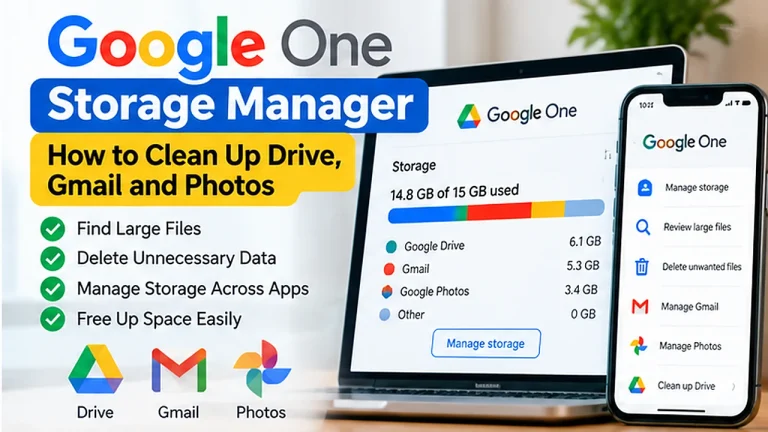
Before you delete anything, get a clear picture. Open one.google.com/storage while signed in to the affected account. You will see a breakdown showing how much space Drive, Gmail and Photos each use, plus a section for the trash. This single page usually reveals the culprit within ten seconds.
Then open drive.google.com/drive/quota. This page lists every file you own in Drive from largest to smallest, including files that are hidden from the normal folder view. If something huge is sitting there, you will see it immediately.
Make a note of the numbers. You will compare them again at the end so you know the cleanup worked. If you want a calmer, more systematic way to do this kind of audit, our digital declutter checklist walks through every account and device you own.
The 9 hidden causes of “Drive full but no files”
1. Gmail messages and attachments
For many people, Gmail is the biggest consumer of the shared 15 GB. Every email counts, and attachments count most. A decade of PDF invoices, photo attachments and forwarded presentations can quietly add up to several gigabytes even when your inbox looks tidy.
To find the heavy hitters, type this into the Gmail search box: has:attachment larger:10M. Review the results, download anything you want to keep, and delete the rest. Try larger:5M older_than:2y for a second sweep. If you want a full inbox cleanup plan, see our guides on how to clean up Gmail and the ultimate email cleanout.
2. Gmail Spam and Trash
Deleted emails are not really gone. They move to Trash, where they still count toward your quota until they are removed, and Spam works the same way. Gmail empties Trash automatically after about 30 days, but if you deleted a huge batch recently you will not see the space return straight away.
Open Trash in the left-hand menu and click Empty Trash now. Do the same in Spam with Delete all spam messages now. This one step often frees more than people expect, especially after a big inbox purge.
3. The Google Drive trash
This is the classic reason Drive looks empty but still says it is full. When you delete a file in Drive, it goes to the trash and keeps counting against your storage. Items there are removed after 30 days, but you do not have to wait.
Go to drive.google.com/drive/trash, review what is there, and choose Empty trash. If you only want to remove some items, right-click them and pick Delete forever. Remember this cannot be undone, so skim the list first.
4. Google Photos
Since June 2021, new photos and videos you back up to Google Photos count toward the same 15 GB, even when you use the compressed “Storage saver” option. If you have an Android phone or an iPhone with automatic backup turned on, Photos may be the real storage hog.
Open Google Photos, go to Settings and check Manage storage (the exact label varies slightly by device). Photos also has its own bin, which keeps deleted items for about 60 days. Empty it if you want the space back immediately. For a broader plan, our post on organizing digital photos shows how to sort, dedupe and archive a large library without spending your weekend on it.
5. Phone backups, WhatsApp and hidden app data
Some of the largest items in your account never show up in My Drive. Android phone backups, app data and WhatsApp chat backups are stored in a hidden area of Google Drive. On the web, you can see them by opening drive.google.com/drive/backups.
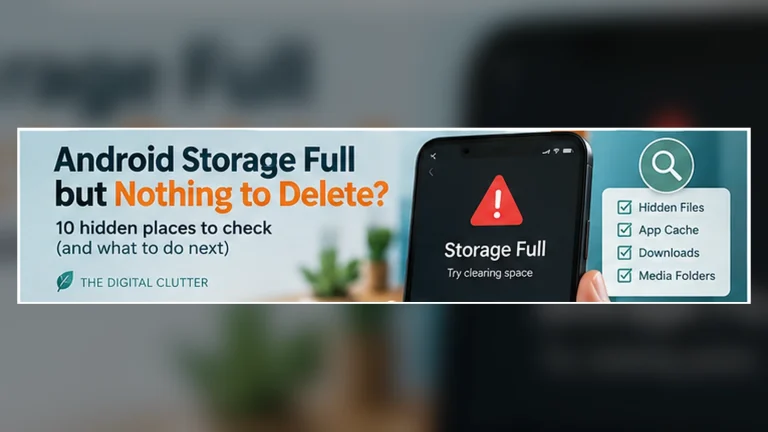
If an old phone you no longer use still has a backup there, that backup may be taking up gigabytes. You can delete backups for devices you have retired. For WhatsApp, open the app’s chat backup settings and consider turning off the option to include videos, which are usually the biggest part of the backup. Our guide to Android storage that is full when there is nothing to delete covers the phone side of this problem.
6. Orphaned files
Here is a lesser-known trap. If you added a file to a shared folder and the folder owner later deleted the folder, your file may not be deleted with it. It still belongs to you and still uses your space, but it no longer appears in any folder, so it looks like it has vanished.
To find these, type is:unorganized owner:me into the Drive search bar. Anything that appears is a file you own that is not inside a folder. Review it, move what you need into My Drive and delete the rest.
7. Large files you own but forgot about
It sounds obvious, but a single screen recording, video export or ZIP archive can be bigger than ten thousand documents. Because Drive’s default view is sorted by name or date, big files are easy to miss. Use the quota page mentioned earlier, or in Drive click the Storage option in the left menu, which sorts by size.
Also check files you share with others. If you own a large video that you shared with a colleague or client, it uses your quota even though you rarely open it. Consider moving finished projects to local storage. Our guide on how to archive files explains a safe system for people who do not want to delete anything permanently.
8. Old versions and duplicate uploads
Drive normally keeps earlier versions of uploaded files for a limited time, but a version that has been marked Keep forever stays and uses space. If you re-uploaded the same large file many times, or the same folder was synced twice, you may also have duplicates stacked on top of each other.
Right-click a big file, choose Manage versions, and delete the older ones you do not need. For duplicates, see how to find and delete duplicate files, which covers Windows, Mac, phone and cloud.
9. A delay in Google’s usage counter
Sometimes you did everything right and the number still has not moved. Storage figures can lag behind reality, especially after you delete many files at once. In some cases it can take up to a couple of days for your total to update. If you have emptied every trash folder and the usage still looks wrong, wait a day before you assume something is broken.
Fix it in 20 minutes: a step-by-step cleanup
Use this order. It starts with the changes that free the most space for the least effort.
- Open one.google.com/storage and note how much Drive, Gmail and Photos each use.
- Empty the Drive trash and the Photos bin.
- In Gmail, empty Trash and Spam.
- Search Gmail for has:attachment larger:10M and delete or download what you do not need.
- Open the Drive quota page and delete or move your largest files.
- Search Drive for is:unorganized owner:me and clear out orphaned files.
- Visit drive.google.com/drive/backups and remove backups from devices you no longer use.
- In Photos, review large photos and videos, screenshots and blurry shots.
- Wait several hours, then check the storage page again.
If you would rather have Google guide you, the built-in cleanup tool does a lot of this automatically. We explain it in detail in our guide to the Google One storage manager.
Google Drive storage full after deleting files: why nothing changes
This is one of the most searched variations of the problem, and it has a simple explanation. A deleted file is not a removed file until it leaves the trash. If you deleted hundreds of files and the storage bar did not budge, you probably left the Drive trash, the Gmail trash or the Photos bin unemptied.
There is a second possibility: you deleted files that were not the problem. If Gmail or Photos holds most of your data, deleting more Drive documents will barely change the total. That is why starting with the storage breakdown matters so much. Delete where the space actually is, not where you assume it is.
Finally, remember the counter delay. After a large cleanup, give it some time and refresh the page before you conclude that nothing worked.
Google Drive storage full but you have no files to delete
Sometimes you genuinely have a modest amount of data and still run out of room, usually because Gmail and Photos have been quietly accumulating for ten years. If you have done the cleanup above and still need more space, you have several options.
- Download and archive. Use Google Takeout at takeout.google.com to export your Gmail, Photos or Drive data to your computer or an external drive, then delete it from Google. Keep at least two copies of anything important.
- Change your photo habits. Turn off automatic backup for screenshots and videos you do not need in the cloud, or switch to Storage saver for new uploads.
- Unsubscribe at the source. Newsletters and promotions fill Gmail with attachments and images. Unsubscribing reduces future growth.
- Pay for a small plan. If you rely on Google heavily, a paid plan may be cheaper than the time you spend fighting the limit. Plans and prices vary by country, so check the current options on Google’s own plans page.
What you should not do is ignore the warning. Google says that when you are over your limit you cannot upload new files to Drive, Photos cannot back up new items, and Gmail can stop sending and receiving messages. For a workable, long-term setup, read our guide on how to organize Google Drive.
If you use a work or school account
If your account belongs to an organization, your storage is controlled by an administrator, not by the free 15 GB rule. Quotas, trash retention and what you are allowed to delete may all be managed centrally. If the numbers do not match what you expect, contact your admin. Do not buy a personal plan to fix a work account problem, because personal subscriptions do not change an organization’s quota.
How to stop Drive from filling up again
Once you have cleared space, a few small habits keep the problem from coming back.
- Do a short monthly check. Spend ten minutes emptying trash folders and looking at the biggest files. Our monthly digital cleaning routine gives you a ready-made schedule.
- Delete big attachments right after saving them. Download the file you need, then remove the email or attachment.
- Use clear folder names. A consistent naming system makes duplicates and forgotten files easier to spot. See file naming conventions for simple rules.
- Review backups when you change phones. Delete the backup for the old device once the new one is working.
- Treat Drive as working space. Move finished, rarely used projects to an archive on your computer.
If you want the bigger picture on why clutter builds up in the first place, our overview of what digital clutter is is a good place to start, and the full Google Drive storage full guide covers the broader fixes for the problem.
Frequently asked questions
Why is Google Drive saying my storage is full?
Because your 15 GB is shared between Drive, Gmail and Photos. Your total across all three has reached the limit, even if Drive itself looks nearly empty.
How do I free up storage space on Google Drive?
Start by emptying the Drive trash, Gmail Trash and Spam, and the Photos bin. Then delete your largest files and old backups, and review large email attachments. The step-by-step list above puts these in the best order.
Do shared files count against my Google Drive storage?
Files shared with you do not count against you, because they use the owner’s storage. Files you own and share with others do count against your account, and so does any copy you make of a shared file.
Does Gmail use my Google Drive storage?
Yes. Gmail, Drive and Google Photos draw on the same account storage, so large email attachments reduce the space available for Drive files.
How long does Google storage take to update after I delete files?
Often it updates quickly, but after large deletions it can take a day or longer. Empty the trash folders first, then check again later.
Can I recover files after I empty the trash?
Generally not. Deleting forever is permanent, so look through the trash carefully before you empty it, and download anything you might want first.
Conclusion
When your Google Drive storage is full but you have no files in sight, the cause is almost never a bug. It is shared storage, trash folders and hidden backups doing exactly what they were designed to do. Check your breakdown at one.google.com/storage, empty every trash, clear Gmail attachments, and look for orphaned files and old backups. Within about twenty minutes you should see the number drop and the warning disappear.
Then take five minutes to set up a monthly habit so you never see that banner again. If you want help with the next step, explore our guides on decluttering Google Drive fast and using the Google One storage manager.