How to Clean Up iPhone Storage Without Deleting Important Photos or Files
iPhone Storage & Digital Cleanup Guide
Running out of iPhone storage does not mean you need to start randomly deleting photos, messages or apps. The safest approach is to identify what is actually using space, remove low-value data first and protect important photos and files before making large deletions.
This guide explains how to clean up iPhone storage step by step using Apple’s built-in storage tools, app offloading, photo cleanup, download management and a simple maintenance routine.
Quick Answer: How Do You Clean Up iPhone Storage Safely?
To clean up iPhone storage safely, go to Settings > General > iPhone Storage, identify the apps and categories using the most space, review Apple’s storage recommendations, offload or delete unused apps, remove unnecessary downloads and large attachments, merge duplicate photos and back up irreplaceable files before deleting them. Start with the biggest storage categories instead of randomly clearing data.
What to Know Before You Clean Up iPhone Storage
The goal of an iPhone storage cleanup is not to delete as much as possible. It is to remove unnecessary data while protecting the photos, documents, messages and app information you still need.
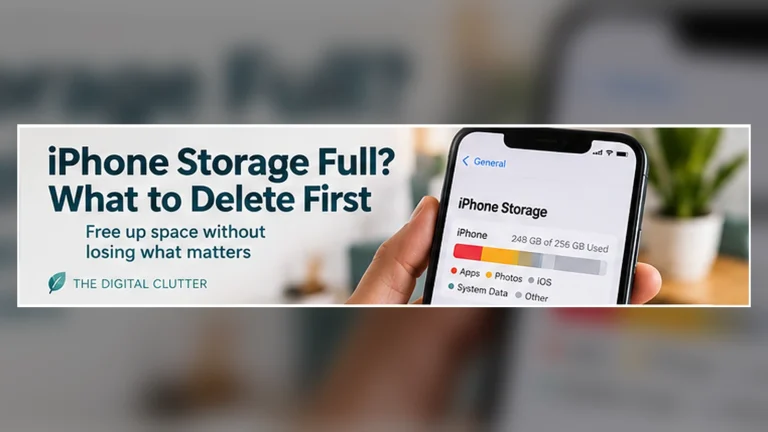
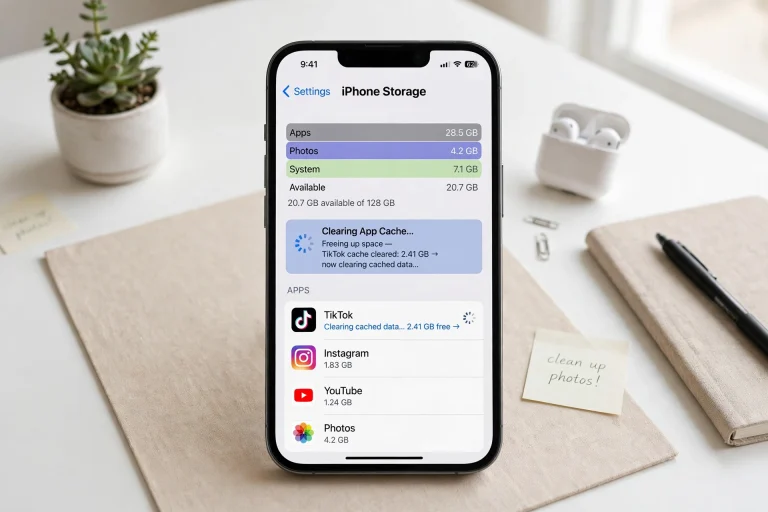
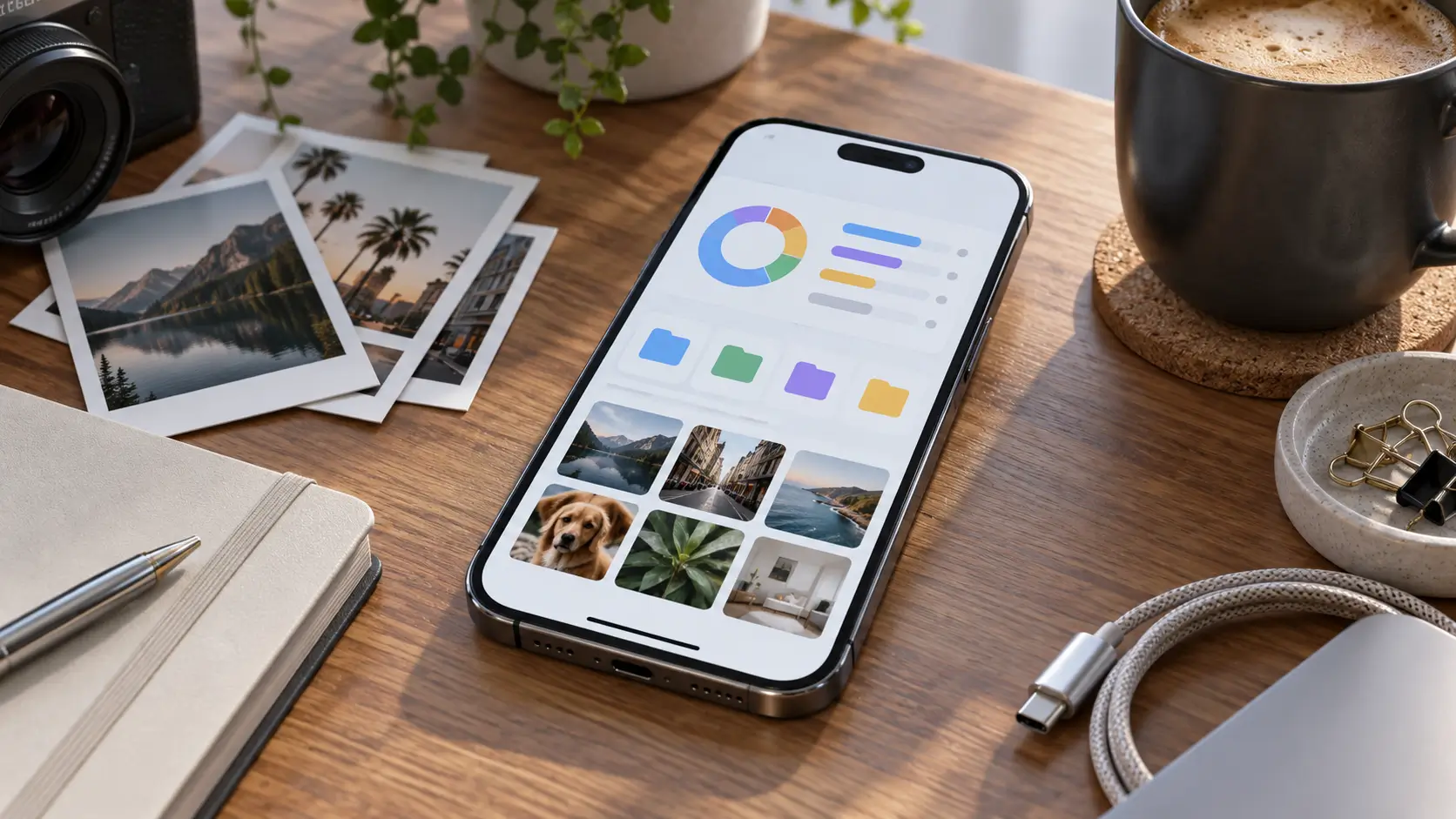
Start by understanding where the storage is actually being used. Apple’s built-in iPhone Storage screen shows storage categories, recommendations and a list of apps along with the space they use.
You can find it at:
Settings > General > iPhone Storage
Apple currently allows you to review storage recommendations and choose between offloading and deleting apps from this screen.
For Apple’s current storage instructions, see Apple’s official guide to checking iPhone and iPad storage .
How to Clean Up iPhone Storage: 10 Safe Steps
Work through these steps in order. Focus first on categories using the most storage rather than spending time deleting many tiny files that make little difference.
1. Check What Is Actually Using Your iPhone Storage
Open:
Settings > General > iPhone Storage
Give the storage screen time to load. You will see a storage overview and a list of apps showing approximately how much space each one uses.
Look for the biggest categories first. Large apps, photos, videos, downloaded media and message attachments may provide much larger storage savings than deleting random small files.
- Identify your largest apps.
- Check how much space Photos is using.
- Look for media-heavy apps.
- Review apps storing large documents or downloads.
- Prioritize the largest safe cleanup opportunities.
2. Review Apple’s iPhone Storage Recommendations
The iPhone Storage screen may display recommendations designed to help you recover storage without manually searching through every app.
Review each recommendation before enabling it so you understand what will change.
3. Offload Apps You May Need Again
Offloading can be useful when an app takes up significant space but you may want to use it again later.
Apple states that offloading an app frees the storage used by the app itself while keeping its documents and data.
To review an app:
- Open Settings.
- Tap General.
- Tap iPhone Storage.
- Select an app.
- Review the available offload or delete options.
Offloading is particularly useful for apps that you rarely open but may want to reinstall later with their stored data still available.
4. Delete Apps You Truly No Longer Use
If an app has no continuing value, deleting it may make more sense than offloading it.
Before deleting an app, consider whether it stores important information locally. Export or back up anything you need first.
- Remove games you no longer play.
- Remove old shopping or travel apps you no longer need.
- Review duplicate apps that perform the same job.
- Check large editing or media apps carefully.
- Protect locally stored documents before deletion.
5. Review Photos and Videos Before Deleting in Bulk
Photos and videos can consume a significant amount of storage, but they may also be among the most valuable files on your device.
Start with obvious low-value items instead of mass-deleting your library.
- Unnecessary screenshots
- Screen recordings you no longer need
- Accidental photos
- Repeated photos
- Large videos that are safely backed up elsewhere
- Temporary images downloaded from websites or messages
If you want a broader photo-library cleanup, read our guide to deleting duplicate photos on iPhone and building a cleaner photo library .
6. Merge Duplicate Photos and Videos
The Photos app can identify duplicate photos and videos and group them in the Duplicates collection.
On current versions of iOS, go to:
Photos > Collections > Utilities > Duplicates
You can then review the detected items and use Merge where appropriate.
Apple says merging preserves the highest-quality version and relevant information while redundant copies are moved to Recently Deleted.
See Apple’s instructions for merging duplicate photos and videos .
7. Remove Downloaded Music, Videos, Podcasts and Offline Media
Streaming, podcast, music, navigation and video apps can accumulate offline content over time.
Review downloads inside the apps you use for:
- Podcasts
- Music and playlists
- Movies and TV episodes
- Video downloads
- Offline maps
- Course or training videos
Remove content you can easily download again and keep only offline media you realistically need.
8. Review Large Message Attachments
Long-running conversations can contain years of photos, videos, documents and other attachments.
Review large attachments and save anything important before removing it.
- Large videos
- Repeated photos
- Old documents
- Temporary attachments
- Media that is already safely stored elsewhere
Avoid deleting an entire conversation simply to save storage unless you are certain that you no longer need its contents.
9. Clean the Files App and Browser Downloads
The Files app can gradually collect PDFs, exported videos, downloaded documents, ZIP files and temporary items that you no longer need.
Review:
- The Downloads folder
- On My iPhone folders
- Old PDFs
- ZIP files
- Exported videos
- Duplicate documents
- Files downloaded only for temporary use
Open unfamiliar documents before deleting them if you are not sure what they contain.
10. Keep Some Free Storage Available
Do not wait until your iPhone is completely full before cleaning it.
Free storage gives iOS room for normal operations, app activity, new photos, downloads and software updates.
Apple currently recommends maintaining at least 1 GB of free space to help avoid slowdowns. Keeping additional headroom can also make everyday storage management easier.
iPhone Storage Cleanup Checklist
- Open Settings > General > iPhone Storage.
- Identify the biggest storage categories.
- Review Apple’s storage recommendations.
- Offload large apps you may need later.
- Delete apps you genuinely no longer use.
- Back up important photos and videos.
- Merge duplicate photos and videos.
- Remove unnecessary offline media.
- Review large message attachments.
- Clean Downloads and Files.
- Keep some free storage available.
What Should You Clean First?
| Storage Area | What to Review | Risk Level |
|---|---|---|
| Unused apps | Apps you rarely or never open | Low to Medium |
| Downloads | Offline videos, music, podcasts and files | Low |
| Screenshots | Old temporary screenshots and screen recordings | Low |
| Duplicate photos | Duplicates identified by Photos | Low to Medium |
| Messages | Large photos, videos and document attachments | Medium |
| Important photos | Large personal photo and video library | High — back up first |
| App documents | Locally stored projects or documents | High — verify first |
Common iPhone Storage Cleanup Mistakes to Avoid
Deleting Photos Before Confirming a Backup
Irreplaceable photos and videos should be protected before a large cleanup. Verify your backup rather than assuming everything has already been copied safely.
Deleting Random Small Files First
Start with the storage dashboard. Removing one large unused app or several downloaded videos can recover more storage than spending significant time deleting tiny items.
Deleting an App Without Checking Its Data
Some apps contain important documents, recordings or project files. Check whether the data is stored locally or synced somewhere safe before deleting the app.
Assuming Offload and Delete Are the Same
They are different. Offloading removes the app while preserving its documents and data. Deleting the app removes the app and its related data.
Using Aggressive “Cleaner” Apps First
Start with Apple’s built-in storage tools. If you consider a third-party utility, check its privacy permissions carefully and be cautious of unrealistic claims about cleaning system-level data.
Cleaning Once and Ignoring Storage Until It Is Full Again
Storage gradually fills through new photos, downloads, apps and attachments. A short recurring review prevents another emergency cleanup.
How to Clean Up iPhone Storage in 30 Minutes
If you only have half an hour, prioritize the areas most likely to recover meaningful space.
- First 5 minutes: open iPhone Storage and identify the largest apps and categories.
- Next 10 minutes: offload or remove unused apps and delete unnecessary downloaded media.
- Next 10 minutes: review screenshots, large videos, duplicate photos and large message attachments.
- Final 5 minutes: clean Files/Downloads and check that you now have reasonable storage headroom.
If you are unsure whether something is important, skip it and review it later instead of deleting it just to finish the cleanup quickly.
A Simple iPhone Storage Maintenance Routine
Weekly
- Delete temporary screenshots.
- Remove downloaded media you have finished using.
- Review the Downloads folder.
- Remove temporary screen recordings.
Monthly
- Check Settings > General > iPhone Storage.
- Look for apps that have grown significantly.
- Review downloaded podcasts, videos and music.
- Check duplicate photos.
- Review apps you no longer use.
Every Few Months
- Verify important backups.
- Review large photo and video collections.
- Remove apps you have stopped using.
- Review old message attachments.
- Confirm that important documents have a safe home.
Frequently Asked Questions About iPhone Storage
What is the safest way to free up iPhone storage?
Start with Settings > General > iPhone Storage. Review Apple’s storage recommendations and the largest apps first. Remove unnecessary downloads and unused apps, and back up important photos, videos and files before making large deletions.
Does offloading an iPhone app delete its data?
No. Apple states that offloading frees the storage used by the app while keeping its documents and data. This makes offloading useful when you want to remove an app temporarily without deleting its stored data.
Why is my iPhone storage still full after deleting photos?
Deleted photos and videos may remain in Recently Deleted before permanent removal. Other categories such as large apps, downloads, message attachments and app data may also be using more storage than your photo library.
How long do deleted iPhone photos stay in Recently Deleted?
Apple currently keeps deleted photos and videos in Recently Deleted for 30 days before permanent deletion unless you remove them permanently sooner.
Can I delete iPhone System Data?
There is no single safe button that removes all System Data. iOS manages temporary and system-related storage automatically. Avoid apps or instructions that promise to aggressively erase essential system data.
How do I find duplicate photos on iPhone?
Open Photos, tap Collections, open Utilities and select Duplicates. The Duplicates collection appears when the Photos app has detected duplicate photos or videos.
Why don’t I see Duplicates in the Photos app?
The Duplicates collection only appears when duplicates have been detected. Apple notes that the photo library must first be indexed and duplicate detection can take time.
Should I use an iPhone cleaner app?
Start with Apple’s built-in storage tools. If you use a third-party app for a specific cleanup task, review the app’s permissions and privacy practices carefully and avoid unrealistic claims about system-level cleaning.
How much free space should I keep on my iPhone?
Apple recommends maintaining at least 1 GB of free storage to help avoid slowdowns. Keeping additional free space can also be useful for software updates, photos, videos, downloads and everyday use.
What should I delete first when my iPhone storage is full?
Start with low-risk, high-impact items such as unused apps, offline video or podcast downloads, temporary screenshots and files you can easily download again. Protect important personal photos, documents and locally stored app data until you have confirmed a backup.
Clean iPhone Storage Without Losing What Matters
The most effective iPhone cleanup is not the one that deletes the most data. It is the one that safely removes unnecessary storage while keeping important photos, documents, messages and app data protected.
Start with the iPhone Storage dashboard, work from the largest safe opportunities downward, back up valuable files and build a small recurring cleanup habit so your storage does not become overwhelming again.
For a broader cleanup of your devices, inboxes, cloud files and accounts, continue with our complete digital declutter checklist .