Google Drive Storage Full Scam? How to Tell a Real Warning From a Fake
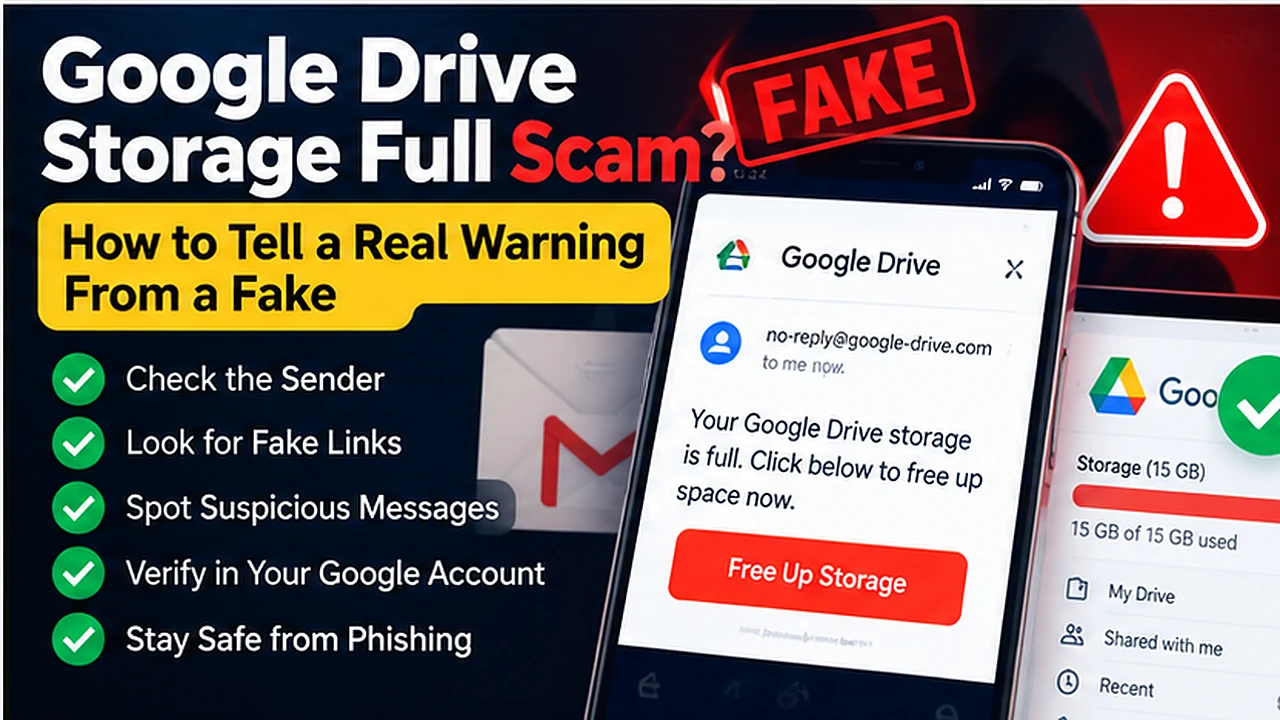
An email arrives with a red banner: “Your Google Drive storage is full. Your photos and files will be deleted.” Your stomach drops, because you do have years of photos in there. Before you click anything, stop. Messages like this are among the most common phishing tricks online, and the Google Drive storage full scam works precisely because real storage warnings exist too.
This guide shows you how to tell a genuine Google storage warning from a fake one, what the scams look like in emails, texts and browser pop-ups, what to do if you already clicked, and how to check your real storage safely. The advice applies in the US, UK, Canada, Australia and anywhere else, because the scammers use the same scripts everywhere.
Real warning or scam? The 30-second test
You can settle almost every case with one rule: never use the message to check your storage. Check it yourself.
- Do not click any link, button or attachment in the message, and do not call any phone number it gives.
- Open a new browser tab and type one.google.com/storage yourself, or open the official Google Drive, Gmail or Photos app on your phone.
- Sign in if asked and look at your storage figures.
If your account really is almost full, you will see it there, inside the official page or app, with a clear usage breakdown. If the page shows plenty of free space and no warning, the message was fake. A genuine provider does not need you to log in through a link in an email, because the warning is also waiting inside your account.
What a genuine Google storage warning looks like
Google does notify real users when they approach or exceed their limits, so it helps to know what normal looks like.
- In-product banners. Drive, Gmail and Photos show a banner when your account is close to full, usually with a Clean up space or Manage storage button that opens Google’s own storage manager.
- Notices in your account. Your storage page shows how much you use and what is eligible for cleanup.
- Emails that match what you see in your account. If you receive an email and your account shows the same issue, the notice is probably real, though you should still use your own bookmark to check and not the email’s links.
What real warnings do not do is threaten you with immediate deletion in a few hours, claim that dozens of viruses were detected, ask for your card number to “unlock” your files, or tell you to call a support line. Google does have policies about content that stays over the limit or inactive for a long time, but those operate over a period of months and years, not minutes, and they are announced inside your account.
Why this scam works so well
Scammers rely on the fact that your account really is probably fuller than you think. Free accounts have 15 GB shared across Drive, Gmail and Photos, and many people have been using Gmail for a decade. A message that says “your storage is full” is plausible, personal and frightening, because it threatens something you care about: your photos.
It also exploits timing. Because the scam is sent in huge volumes, some recipients will receive it on the very day their real account is nearly full. Security researchers have repeatedly reported sharp increases in “cloud storage full” phishing campaigns, and consumer-protection agencies in several countries have published warnings about them. Fake messages often impersonate Google, Apple iCloud, Microsoft OneDrive or Dropbox, and they sometimes arrive even if you do not use that service at all.
The most common versions of the scam
1. The fake email
The email subject may say things like “Your cloud storage is full”, “Storage almost full, action required” or “Payment failure for storage renewal”. The body is often short and urgent. It usually includes a large button labelled something like Upgrade Storage, Claim Free Space or Fix Now. Some versions add a fake count of security threats, such as “24 threats detected”, to push you toward clicking.
2. The text message
Text versions are even shorter. You receive a message claiming your storage is full or your payment failed, followed by a shortened link. Because phone screens hide details, it is harder to spot odd sender information, so treat unexpected storage texts as suspicious by default.
3. The browser pop-up
You may be browsing an unrelated website when a page suddenly fills your screen with a cloud icon and a message such as “Warning: your cloud storage is full.” It often pretends to scan your storage and always reports a problem. This is a fake web page, not a message from Google. The goal is to get you to click a button, install an app, allow notifications or enter payment details.
4. The “mailbox capacity” credential trick
Another variation claims your mailbox is nearly full, sometimes with oddly precise figures like “90.52% used” to look technical. The link leads to a fake sign-in page designed to steal your Google password. If you enter it, the criminals can read your email and reset other accounts linked to it.
5. Fake support numbers
Some pop-ups tell you to call a “Google support” or “cloud security” number. The person who answers pretends to help, then asks for remote access to your computer, gift cards or payment details. Google does not display phone numbers in browser warnings, and you should never give remote access to someone who contacted you first.
6. Drive sharing spam
A related trick abuses Google Drive itself. You receive a genuine-looking notification that someone shared a file with you, often titled with something like “Storage notice” or “Invoice” or “Claim your storage”. The email really does come from Google’s systems, but the document inside contains a link to a scam site. Do not open it. Use the report option in Drive to flag the file and block the sender.
Red flags that give it away
- Urgency and threats. Any message that says your data will be deleted today is trying to rush you.
- A sender address that does not match. Look at the full address, not just the display name. Random or misspelled domains are a giveaway, but remember that a correct-looking address can be faked, so use this as a clue, not proof.
- Generic greetings. “Dear user” or “Dear customer” instead of your name.
- Links that do not go to Google. Hover over a link on a computer, or press and hold on a phone, and read the real address. Real Google pages use google.com domains.
- Requests for payment or login on the spot. Genuine storage upgrades are done inside your account, at one.google.com.
- Services you do not use. An “iCloud is full” email when you have never used an iPhone is a dead giveaway.
- Fake scans and threat counts. A website cannot see how much storage your Google account uses.
- Spelling, formatting and logo problems. Blurry logos or odd phrasing suggest a copy.
What to do if you receive a suspicious storage message
- Do not click or reply. Replying confirms that your address is active.
- Check your real storage yourself. Use one.google.com/storage or the official app.
- Report the message. In Gmail, open the three-dot menu and choose Report phishing. In the UK you can also forward suspicious emails to report@phishing.gov.uk, and in the US and other countries you can report scams to your national agency (see below).
- Delete it. Once reported, remove the message and empty the trash.
- Tell family and colleagues. These messages are often sent in waves to everyone in a group.
What to do if you already clicked
Clicking is not always a disaster, but what you did next matters. Work through the situation that matches yours.
You only opened the page
Close the tab. If the page was a pop-up you cannot close, close the browser or restart the device. Clear your browser’s recent history and cache. If you accepted notifications from the site, remove that permission in your browser’s site settings, because that is how these pop-ups keep returning.
You entered your Google password
Act immediately. Go to myaccount.google.com by typing the address yourself and change your password. Run the Security Checkup to review recent activity and signed-in devices, and sign out of any you do not recognize. Turn on 2-Step Verification, or better still set up a passkey, so a stolen password alone cannot open your account. If you reuse that password anywhere else, change it there too.
You entered payment details
Call your bank or card issuer using the number on your card. Tell them what happened, ask them to block the card and dispute any charges, and request a replacement. Keep a record of the date and the website you visited.
You installed something or let someone connect remotely
Disconnect from the internet, remove the app or remote-access tool, and run a scan with a reputable security product. Change your important passwords from a different, clean device, and tell your bank if you shared any financial information. If you are unsure how far the access went, consider a professional cleanup or resetting the device.
Where to report scams in the US, UK, Canada and Australia
Reporting helps authorities track campaigns and sometimes shut down the sites involved. Use the official body in your country:
- United States: the Federal Trade Commission at reportfraud.ftc.gov.
- United Kingdom: Action Fraud, and forward suspicious emails to report@phishing.gov.uk.
- Canada: the Canadian Anti-Fraud Centre.
- Australia: Scamwatch at scamwatch.gov.au.
You can also report phishing directly to Google through Gmail’s Report phishing option, which helps protect other users.
If your storage really is full: what to do instead
Sometimes the warning is genuine. If your own check shows you are near the limit, you do not need to panic, and you do not need to pay anyone who contacted you. Use the legitimate tools:
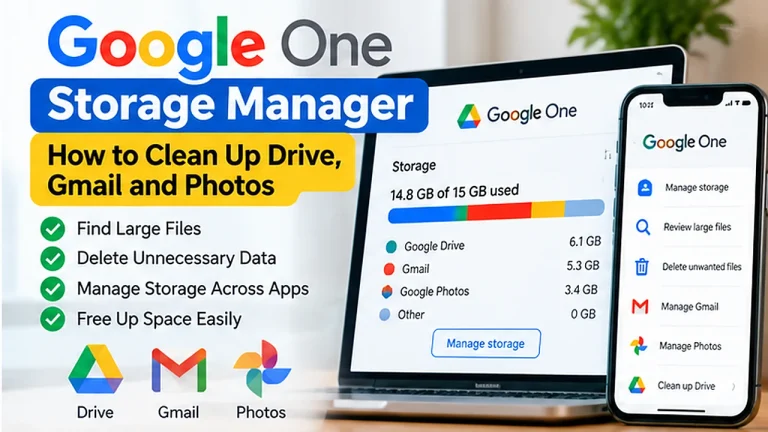
- Open the free Google One storage manager to see what is using space and delete safely.
- Empty the trash in Drive, Gmail and Photos, since deleted items still count until removed.
- If Drive looks empty yet the account is full, follow our guide to Google Drive storage full but no files.
- On a phone, see Google Drive storage full on Android for app-specific fixes.
- For a complete cleanup plan, read our main Google Drive storage full guide.
If you decide you want more space, buy it only through Google’s own plans page at one.google.com/about/plans or through the official app. Ignore offers for “free unlimited” or “free 2 TB forever” storage from unknown sites, because no such permanent offer exists for personal accounts. Genuine promotions come from Google or from a device maker and are time limited.
How to protect your Google account for good
Good habits make every scam less dangerous, even the ones you fall for in a weak moment.
- Use 2-Step Verification or passkeys. They are the strongest single protection for your account.
- Use a password manager. It will not autofill your password on a fake site, which is a useful warning in itself.
- Bookmark one.google.com and drive.google.com. Use bookmarks instead of links in messages.
- Keep your recovery phone number and email current. That makes it much easier to regain control if something goes wrong.
- Back up important data elsewhere. A second copy of your photos and documents means a lost account is an inconvenience rather than a disaster. See how to archive files for a simple approach.
- Review old accounts. The fewer forgotten accounts you have, the fewer ways attackers can reach you. Our guide to finding and deleting old online accounts helps.
- Shrink your exposure. The less personal data is online, the less scammers can use to make messages convincing. See how to clean up your digital footprint.
Real versus fake: a side-by-side comparison
When you are anxious, it helps to have a simple checklist. Compare what you received with these two columns in your head.
- Where you see it. A real warning shows up inside Drive, Gmail, Photos or your Google storage page. A fake one only exists in the email, text or pop-up.
- What it asks you to do. A real notice invites you to clean up space or look at plans in your account. A fake one demands a payment, a password, a download or a phone call right now.
- How it describes the problem. A real notice gives your actual usage. A fake one gives dramatic claims such as dozens of viruses, a hacked account or photos about to be erased.
- How it is addressed. A real notice relates to your own account. A fake one is generic and often mentions services you do not use.
- What happens when you check independently. A real problem is visible when you open your account yourself. A fake one vanishes.
If a message fails even one of these checks, treat it as untrustworthy until you have verified it separately.
Why you keep getting these messages
If fake storage warnings keep arriving, it does not necessarily mean that your account has been hacked. Scammers buy or collect huge lists of email addresses from old data breaches, public websites and guesswork, and then send the same message to millions of people. Your address may have been on one of those lists for years.
You can reduce the volume with a few steps. Mark each message as phishing instead of simply deleting it, so Google’s filters learn from it. Avoid clicking Unsubscribe in obvious scam messages, because that can confirm that your address is live. Use a separate email address for shopping and sign-ups, and keep your main address for people you know. If you want to check where your details have spread, our guides on how to remove yourself from the internet and cleaning up your digital footprint show how to limit your exposure.
Teaching family members to spot the scam
These scams often target parents, grandparents and teenagers, who may not have the habit of checking independently. Spend ten minutes showing them the one rule that matters: do not use the message, open the account yourself. Walk them through opening one.google.com/storage together and finding the real usage number, so they know what a normal page looks like.
It also helps to agree on a simple family routine. If anyone receives a worrying message about an account, they send a screenshot to the family chat before clicking anything. Most scams fall apart as soon as a second pair of eyes sees them.
Frequently asked questions
Is the “Google Drive storage full” email a scam?
It can be either. Google sends real storage notices, but scammers copy them. Never trust the email on its own. Open one.google.com/storage yourself and check your real usage.
How can I tell if my Google storage warning is real?
A real warning also appears inside Drive, Gmail, Photos or your storage page when you open them directly. A fake one disappears when you check your account, and it often adds threats, a countdown or a request for payment.
Will Google delete my files if my storage is full?
Being full stops new uploads and can affect Gmail, and Google has policies for accounts that stay over their limit or inactive for a long time. These work over months, not hours, and Google notifies you in advance, so a message claiming immediate deletion is a red flag.
Can I get 2 TB of Google storage for free?
Not permanently. Personal accounts get 15 GB free. Limited-time offers with larger storage sometimes come with new devices or promotions, but anything claiming free unlimited storage from an unknown site is a scam.
I clicked a fake storage link. What now?
Close the page. If you entered your password, change it immediately from myaccount.google.com and turn on 2-Step Verification. If you entered card details, call your bank. If you installed something, remove it and scan your device.
Why does a pop-up say my cloud storage is full when I have no cloud account?
Because it is fake. Websites cannot see your cloud storage, and scammers send the same pop-up to everyone. Close it and review your browser’s notification permissions.
Conclusion
A storage-full message feels urgent, and that is exactly what scammers count on. The safe response is always the same: ignore the message, open your Google account yourself, and look at the real numbers. If there is a genuine problem, free some space with the storage manager and your own cleanup. If there is not, report the fake and move on.
Spend five minutes today turning on 2-Step Verification and bookmarking your real Google pages. It is the easiest way to make the next fake warning harmless.