How to Find and Delete Old Online Accounts You Forgot About
Quick: how many online accounts do you have? If you guessed a few dozen, the real number is probably much higher — old shopping logins, forgotten forums, dead streaming trials, that photo app from 2016. Every one of them holds your email, many hold reused passwords, and all of them are breachable. Deleting old online accounts is one of the highest-leverage privacy moves you can make.
Here’s the systematic way to find every account tied to you and close the ones you don’t need.
Why Old Accounts Are Dangerous
- Breach exposure: When a forgotten service gets breached, attackers get your email + password — and try that combo everywhere. This is how “old, unused” accounts cause very current problems.
- Data brokers: Dormant accounts keep your personal data on servers indefinitely, feeding profiles you never agreed to.
- Money leaks: Forgotten trials convert to paid subscriptions. Old accounts hide them.
- Mental load: Every “we miss you!” email is a tiny ping from a past you already moved on from.
Step 1: Mine Your Email for Signups
Your inbox is an account archaeologist’s dream. Search for:
welcome,verify your account,confirm your emailthanks for signing up,your account is readyreceipt,order confirmation(shopping accounts)trial ending,subscription
Go back as far as your email history allows. Make a list — a simple note or spreadsheet works. For Gmail users, also check the “Purchases” and “Subscriptions” that Google surfaces.
Step 2: Audit Your Password Manager (or Browser)
If you use a password manager, open the vault: it’s a complete account inventory. Sort by “last used” if your manager supports it — anything untouched in 2+ years is a deletion candidate.
No password manager? Check your browser’s saved passwords (Chrome: Settings → Autofill → Passwords; similar in Firefox/Safari/Edge). Each entry is an account you created. And consider this project your sign to adopt a manager — our digital life management guide explains the setup.
Step 3: Check Connected Apps and “Sign In With”
- Google: myaccount.google.com → Security → Third-party access
- Facebook: Settings → Apps and Websites
- Apple: Settings → [your name] → Sign-In & Security → Apps & Websites Using Apple Account (Apple renamed ‘Apple ID’ to ‘Apple Account’ in iOS 18)
Every entry here is a service with ongoing access to your identity. Remove anything unfamiliar or unused — this alone closes dozens of “accounts” that aren’t full accounts but still hold your data.
Step 4: Search Your Usernames
Google your old usernames and email addresses in quotes. Old forum profiles, gaming accounts, and comment histories surface. Also try haveibeenpwned.com — it shows which breaches exposed your email, which tells you exactly which old accounts need password changes today (before you even get to deleting them).
Step 5: Delete Methodically
For each account on your list:
- Download your data first if you want it (most services: Settings → Privacy → Download data).
- Cancel subscriptions tied to the account before deleting.
- Find the deletion page: search “[service name] delete account.” It’s often under Settings → Privacy or Account. Note: “deactivate” ≠ “delete” — deactivation hides; deletion removes.
- Confirm by email and verify you can’t log in afterward.
Batch them: 10 accounts a day for a week beats one heroic session you’ll abandon.
When deletion isn’t offered
Some services only allow deactivation. In that case: remove personal details from the profile, change the email to a disposable one, set a random password, then deactivate. It’s not perfect, but it minimizes what’s stored.
Step 6: Opt Out of Data Brokers
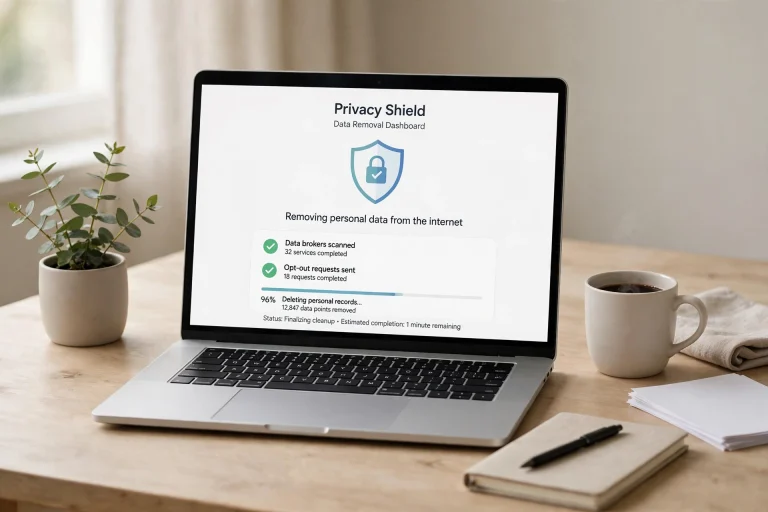
Even after deleting accounts, data brokers hold your info. Opt out of the major ones (Spokeo, Whitepages, BeenVerified, Acxiom) individually, or use a removal service. Re-check annually — brokers re-collect.
Keep the List Short Going Forward
- Default to guest checkout and “continue without account” wherever offered.
- Use a junk email for trials, newsletters, and one-off purchases.
- One-in, one-out: every new account means deleting an old one.
- Annual review: 30 minutes a year, repeat steps 1–3.
For the ongoing system that keeps all of this maintained, see our monthly digital cleaning routine.
Frequently Asked Questions
How do I find accounts I made with an old email address?
If you still have access, repeat the email-mining step there. If not, try account recovery on major services with that address, and search the address in quotes on Google. Old usernames (without the email) also work as search terms.
Will deleting accounts delete my purchase history?
Usually yes — that’s the point. Download receipts, license keys, and anything you might need for warranties or taxes before deleting shopping and software accounts.
What’s the difference between deactivating and deleting?
Deactivation hides your profile but the company typically retains your data. Deletion (under laws like GDPR/CCPA) requires actual data removal. Always choose deletion when it’s offered.
Should I delete social media accounts or just the apps?
If you don’t use the service, delete the account — deleting just the app leaves all your data on their servers. If you might return, tighten privacy settings and remove the app for now.
How often should I audit my accounts?
Once a year is plenty for most people, plus a quick check whenever you get a breach notification involving your email.
Conclusion
Old accounts are liabilities wearing the disguise of “I might need that someday.” You won’t. Find them through your email and password vault, delete them in batches, opt out of the brokers, and keep new signups on a short leash. Your future self — the one who never gets breached through a 2014 forum account — says thanks. For the full privacy-and-order system, continue with our digital life management guide.