Computer Clutter: What It Is and How to Clean It Up for Good
What is clutter in a computer?
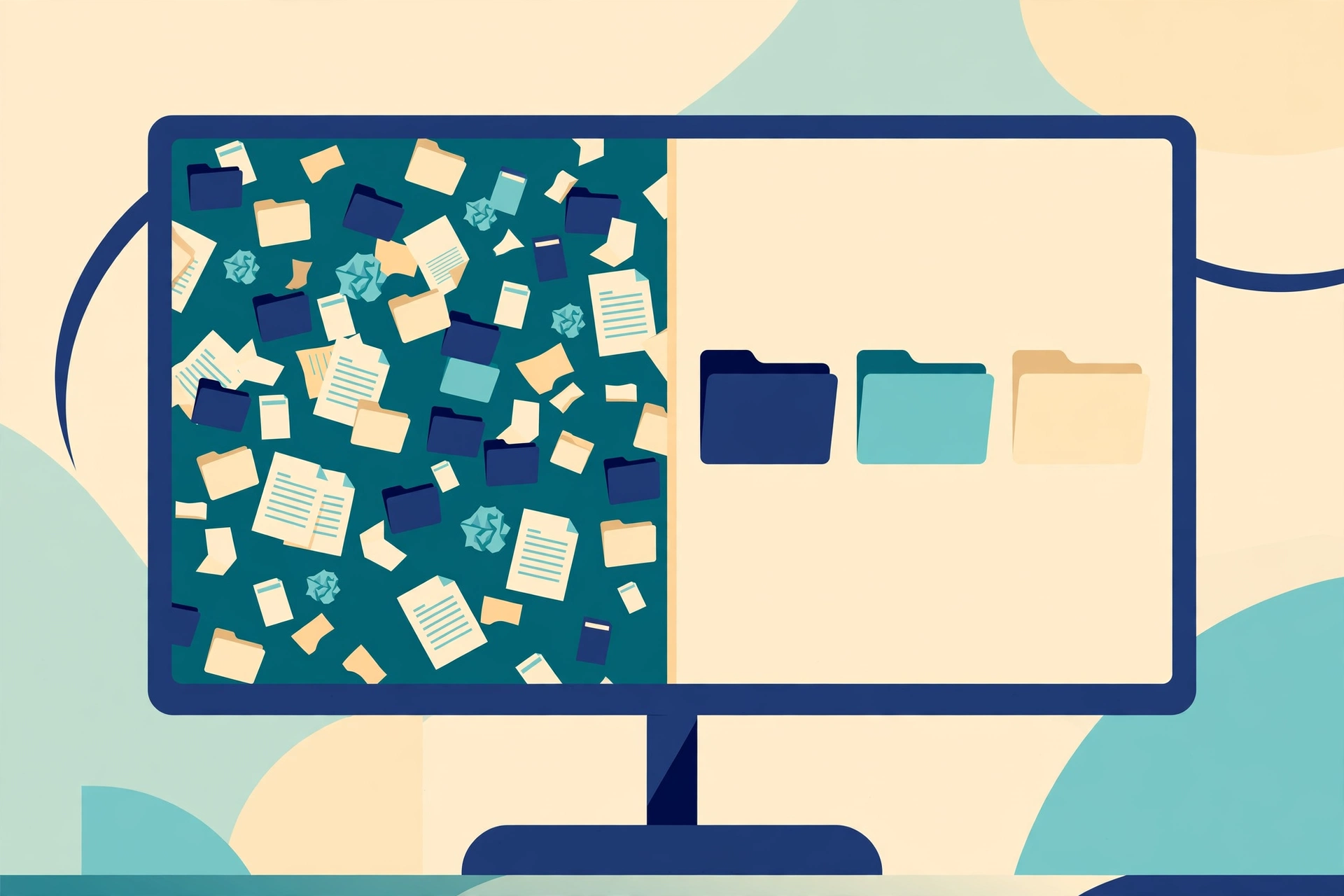
Computer clutter is the accumulation of files, programs, and data on a computer that no longer serves a purpose but continues to take up space and attention. It includes forgotten downloads, duplicate files, unused applications, scattered desktop icons, temporary files, and disorganized folders. Unlike physical clutter, computer clutter is easy to ignore because it hides behind a search bar — until the day you cannot find the file you need, your storage is full, or a simple task takes ten clicks instead of two.
If you have ever opened your Downloads folder and found three years of installers, screenshots, and PDFs you do not remember saving, you already understand computer clutter meaning in practice. It is the digital equivalent of a junk drawer: everything goes in, nothing comes out, and the useful things get buried under the rest.
Computer clutter is one part of a bigger picture. It is the device-level version of digital clutter, and it tends to grow quietly because modern computers make saving effortless and deleting feel risky. This guide covers what counts as computer clutter, how to recognize it, whether it actually slows your machine down, and a complete step-by-step cleanup for Windows and Mac — plus the folder system and maintenance routine that keep clutter from coming back.
What counts as computer clutter?
Not everything stored on your computer is clutter. Your working documents, photos you value, and the programs you actually use are data, not clutter. Clutter is the layer of digital leftovers that accumulates around the useful stuff. These are the most common forms it takes.
A desktop covered in icons
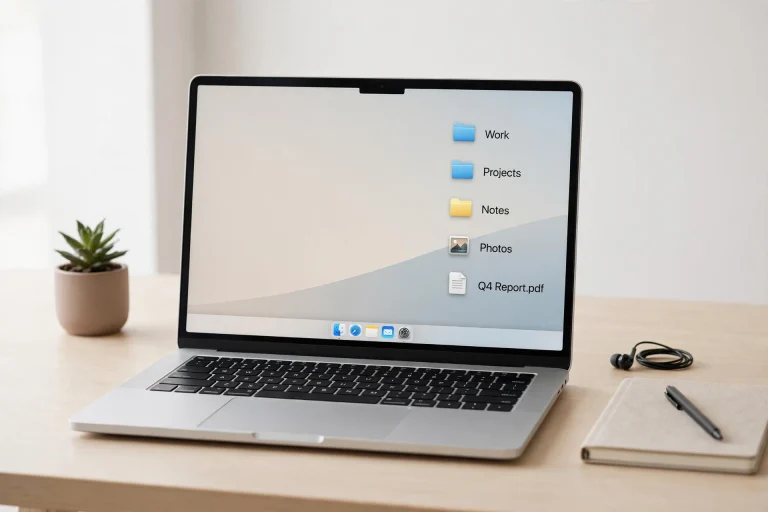
Desktop clutter is the most visible kind. Files saved “just for a minute,” screenshots, shortcuts to programs you never open, and documents you meant to file later all end up parked on the desktop. Because the desktop is the first thing you see, a cluttered computer often announces itself the moment you log in. The desktop is a workspace, not a storage unit — when it becomes storage, everything on it gets harder to spot at a glance.
A Downloads folder that never gets emptied
For most people, the Downloads folder is the single biggest clutter zone on the computer. Every browser download, email attachment, installer, statement, and ticket lands there, and almost nothing ever leaves. A healthy Downloads folder is nearly empty most of the time; a cluttered one holds hundreds or thousands of files spanning years, many of them duplicates of things already saved elsewhere.
Duplicate files
The same photo saved in three folders. A document called “Report,” “Report (1),” and “Report final FINAL.” Files copied for a one-time share and never deleted. Duplicates waste storage and create a worse problem: confusion about which copy is the real one. They build up through email attachments, cloud sync conflicts, repeated downloads, and cautious copying. If duplicates are a known issue on your machine, the dedicated process in this guide to find and delete duplicate files will clear them safely.
Unused programs and apps
Software you installed for one task in 2022 and never opened again. Trial versions that expired. Games you finished. Utilities that came pre-installed. Unused programs consume storage, sometimes run background processes or updaters, and lengthen the list you have to scan every time you look for the app you actually want. A cluttered computer almost always has a long tail of forgotten software.
Browser tabs, bookmarks, and extensions
Clutter is not only files. Dozens of open tabs, a bookmarks bar stuffed with links you will never revisit, saved bookmarks in folders you forgot exist, and browser extensions you do not recognize all count. They slow down your browsing sessions, make it harder to return to what matters, and turn “I’ll read that later” into a pile you quietly dread.
Old installers and setup files
Every .exe, .msi, .dmg, and .pkg you downloaded to install software has done its job the moment the installation finishes. Keeping them is like keeping the box and packaging for every appliance you own. Installers are also among the largest files in a typical Downloads folder, so deleting them reclaims real space quickly. You can always download a fresh copy from the developer if you ever need to reinstall.
Temporary and cache files
Your operating system and applications constantly create temporary files and caches to work faster. Most are managed automatically, but they can grow large — especially browser caches, leftover update files, and temp files from crashed programs. On Windows, these are visible through Settings > System > Storage, which breaks down exactly how much space temporary files are using. They are legitimate for your system to create, but periodically reviewing them is part of a proper computer declutter.
Disorganized or mystery folders
Folders with names like “Stuff,” “New Folder (2),” or “Backup old” that nobody can explain. Deep folder trees where the same category appears in three places. Files saved to the desktop, Documents, and a random folder on the drive with no logic connecting them. Disorganization is clutter even when every file is individually useful, because the system — not the storage — is what has failed.
Email stored on the computer
If you use a desktop email app, years of messages and attachments may be stored locally, quietly consuming gigabytes. Even with webmail, the habit of treating the inbox as a filing cabinet is clutter that follows the same pattern: everything kept, nothing sorted, search doing all the heavy lifting.
Signs your computer is cluttered
Clutter creeps in gradually, so it helps to know the warning signs. If several of these sound familiar, your computer is cluttered — even if it still “works fine.”
- You rely on search for everything. Search is a tool, not a filing system. If you cannot navigate to a file by folder because you have no idea where anything lives, the organization has already broken down.
- Your desktop is full. Icons covering most of the screen, or files stacked along every edge, are the clearest visible sign.
- Your Downloads folder has hundreds of files. Bonus points if you cannot remember downloading most of them.
- You get “storage almost full” warnings. Or you have started checking storage before saving anything large.
- You save files with names like “Document1” or “final_v2_REAL.” Chaotic naming is both a symptom and a cause of clutter.
- Simple tasks take longer than they should. Attaching a file to an email becomes a five-minute hunt.
- You have programs you cannot identify. Apps in your list that you do not remember installing or have not opened in a year.
- You keep multiple copies “just in case.” Duplicates kept out of uncertainty are clutter with extra steps.
- Opening a folder makes you sigh. The emotional response counts. If your own file system feels overwhelming, it is cluttered by definition.
Recognizing the pattern matters because computer clutter is one of several types of digital clutter that tend to reinforce each other — a cluttered computer usually travels with a cluttered phone, inbox, and cloud drive.
Does computer clutter slow your computer down?
This question deserves an honest, nuanced answer, because there is a persistent myth here. Files sitting on your desktop or in a folder do not, by themselves, drain your battery or make your processor work harder. A PDF does not consume energy by existing. If someone tells you that deleting desktop icons will make an old computer fast again, they are mostly wrong.
Here is what clutter genuinely does affect:
Nearly full storage is a real performance problem. When a drive is close to full — generally above 85 to 90 percent — the operating system has less room for temporary files, caches, virtual memory, and updates. Windows and macOS both need working space to function smoothly, and a completely full drive can cause failed updates, stalled downloads, app crashes, and genuine slowness. So clutter that fills your drive can slow your computer down indirectly, and cleaning it up restores the headroom your system needs.
Too many startup programs and background processes matter. This is about installed software, not files. Programs that launch at startup and run updaters or helpers in the background do consume memory and processing power. Removing unused applications and trimming startup items can make a noticeable difference to boot times and responsiveness.
The biggest cost is your time and attention. This is the part that is not a myth at all. A cluttered computer makes everything take longer: finding files, choosing where to save new ones, backing up, migrating to a new machine. It adds a small friction tax to every task, every day. The productivity cost of computer clutter dwarfs the performance cost for most people.
A cluttered desktop can have minor display effects. On some systems, constantly redrawing a desktop full of icons or rendering previews can use a small amount of resources, and a desktop synced to cloud storage (such as OneDrive or iCloud Desktop sync) can waste bandwidth syncing files that should never have been stored there. These are minor compared with the findability problem.
Bottom line: clean up computer clutter primarily because it makes your computer easier and calmer to use, and keep your drive comfortably below full because that genuinely affects performance and updates. Both are good reasons — they are just different reasons.
How to clean up computer clutter: step-by-step
This computer declutter process works whether you are on Windows or Mac, and it follows the same logic as a full guide to decluttering your digital files: check where you stand, clear the easy wins first, then build a system so you do not have to do a giant cleanup again. Set aside one to two hours for a first pass, or work through one step per day.
Step 1: Check your storage so you know where the clutter lives
Start with the facts instead of guessing.
On Windows: Go to Settings > System > Storage. You will see a breakdown by category — Apps, Temporary files, Documents, Pictures, and more — which tells you immediately where the bulk sits. Click any category for detail.
On Mac: On macOS Ventura or later, go to the Apple menu > System Settings > General > Storage. On older versions, go to Apple menu > About This Mac > Storage. macOS shows a category breakdown and offers built-in recommendations such as reviewing large files.
Write down the big categories. That is your cleanup order: biggest first.
Step 2: Empty the trash and clear temporary files
The fastest reclaim of space: empty the Recycle Bin (Windows) or Trash (Mac), which many people forget for months.
On Windows: In Settings > System > Storage, select Temporary files and let Windows list what can be removed — Windows Update cleanup, thumbnails, delivery optimization files, and the Recycle Bin. You can also turn on Storage Sense in the same Storage settings so Windows handles temp files automatically going forward. Keep downloads out of automatic deletion unless you are sure you want that.
On Mac: Empty the Trash (right-click the Trash icon > Empty Trash). Review the storage recommendations in System Settings > General > Storage, including “Reduce Clutter,” which surfaces large and old files. Restarting your Mac periodically also clears certain system caches safely — let macOS manage its caches rather than deleting cache folders manually.
Step 3: Triage the Downloads folder
Sort Downloads by size first and delete the obvious: old installers, setup files, disk images, and anything you can download again in seconds. Then sort by date and work through the rest with three choices per file — delete, file it properly, or leave it (very little earns “leave it”). Attachments you were sent also exist in your email, and documents that matter deserve a real home in your folder system, not permanent residence in Downloads. Aim for a Downloads folder that is empty or close to it when you finish. Treat it from now on as a landing strip, not a warehouse.
Step 4: Uninstall programs you do not use
On Windows: Go to Settings > Apps > Installed apps. Sort by size or scan the list and uninstall anything you have not used in the past year, do not recognize (check what it is first — some entries are system components or drivers, so skip anything you are unsure about), or installed for a single task long ago.
On Mac: Open the Applications folder in Finder. Drag apps you no longer use to the Trash, or delete them from Launchpad by holding the Option key and clicking the × on App Store apps. Mac users can find more depth in this Mac decluttering guide, which covers storage categories and system leftovers in detail.
Removing unused software reclaims space, shortens your app lists, and reduces background updaters.
Step 5: Hunt down duplicates
Search your main folders for the telltale signs: files with “(1)” or “copy” in the name, and identical file names in different folders. Check photos and downloads first — they duplicate the most. Before deleting apparent duplicates, confirm they really are identical (same size and date are good signs) and keep the copy that lives in the right folder. If your library is large, a duplicate finder tool can do the heavy lifting; the site’s tools hub links to free calculators and checkers, and the duplicate-files guide linked earlier walks through safe tools and settings.
Step 6: Clean the desktop to zero
Move every desktop file into its proper folder or delete it. Screenshots you still need go to Pictures; documents go to Documents; the rest usually turns out to be deletable. Hide or remove shortcuts to programs you rarely open — you can always launch them from the Start menu or Applications. A clean desktop is not about aesthetics; it means the next file you save to the desktop stands out and gets filed instead of blending into a crowd.
Step 7: Tidy the browser
Close tabs you have been “saving” for weeks — bookmark the one or two that genuinely matter and let the rest go. Review bookmarks and delete dead or forgotten links; if you have bookmark folders, open each one and be honest about whether anything in it still matters. Remove extensions you do not recognize or no longer use (in Chrome: the puzzle-piece menu > Manage extensions; similar menus exist in Edge, Firefox, and Safari). Clearing your browser cache can also reclaim space, but note that it signs you out of some sites and removes saved preferences, so treat it as an occasional step, not a routine one.
Step 8: Give the biggest folders a once-over
Finally, walk through Documents, Pictures, and any personal folders you created. Delete obvious junk — old screenshots, superseded drafts, blurry photos, exports you no longer need. Move anything miscategorized to the right place. You are not aiming for perfection today; you are clearing the backlog so the folder system in the next section can take over.
A simple folder structure that prevents clutter
Cleanup without a system is temporary. The reason files scatter is that saving them somewhere sensible takes thought, and under time pressure the desktop and Downloads always win. A small, obvious folder structure removes that friction because every file has an immediately clear home.
Keep it shallow and broad. Deep trees with six levels of subfolders recreate the “where did I put that?” problem. A proven simple structure looks like this:
- Documents
- Admin (ID, insurance, taxes, warranties, household records)
- Finance (statements, budgets, receipts worth keeping)
- Work or Business (projects, by year or client if needed)
- Writing / Personal Projects
- Archive (finished years and closed projects, out of daily view)
- Pictures
- Sorted by year, then event or month if you like — and nothing else
- Media (music, video projects, audio)
- Shared / Incoming (a deliberate temporary home for files passing through)
Three rules make this structure actually work:
- Save deliberately. When you download or create a file, put it in its folder at that moment and name it something your future self would search for — “2026-03 electricity bill” beats “statement (4).pdf.”
- Downloads and desktop are temporary by rule. Anything still there at the end of the week gets filed or deleted during your weekly tidy (below).
- Archive aggressively. Completed projects and past years move into Archive subfolders, so your active folders stay short and scannable. Archived does not mean deleted — it means out of the way.
The exact categories should match your life, not this template. The principles that matter are few folders, shallow depth, consistent naming (dates as YYYY-MM make files sort themselves), and one home for each kind of thing — never two.
A maintenance routine that keeps your computer clean
A cluttered computer is not a character flaw; it is what happens to any computer without a routine, because clutter accumulates a little every day. The fix is a small, regular maintenance habit rather than an annual purge.
Weekly (about 10 minutes):
- Empty the Downloads folder — file what matters, delete the rest.
- Clear the desktop back to zero (or as close as you realistically keep it).
- Empty the Recycle Bin or Trash.
- Close the week’s leftover browser tabs.
Monthly (about 30 minutes):
- Check Settings > System > Storage (Windows) or System Settings > General > Storage (Mac) and confirm your free space is comfortably above 15 percent of the drive.
- Review newly installed programs and remove anything that did not earn its place.
- Scan your main folders for duplicates and strays that landed in the wrong home.
- Review desktop email storage if you use a mail app — archive or delete large old attachment threads.
- Confirm your backup is actually running. Decluttering feels safer, and works better, when you know your important files exist in a second place.
Every six months:
– Do a deeper pass on your Archive and Pictures folders.
– Revisit your folder structure itself — if a category no longer fits your life, merge or rename it rather than working around it.
Tie the routine to something you already do — Friday shutdown, the first of the month — and it becomes nearly automatic. Small, frequent effort is the entire secret; clutter never gets the chance to compound.
Frequently asked questions
What is clutter in a computer, in simple terms?
Computer clutter is the buildup of files, programs, and data you no longer use or need — forgotten downloads, duplicate files, unused apps, desktop icons, and temporary files. It takes up storage and makes the files you do need harder to find.
How do I know if my computer is cluttered?
Common signs include a desktop full of icons, a Downloads folder with hundreds of files, frequent low-storage warnings, relying on search because you do not know where files are, and programs installed that you do not remember or no longer open.
Does computer clutter actually slow a computer down?
Files themselves do not drain speed or battery, but a nearly full drive genuinely can — operating systems need free space for updates, temporary files, and virtual memory. Too many programs launching at startup also slow things down. For most people, though, the biggest cost of clutter is time: everything takes longer to find.
How do I clean up clutter on my computer fast?
Start with the biggest wins: empty the Recycle Bin or Trash, clear temporary files from Storage settings, delete old installers from Downloads, and uninstall programs you have not used in a year. Then triage Downloads and clean the desktop to zero. That sequence reclaims the most space and visibility in the least time.
What is the difference between computer clutter and digital clutter?
Computer clutter is the clutter stored on one device — your PC or Mac. Digital clutter is the broader category covering clutter across your whole digital life: your phone, email inbox, cloud storage, photos, accounts, and your computer as well. Cleaning up computer clutter is one part of tackling digital clutter overall.
How often should I declutter my computer?
A light weekly tidy of Downloads and the desktop, a monthly check of storage and installed programs, and a deeper review every six months will keep most computers clutter-free. The routine matters more than the size of any single cleanup.
The bottom line
Computer clutter is not a storage emergency or a personal failing — it is the natural result of a machine that makes saving effortless and deleting feel risky. Clear the backlog once, in the order that gives you the biggest wins first: trash and temp files, Downloads, unused programs, duplicates, desktop. Then let a simple folder structure and a ten-minute weekly routine do the quiet work of keeping it clean. Your computer will not just have more free space — it will feel like a tool again instead of a pile.