9 Best Digital Declutter Apps to Organize Your Digital Life in 2026
Manually deleting thousands of old emails or duplicate photos is miserable work. A good digital declutter app automates the boring parts — finding duplicates, bulk-unsubscribing, visualizing storage hogs — so you can clean up in minutes instead of weekends.
But not every app is worth installing (installing more apps to fix app clutter would be ironic). Here are 9 genuinely useful digital declutter apps, organized by the type of clutter they fix.
How to Choose a Digital Declutter App
Before the list, a quick framework. The best digital declutter app for you depends on your biggest problem:
- Email overload → bulk unsubscribe and cleanup tools
- Photo chaos → duplicate finders and smart organizers
- Full storage → disk analyzers and cleaners
- Password sprawl → a password manager
- General disorganization → a note/task system you’ll actually use
Pick one or two — not all nine.
The 9 Best Digital Declutter Apps
1. Clean Email — Best for Inbox Decluttering
Clean Email connects to your Gmail, Outlook, Yahoo, or iCloud account and groups similar emails together so you can delete or archive thousands at once. Its Smart Views automatically sort newsletters, notifications, and old emails into bundles, and the Unsubscriber feature kills unwanted subscriptions in bulk. It’s ideal if your inbox has thousands of unread messages and manual cleanup feels hopeless.
2. Unroll.me — Best Free Email Unsubscribe Tool
Unroll.me scans your inbox and shows every subscription in one list, letting you unsubscribe with a single tap each. It can also combine the newsletters you want to keep into one daily digest called the Rollup, which dramatically reduces inbox noise. It’s free and perfect for a quick first-pass email declutter before you do deeper organization.
3. Gemini Photos — Best for iPhone Photo Cleanup
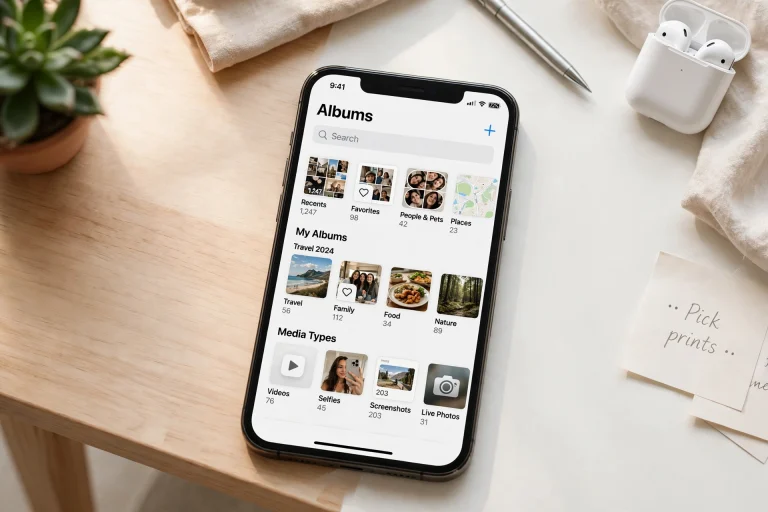
CleanMyPhone (by MacPaw, the successor to Gemini Photos) scans your iPhone camera roll and intelligently groups duplicates, similar shots, blurry photos, and screenshots so you can review and delete them in swipes. It also flags old photos taking up the most space. If your phone storage is constantly full because of 15,000 photos, this is the fastest fix available on iOS.
4. DaisyDisk — Best for Finding What’s Eating Your Mac’s Storage
DaisyDisk visualizes your Mac’s disk usage as an interactive map, making it instantly obvious which folders and files are hogging space. You can preview files right in the app and delete the offenders with a drag. It’s the quickest way to answer “where did all my storage go?” on macOS, and it’s far clearer than the built-in storage manager.
5. CCleaner — Best for PC Junk Cleanup
CCleaner removes temporary files, browser caches, leftover installer data, and other junk that accumulates on Windows PCs over time. It also includes a startup manager to disable programs that slow your boot time and a duplicate finder. It’s a solid maintenance tool to run monthly to keep a Windows machine fast and lean.
6. Bitwarden — Best Free Password Manager
Password clutter — sticky notes, reused passwords, forgotten logins — is a security risk and a daily annoyance. Bitwarden is a free, open-source password manager that stores all your logins in one encrypted vault, generates strong passwords, and syncs across all your devices. Consolidating your accounts here also makes it easier to spot and close old, unused accounts.
7. Google Drive — Best for Consolidating Scattered Files
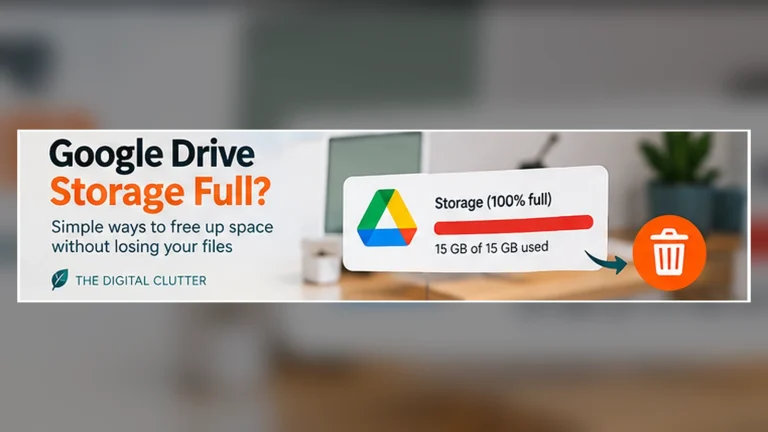
Google Drive isn’t just storage — its powerful search means you can find any file by content, even inside PDFs and images, which reduces the need for perfect folder structures. Use it as your single home for documents instead of scattering files across Desktop, Downloads, and email attachments. The free 15 GB tier is enough to start centralizing, and shared drives keep team files from living in personal inboxes.
8. Notion — Best All-in-One Organization System
Notion combines notes, tasks, wikis, and databases in one workspace, which lets you replace a scattered collection of single-purpose apps. Instead of ideas in Apple Notes, tasks in three apps, and bookmarks everywhere, you can build one personal dashboard. It’s best for people whose clutter is spread across many small tools — consolidating into Notion eliminates entire categories of digital mess.
9. Todoist — Best for Taming Task Clutter
If your to-dos live in your head, your inbox, and five sticky notes, Todoist gives them one home. Its natural-language input (“pay bills every Friday”) makes capture instant, and projects with labels and filters keep everything findable. A single trusted task system is one of the simplest forms of digital decluttering — it clears mental clutter as well as digital clutter.
Digital Declutter App Comparison at a Glance
- Email: Clean Email (powerful, paid) or Unroll.me (free, quick)
- Photos: Gemini Photos (iOS)
- Storage: DaisyDisk (Mac) or CCleaner (Windows)
- Passwords: Bitwarden (free, all platforms)
- Files: Google Drive (centralize + search)
- Notes & tasks: Notion or Todoist (consolidate many apps into one)
Tips for Using Declutter Apps Effectively
Installing the app is step zero — here’s how to get actual results:
- One problem, one app. Don’t install all nine. Pick the app that matches your worst clutter area.
- Schedule the cleanup session. Block 1–2 hours, open the app, and work through what it finds. An installed-but-unused app is just more clutter.
- Uninstall when done. Some tools (duplicate finders, disk analyzers) are one-time jobs. Delete them after the cleanup to keep your device lean.
- Pair apps with habits. A bulk unsubscribe tool works once; aggressive unsubscribe habits keep the inbox clean forever. See our email inbox declutter guide for the system.
For a fuller breakdown of which tool fits which job, see these decluttering apps compared by task.
Frequently Asked Questions
What is the best digital declutter app?
It depends on your biggest problem: Clean Email for inboxes, Gemini Photos for iPhone photo libraries, DaisyDisk for Mac storage, and Bitwarden for password sprawl. There’s no single app that fixes every type of digital clutter.
Are there free digital declutter apps?
Yes. Unroll.me (email unsubscribing), Bitwarden (password management), and Google Drive’s free tier all cost nothing. Your phone and computer also have capable built-in storage managers and duplicate finders.
Can an app really organize my digital life?
An app can automate the tedious parts — finding duplicates, bulk-deleting, visualizing storage — but lasting organization also needs simple systems and habits. Think of apps as power tools, not magic.
Is Clean Email safe to use?
Clean Email uses standard OAuth connections and doesn’t store your email passwords. As with any third-party email tool, review its privacy policy and revoke access when you’re done if you prefer.
How do I declutter my phone without apps?
Use built-in tools: iOS shows per-app storage usage and ‘last used’ dates under Settings → General → iPhone Storage; on Android, per-app storage is under Settings → Storage, though last-used dates aren’t consistently shown. Delete unused apps manually, review large attachments in messaging apps, and clear browser caches. Our iPhone storage cleanup guide walks through it.
Should I pay for a declutter app?
Pay only if the free options can’t solve your problem and the time saved is worth it. For most people, one paid tool (like an email cleaner for a 20,000-message inbox) is plenty — everything else can be done free.
Conclusion
The best digital declutter app is the one that matches your actual problem — email, photos, storage, passwords, or scattered tools. Pick one from the list, block out a cleanup session this week, and let the app do the heavy lifting.
Then lock in the results with simple systems: our digital declutter checklist and Google Drive organization guide will help you keep everything tidy long after the cleanup is done. For ongoing management beyond cleanup, explore our broader organization tools.
Before downloading anything new, it is worth checking which decluttering app is actually safe.