How to Declutter Your Computer: The Complete Desktop Cleanout Guide
A cluttered computer is a slow computer — and a stressful one. Files scattered across the desktop, a Downloads folder with 3,000 items, apps you installed in 2021 and never opened again, and a browser with 47 tabs. If that sounds familiar, this computer declutter guide will walk you through a complete cleanout, zone by zone, until your machine feels new again.
You don’t need special software — just a system. Work through the zones in order, giving yourself 1–2 hours total, or one zone per day.
Zone 1: The Desktop (15 minutes)
Your desktop is the first thing you see, so a computer declutter starts here. A messy desktop won’t meaningfully slow down your machine — but it does slow you down.
The rule: Your desktop is a workspace, not a storage unit. Aim for 10 or fewer icons.
- Create a single folder on your desktop called
_To Sort. - Drag everything else on the desktop into it. Yes, everything. (Your wallpaper will thank you.)
- Now go through
_To Sortfile by file: file it in its proper place, delete it, or leave it if it’s genuinely in active use this week. - Keep only true essentials on the desktop: your main working folder, maybe a “Today” scratch folder, and nothing else.
- Mac users: Right-click the desktop → Use Stacks to auto-group files by type as a temporary measure — then still do the sort.
- Windows users: Right-click → View → uncheck “Show desktop icons” for a truly clean look while you work through the backlog.
Once the desktop is clean, make a rule: nothing lives on the desktop longer than a week.
Zone 2: Downloads Folder (20 minutes)
The Downloads folder is where files go to be forgotten. Installers, PDFs, ZIP files, images — most of it was needed exactly once.
- Open Downloads and sort by date. Anything older than 90 days that you haven’t touched is almost certainly safe to delete or archive.
- Delete installer files (.dmg, .exe, .msi) for software you already installed.
- Delete duplicate downloads (file (1).pdf, file (2).pdf) — keep one copy.
- Move files you actually need into their proper folders (Documents, Photos, project folders).
- Going forward, change your browser’s download setting to “Ask where to save each file” — it forces you to file things correctly at download time instead of letting them pile up.
For thousands of files, sort by size to kill the biggest space-wasters first, then sort by date and bulk-delete the oldest.
Zone 3: Documents and File Folders (30 minutes)
This is the heart of any computer declutter. Your goal: every file either has a home, gets archived, or gets deleted.
- Start with the obvious deletes: old resumes, outdated spreadsheets, duplicate scans, files named “final_FINAL_v2.”
- Use the “Maybe” folder trick: Create an
_Archive_Reviewfolder. Anything you’re unsure about goes here — not in your working folders. Set a calendar reminder for 90 days out. If you haven’t needed anything in it by then, delete the whole folder. - Consolidate scattered folders: If you have files spread across Desktop, Downloads, Documents, and random folders, pull them into one staging area first, then sort once.
- Delete empty folders and dead shortcuts. They create visual noise in every file browser.
- Check for giant files: On Mac, Apple menu → About This Mac → Storage → Manage → Documents → Large Files. On Windows, use Settings → System → Storage → Temporary files, or sort folders by size in File Explorer.
For the long-term folder system that keeps this from happening again, read our guide on how to organize computer files and folders — and the companion piece on folder naming systems.
Zone 4: Photos and Media (20 minutes)
Computers become the dumping ground for phone photo backups, old iPhoto libraries, and random image folders.
- Find every photo library: Search for “Photos Library,” “iPhoto Library,” Lightroom catalogs, and folders named “Camera Roll,” “Phone Backup,” or “DCIM.”
- Consolidate into one library. Multiple overlapping libraries are the #1 cause of photo chaos on computers.
- Delete duplicates: Importing the same SD card twice is incredibly common. Use a duplicate finder or sort by name/date to spot them.
- Delete screenshots and memes from your computer like you would on your phone.
- Move the library to an external drive if photos are eating your internal storage — just make sure the drive is backed up too.
Our full system for this lives in how to organize digital photos.
Zone 5: Applications (15 minutes)
Unused apps waste disk space, slow down startup, and clutter your menus.
Mac: Open Finder → Applications. Switch to List view and sort by “Date Last Opened” (enable it via View Options). Drag unused apps to Trash — or better, use AppCleaner-style removal to catch leftover preference files. Check System Settings → General → Login Items and remove apps that launch at startup but shouldn’t.
Windows: Settings → Apps → Installed apps. Sort by size or last used. Uninstall anything you don’t recognize or haven’t used in months. Check Task Manager → Startup apps and disable unnecessary launchers.
Both: Remove browser extensions you don’t use (they slow every page load), and delete old printer drivers, VPN clients, and “helper” apps from software you uninstalled long ago.
Zone 6: Browser Cleanout (15 minutes)
Your browser is a computer within your computer — and it accumulates clutter just as fast.
- Close or bookmark tabs: If you have more than 10 tabs open, you’re not “multitasking,” you’re hoarding. Bookmark what matters, close the rest. Consider a tab manager or reading-list app for “read later” links.
- Organize bookmarks: Delete dead links, merge duplicates, and file bookmarks into a shallow folder structure (no more than 2 levels deep).
- Clear cache and old data: Chrome/Edge: Settings → Privacy → Clear browsing data (cached images and files). This alone can free several GB.
- Audit extensions: Remove every extension you don’t actively use. Each one is a performance and privacy cost.
- Clean up saved passwords: Remove logins for dead accounts, and let a password manager handle the rest.
- Reset your homepage/new-tab page to something calm if it’s currently a cluttered portal.
Zone 7: System and Storage (15 minutes)
Finish your computer declutter with the system-level cleanup that reclaims the most space.
Mac: On Mac, open System Settings → General → Storage (on older macOS versions: Apple menu → About This Mac → Storage → Manage). Work through Recommendations: Store in iCloud, Optimize Storage, Empty Trash Automatically, Reduce Clutter. Empty the Trash (files in Trash still take up space!).
Windows: Settings → System → Storage → turn on Storage Sense for automatic cleanup. Run Disk Cleanup (search “Disk Cleanup” in Start) and include system files. Empty the Recycle Bin.
Both: Restart your computer when done — it clears memory and finishes pending updates (temporary files on disk persist until cleaned by Disk Cleanup or Storage tools) and lets you feel the speed difference. Check free space before and after. A first real cleanout often reclaims tens of gigabytes.
If “System Data” or “Other” is mysteriously huge, that’s a deeper issue — but a full declutter like this usually shrinks it significantly.
Before diving in, estimate your file sizes first so you know where the biggest wins are.
For a closer look at the files and programs filling this zone, see computer clutter explained in detail.
Keeping Your Computer Decluttered: The Maintenance System
A one-time computer declutter feels amazing for about a month. Then entropy returns. These five habits keep it clean permanently:
- Weekly 10-minute tidy (Fridays work well): Clear the desktop, empty Downloads, close tabs, empty Trash/Recycle Bin.
- Monthly app review: Uninstall anything new you tried and abandoned.
- Quarterly deep zone: Rotate through the zones above — one per quarter — so no area goes more than a year without attention.
- Name files properly at creation: A consistent naming system (see our folder naming guide) prevents most future clutter.
- One inbox rule: All new files land in Downloads or Desktop first, then get filed weekly. Never save directly into deep folder nests “temporarily” — temporary becomes permanent.
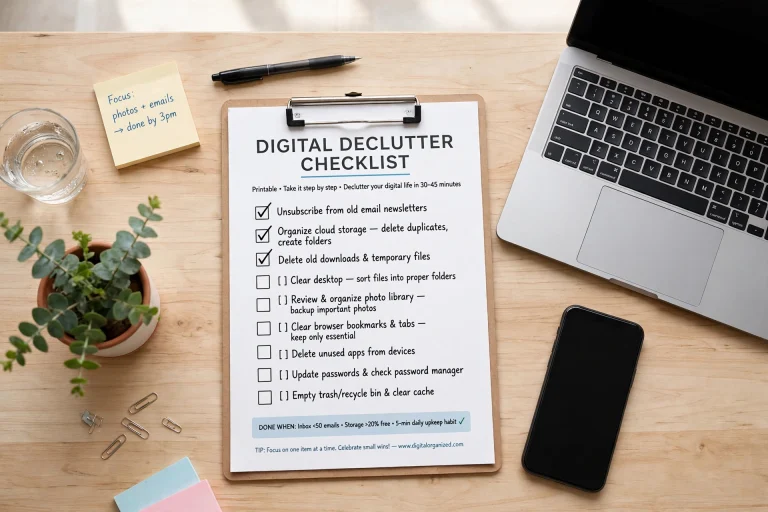
Want the whole-life version? Our digital declutter checklist extends this system to your phone, email, cloud drives, and social accounts.
Frequently Asked Questions
How long does it take to declutter a computer? A first-time cleanout takes 1–3 hours; splitting it into one zone per day makes it painless. Afterwards, maintenance is about 10 minutes a week.
Will decluttering my computer make it faster? Often, yes — especially if your drive was nearly full (systems slow down dramatically under ~10% free space), if many apps launched at startup, or if browser extensions were piling up. It won’t fix failing hardware, but it fixes the most common software slowdowns.
What’s safe to delete when decluttering a computer? Safe: duplicate files, old installers, files in Downloads older than 90 days, screenshots, cache/temp files, apps you installed and never use, dead bookmarks. Risky: anything in system folders (Windows, Program Files, Library), files you don’t recognize in Documents, and photos without a backup. When unsure, use the “_Archive_Review” folder trick described above.
How do I declutter my computer without losing important files? Back up first — an external drive or cloud backup takes the fear out of deleting. Then work zone by zone, and use a staging folder for “maybe” items instead of deleting them immediately.
Should I use a PC cleaner or Mac cleaner app? The built-in tools (Storage Management on Mac, Storage Sense + Disk Cleanup on Windows) handle the vast majority of it safely. Third-party “cleaners” are rarely necessary and some are outright scams or bundled with adware. Manual, zone-by-zone cleanup is more thorough anyway.
How much free space should I keep on my computer? Aim for at least 15–20% of your drive free (e.g., 75–100 GB on a 512 GB drive). Below 10% free, expect slowdowns, failed updates, and app crashes.
What’s the fastest way to find what’s taking up space? Mac: About This Mac → Storage → Manage (visual breakdown included). Windows: Settings → System → Storage (click categories for details). Both show you the biggest categories instantly — start with whatever’s largest.
Conclusion: Your Computer Declutter Is Done — Keep It That Way
Learning how to declutter your computer isn’t about achieving some minimalist ideal — it’s about making your most important tool fast, reliable, and pleasant to use again. Work through the seven zones, set up the weekly 10-minute habit, and you’ll never face a “storage full” panic or a desktop avalanche again.
Ready for the next level? Build the folder system that keeps everything organized going forward with how to organize computer files and folders, and learn the naming conventions that make every file findable in our computer folders naming guide.