Digital Organization: 7 Mistakes That Create Digital Clutter (and How to Fix Them)
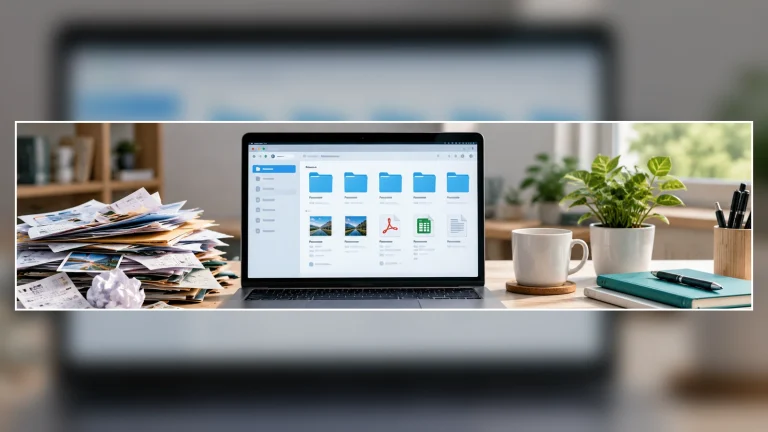
Digital clutter rarely arrives all at once. It builds quietly: a Downloads folder you keep meaning to sort, files called “Final-v3-REAL,” screenshots you no longer remember taking, documents scattered between three cloud services, and old versions nobody wants to delete. None of that seems dramatic on its own. Together, though, it makes simple work harder than it needs to be.
Why Digital Organization Matters More Than It Seems
Most people do not lose an afternoon because one file is badly named. They lose it in small pieces: two minutes checking email for an attachment, five minutes opening the wrong project folder, another few minutes wondering whether the version on the desktop is newer than the one in Google Drive. That friction is easy to ignore because each interruption feels minor.
Research on modern knowledge work has repeatedly pointed to the amount of time people spend searching for information, switching between apps, and doing what Asana has called “work about work.” The practical lesson is simple: the easier it is to find what you need, the less energy you spend managing the system around the work.
Good digital organization also reduces uncertainty. You know where a document belongs. You know what a file name means. You know whether an old project can be archived. And, importantly, you know whether your important files have a backup.
If your digital life already feels scattered, start with our broader digital decluttering guide. It helps you look beyond files and deal with apps, accounts, notifications, photos, and other kinds of digital clutter too.
Mistake 1: Saving Everything “Just in Case”
Saving everything feels safe. Deleting something creates a tiny moment of doubt: what if I need this next year? So the screenshot stays. The duplicate PDF stays. The old proposal stays beside the newer proposal. Eventually “keeping everything” stops being a safety strategy and becomes its own form of digital clutter.
The problem is not storage alone. A folder can hold thousands of files without technically running out of space, but that does not mean it is usable. If every search produces fifteen near-identical results, the files are stored but they are not truly organized.
Use an Archive Instead of Forcing Every Decision
An archive is useful because it creates a middle ground between “important enough to keep in my active folder” and “safe to delete forever.” Create an Archive subfolder inside projects or categories that regularly collect old material. Move completed drafts, superseded references, and inactive documents there.
This works especially well when you are cleaning an existing system. You do not need to evaluate every old file in one sitting. Move obvious clutter out of the active area, keep current work visible, and return to the archive only when you have a reason.
Mistake 2: You Have No File Naming Convention
A good folder structure can only do so much when the files inside it are called things like Document 27, Scan0004, or FINAL-FINAL-USE-THIS. Clear naming is one of the simplest improvements you can make to digital file organization.
A file name should tell your future self what the file is without requiring you to open it. If the date matters, include it. If a client or project matters, include that too. If the document has a clear status such as Draft, Approved, or Signed, say so.
A Simple Naming Pattern
2026-09-22-ClientName-Proposal-Approved.pdfYou do not have to use that exact pattern. The point is consistency. Some teams prefer dates first because files sort chronologically. Others lead with a project code or client name. Pick a system that makes sense in your environment and use it repeatedly.
Avoid spending days renaming ten years of old files. Apply the convention to new documents first, then improve older folders when you are already working inside them. Digital organization becomes sustainable when maintenance happens alongside normal work.

Mistake 3: Your Digital Files Live Everywhere
One copy is in Google Drive. Another is in Dropbox. A colleague emailed a third version. There is also something on the desktop, but you are not sure whether it is current. This is one of the most common reasons people feel disorganized even when they technically have folders.
Every extra storage location creates another question: where should I look first? That small decision gets repeated every time you need a document.
Choose a Primary Home
For work, choose the platform your team actually uses and make it the default location for active shared files. For personal files, choose one primary home for documents and records. You may still use other services for backup or special purposes, but they should have a clear role.
For example, Google Drive might be the primary working location while an external drive is a backup. That is different from randomly saving some projects to Google Drive, others to Dropbox, and the rest to the laptop desktop.
The goal is not to create dozens of nested folders. It is to make it obvious where a new file should go.
Mistake 4: You Have Organization but No Backup Plan
Neat folders are not a backup. A beautifully organized laptop can still fail, get stolen, suffer accidental deletion, or be damaged. Digital organization should include a plan for what happens when the original copy disappears.
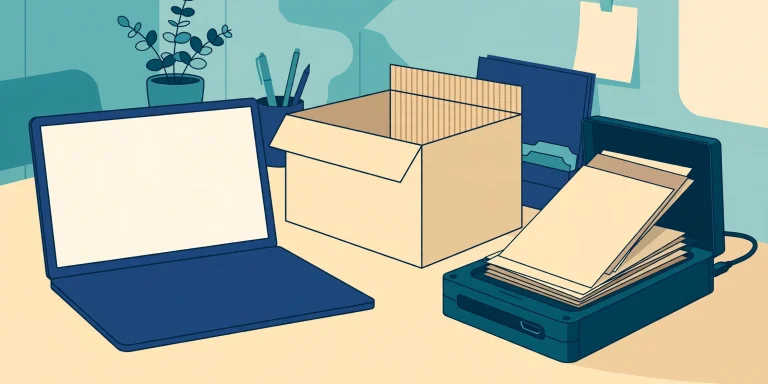
A widely used approach is the 3-2-1 backup strategy: keep three copies of important data, on two types of storage, with one copy stored separately or offsite. The exact tools can vary. What matters is that one failure does not destroy every copy at once.
What That Can Look Like in Real Life
- Your working copy lives on your computer or main cloud workspace.
- A second copy is synchronized or backed up automatically to another reliable location.
- A third copy exists on separate storage or another offsite system.
Automation matters here. A backup plan that depends on remembering “I should copy everything sometime this month” tends to fail at exactly the wrong moment. Schedule the process where possible, then occasionally test whether you can actually restore a file.

Mistake 5: You Keep Too Many Versions of the Same File
Version clutter has a familiar look: Proposal.docx, Proposal-v2.docx, Proposal-Final.docx, Proposal-Final-Edited.docx, and Proposal-FINAL-USE-THIS.docx. The naming gets increasingly dramatic while confidence goes down.
Many cloud platforms offer version history. When that feature is available and appropriate, it is often safer to maintain one working document and let the platform track changes instead of creating endless local copies.
For projects that genuinely require separate versions, create a clear rule. Keep active versions in one folder, label the approved version clearly, and move superseded files into Archive once the project is complete.
This is where a simple naming convention and archive habit reinforce each other. You do not need a complicated document-management system to stop sending the wrong attachment. You need fewer ambiguous files.
Mistake 6: You Organize Everything but Never Learn to Search
Folders are useful, but they are not the only way to find information. Modern systems can search file names, document contents, dates, senders, file types, and sometimes text inside PDFs. If you rely only on clicking through folders manually, you are ignoring one of the fastest tools in your digital organization system.
Spend a few minutes learning the search features of the platforms you use every day. Google Drive, Outlook, Gmail, Windows, macOS, and other tools support filters or advanced search operators that can narrow results quickly.
Search Works Better When Your Files Are Consistent
Search is not a replacement for organization; the two support each other. A clear file name gives the search engine better clues. Consistent project names make results easier to scan. Archiving removes old material from your active view without making it impossible to find later.
AI-powered search is also becoming part of everyday productivity software. Treat it as another retrieval tool rather than a reason to abandon structure completely. If every file has a vague name and lives in an unpredictable location, even powerful search creates more work than it should.
For another practical way to reduce friction, see our guide to the different types of digital clutter. File clutter is only one part of the problem; information overload and app clutter can be just as distracting.
Mistake 7: You Organize Only for Yourself
A folder system can make perfect sense to the person who created it and still be useless to everyone else. This matters at work, but it also matters personally. Six months from now, you are effectively another user. You will not remember every abbreviation, temporary shortcut, or strange folder name you invented today.
Think of digital organization as a handoff to your future self. A useful system should answer basic questions without requiring memory:
- Where does this type of file belong?
- Which version is current?
- What does this abbreviation mean?
- Where are completed projects stored?
- What would another person need if I were unavailable?
For recurring work, create brief notes or instructions. They do not need to become a giant operations manual. A one-page checklist for a recurring monthly process can save more time than an elaborate folder structure nobody understands.
This is also useful before a vacation. Ask whether somebody else could find the files they need without messaging you every hour. If the answer is no, the problem may not be the person covering for you. It may be the system.
A Simple Four-Step Digital Organization Reset
You do not need to spend an entire weekend rebuilding your digital life. In fact, giant cleanup projects often fail because they demand too many decisions at once. Start with four changes that improve the system going forward.
1. Choose the Main Home for Your Files
Decide where work files belong and where personal files belong. Stop adding new material to random locations. Migration can happen gradually.
2. Start a Naming Convention Today
Choose a date/project/description pattern that makes sense to you and use it for every new important file. Do not wait until the old files are perfect.
3. Add an Archive Folder
Pick one messy folder you use often. Create an Archive subfolder and move inactive material there. That single action can make an active project area feel dramatically lighter.
4. Learn the Search Tools You Already Have
Spend ten minutes with the search options in your main cloud drive, email app, and computer. Filters by date, file type, sender, or keyword are often enough to save repeated browsing.
If consistency is the hard part, our guide on how to form better habits can help you turn a short weekly cleanup into something you actually keep doing.
A Weekly Maintenance Routine That Takes About 15 Minutes
Once the basic system exists, maintenance should be short. Try a quick weekly pass:
- Clear obvious junk from Downloads.
- Move active files into the correct project folders.
- Rename vague files you created during the week.
- Archive completed drafts or reference material.
- Confirm that important new files are included in your backup.
- Close or save browser tabs that represent unfinished work.
You do not need to finish every digital cleanup task. The purpose of the routine is to prevent the pile from becoming intimidating again.
If you like structured planning, you may also find our productivity planning guide useful for turning recurring maintenance into a predictable part of your week or month.
Frequently Asked Questions About Digital Organization
What is digital organization?
Digital organization is the process of arranging files, folders, cloud storage, documents, notes, and related information so they are easy to find, understand, protect, and maintain.
What is the best way to organize digital files?
There is no single folder structure that works for everyone. A strong system usually has a small number of clear top-level folders, consistent file names, an archive for inactive material, one primary storage location, and a reliable backup.
How many folders should I use?
Use enough folders to make categories obvious, but avoid nesting so deeply that finding a file requires five or six clicks. In most cases, a shallow structure is easier to maintain than a complex hierarchy.
Should I delete old files or archive them?
Delete obvious junk and duplicates. Archive files that you may need for reference but do not want mixed with active work. Archiving reduces visual clutter without forcing you to make a permanent decision immediately.
How often should I organize digital files?
A short weekly or monthly review is usually easier than waiting for a huge cleanup. The exact schedule matters less than making it regular.
Does cloud storage count as a backup?
Cloud storage can be part of a backup strategy, but simple synchronization is not always the same thing as an independent backup. If an important file is deleted or corrupted and that change syncs everywhere, you may still need version history or another separate copy.
References and Further Reading
Final Thoughts
You do not need perfectly empty folders or a color-coded system to be digitally organized. You need confidence. When you save a file, you know where it goes. When you search, the result makes sense. When a project ends, old material leaves the active workspace. And when a device fails, important data still exists somewhere else.
That is the real value of digital organization: less time managing the mess around your work, and more time doing the work itself.