How to use Zoom step-by-step guide for beginners 2026
Last updated: September 2026
Zoom makes it easy to attend virtual meetings, talk with friends and family, teach online classes, work with remote teams, and host video calls. If you have never used Zoom before, however, the number of buttons and settings can feel confusing.
This guide explains how to use Zoom step by step. You will learn how to create a Zoom account, join a meeting, start your own meeting, schedule a call, turn your microphone and camera on or off, share your screen, use Zoom chat, record meetings, change your virtual background, and solve some of the most common problems beginners encounter.
What Is Zoom?
Zoom is a video conferencing platform that lets people communicate through video, audio, chat, and screen sharing. It can be used for work meetings, online classes, interviews, presentations, consultations, social calls, and many other types of conversations.
A Zoom meeting can include people using computers, smartphones, or tablets. Depending on the meeting settings and account type, participants may be able to use features such as screen sharing, chat, recording, reactions, captions, and virtual backgrounds.
What You Need to Use Zoom
You do not need complicated equipment to use Zoom. For a basic video meeting, you generally need:
- A computer, smartphone, or tablet.
- A reliable internet connection.
- A microphone for speaking.
- A camera if you want to appear on video.
- The Zoom application or a supported way to join the meeting.
- A Zoom meeting link, meeting ID, or invitation when joining someone else’s meeting.
Most modern laptops and smartphones already include a camera and microphone, so you may not need to buy additional equipment.
How to Create a Zoom Account
You may be able to join some Zoom meetings without creating an account. However, creating an account gives you access to additional features and makes it easier to host and manage meetings.
Step 1: Open Zoom
Open the Zoom application or visit the official Zoom website.
Step 2: Choose Sign Up
Select the option to create a new account and follow the instructions shown on screen.
Step 3: Verify Your Account
If Zoom asks you to verify your email address or complete another verification step, follow the instructions provided.
Step 4: Sign In
After completing the account setup, sign in to Zoom using your account credentials.
How to Download Zoom
If you plan to use Zoom regularly, installing the official Zoom application can make joining and hosting meetings easier.
On a computer, download Zoom from its official website or your organization’s approved software source. On a smartphone or tablet, use the official app store for your device.
How to Join a Zoom Meeting
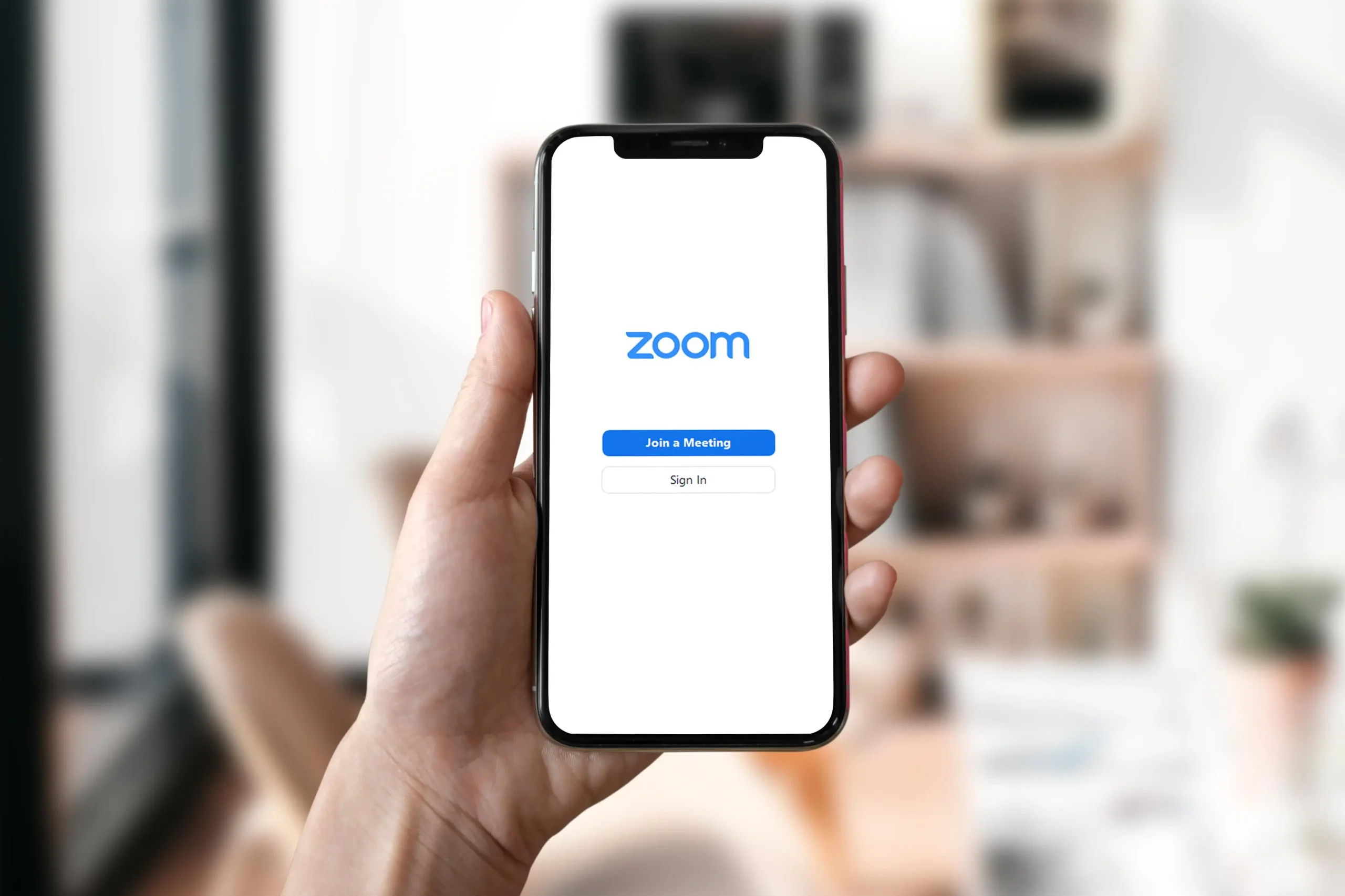
Joining a Zoom meeting is one of the most common things beginners need to learn. You can usually join through a meeting link or by entering the meeting ID manually.
Join Using a Meeting Link
- Open the meeting invitation.
- Click the Zoom meeting link.
- Allow Zoom to open if your device asks for permission.
- Enter your name if requested.
- Enter the meeting passcode if one is required.
- Choose whether to join with video.
- Choose whether to join with computer or device audio.
- Wait for the meeting to begin or for the host to admit you if a waiting room is enabled.
Join Using a Meeting ID
- Open Zoom.
- Select Join.
- Enter the meeting ID.
- Enter your name if required.
- Enter the passcode when prompted.
- Choose your audio and video settings.
If you cannot join, double-check the meeting ID, passcode, and meeting time. The host may also have restricted who can enter the meeting.
How to Start a Zoom Meeting
If you want to host your own meeting, sign in to Zoom and choose the option to start a new meeting.
- Open Zoom.
- Sign in to your account.
- Select New Meeting.
- Choose whether to start with your video enabled.
- Connect your computer or device audio.
- Invite participants once the meeting begins.
Before inviting people, it is a good idea to test your microphone and camera. This can prevent the common situation where everyone joins the meeting but nobody can hear the host.
How to Schedule a Zoom Meeting
Scheduling is useful when you want people to know about a meeting ahead of time rather than starting a call immediately.
- Open Zoom and sign in.
- Select the scheduling option.
- Enter the meeting topic.
- Choose the date and time.
- Set the expected duration.
- Configure video and audio settings.
- Review the security settings.
- Save the meeting.
- Send the invitation to participants.
If your organization uses a calendar application, you may also be able to add the meeting information to a calendar invitation.
How to Turn Your Camera On or Off
During a Zoom meeting, the video control lets you decide whether other participants can see your camera feed.
Select the camera icon in the meeting controls to turn video on or off. When your video is disabled, participants will generally see your profile image, initials, or another representation depending on your account and meeting settings.
When Should You Turn Your Camera Off?
Turning off your camera can be useful when you have a poor internet connection, need privacy for a moment, or are joining a meeting where video is not necessary.
If you are in a professional meeting, follow the expectations established by the host or organization.
How to Mute and Unmute Yourself
Your microphone controls whether other participants can hear the sound around you.
Select the microphone icon to mute or unmute yourself. When you are muted, your microphone audio is not being transmitted to the meeting.
Why Can’t People Hear Me?
If other participants cannot hear you, check whether your microphone is muted. Then check that Zoom has permission to access your microphone and that the correct audio device is selected.
How to Use Zoom Chat
Zoom’s chat feature lets participants send text messages during a meeting when chat is enabled by the host.
You can use chat to ask questions, share short pieces of information, provide links, or communicate when you do not want to interrupt the speaker.
Keep in mind that chat availability and the ability to send messages privately can depend on the meeting settings established by the host.
How to Record a Zoom Meeting
Zoom can provide recording functionality depending on your account, role, meeting settings, and the permissions given by the host.
If recording is available, the host or an authorized participant can use the recording control during the meeting.
Before Recording
- Make sure recording is appropriate for the meeting.
- Inform participants when required.
- Check whether your organization has recording policies.
- Make sure you have enough storage space.
- Understand where the recording will be stored.
Recording a meeting can involve privacy and legal considerations, particularly when other people are participating. Follow applicable laws and your organization’s policies.
How to Change Your Zoom Background
A virtual background can replace or modify the appearance behind you during a Zoom video call, depending on your device and Zoom’s supported features.
Open Zoom’s video settings and look for the background or effects options. From there, you may be able to choose an available background or add an image.
Tips for Better Virtual Backgrounds
- Use good lighting.
- Avoid sitting directly in front of a bright window.
- Wear clothing that contrasts with your background.
- Keep your camera stable.
- Use a simple background for professional meetings.
For a complete camera setup—including lighting, framing, eye contact, clothing, and backgrounds—see 20 Tips to Look Good on Zoom and Webcam Videos.
How to Invite Someone to a Zoom Meeting
After creating or starting a meeting, you can share the meeting information with the people you want to invite.
Depending on how you created the meeting, the invitation can include a meeting link, meeting ID, passcode, date, time, and other instructions.
For a scheduled meeting, send the invitation far enough in advance that participants can add the event to their calendars.
How to Use Zoom on Your Phone
Zoom can also be used on smartphones and tablets. The basic experience is similar to using Zoom on a computer, although the controls may be arranged differently because of the smaller screen.
Joining a Meeting on Your Phone
- Install the official Zoom application.
- Open the meeting invitation.
- Tap the meeting link or open Zoom and select Join.
- Enter the meeting ID if necessary.
- Enter the passcode if required.
- Choose your audio and video settings.
Phone Tips
- Use Wi-Fi when available if your mobile connection is unstable.
- Charge your phone before a long meeting.
- Use headphones when possible to reduce echo.
- Place the phone somewhere stable instead of holding it throughout the meeting.
- Check which camera is active before joining.
Zoom Privacy and Security Tips
Video meetings can contain sensitive conversations, documents, presentations, and personal information. A few simple precautions can reduce accidental exposure.
- Keep your Zoom application updated.
- Use meeting security settings appropriate for the meeting.
- Use a passcode when appropriate.
- Use a waiting room when appropriate.
- Do not publicly post private meeting links.
- Be careful when sharing your screen.
- Do not share passwords or sensitive information in public meeting chats.
- Only record meetings when appropriate and permitted.
Hosts should review their meeting settings before sending invitations, especially when discussing confidential information.
Common Zoom Problems and How to Fix Them
Zoom Cannot Hear My Microphone
First check whether you are muted. Then check Zoom’s audio settings and make sure the correct microphone is selected. You should also verify that your operating system has given Zoom permission to access the microphone.
My Camera Does Not Work
Check whether another application is already using the camera. Close unnecessary applications, then check Zoom’s video settings and your device’s camera permissions.
Zoom Keeps Freezing
Video quality problems are often related to network conditions, device performance, or other applications using system resources. Try moving closer to your Wi-Fi router, closing unnecessary applications, or switching networks if another reliable connection is available.
I Cannot Join the Meeting
Check the meeting link, meeting ID, passcode, and meeting time. The host may also have enabled a waiting room or restricted who can enter.
There Is an Echo During the Meeting
Echo can happen when audio is being played through speakers and picked up again by a microphone. Try using headphones or earbuds, lowering the speaker volume, or moving away from other devices that are connected to the same meeting.
My Zoom Audio Is Delayed
Audio delays can be caused by an unstable or slow internet connection. If possible, move closer to your Wi-Fi router, use a wired connection, close applications that are using significant bandwidth, or switch to another reliable network.
My Screen Share Is Not Working
If you cannot share your screen, the meeting host may have disabled participant screen sharing. If you are the host, check the meeting’s screen-sharing permissions and make sure Zoom has the necessary permissions on your device.
Zoom Says My Camera or Microphone Is Unavailable
Check your device’s privacy settings and make sure Zoom is allowed to access your camera and microphone. Also make sure another application is not currently using the same hardware.
Useful Zoom Keyboard Shortcuts
Keyboard shortcuts can make Zoom easier to control, especially during meetings when you do not want to move your mouse around the screen.
Available shortcuts can vary depending on your operating system and Zoom version, so check Zoom’s current shortcut settings if a particular combination does not work on your device.
| Action | Common Shortcut |
|---|---|
| Mute or unmute microphone | Alt + A on Windows or Option + A on macOS |
| Start or stop video | Alt + V on Windows or Command + Shift + V on macOS |
| Open chat | Alt + H on Windows or Command + Shift + H on macOS |
| Share screen | Alt + Shift + S on Windows or Command + Shift + S on macOS |
Shortcut availability can change as Zoom updates its application. If a shortcut does not work, open Zoom’s settings and review the keyboard shortcut section for the current controls on your device.
Zoom Etiquette for Beginners
Knowing how the controls work is only part of having a good Zoom meeting. A few simple habits can make online meetings easier for everyone.
- Join a few minutes early when the meeting is important.
- Test your microphone and camera before the meeting starts.
- Mute yourself when you are not speaking.
- Use headphones when background noise or echo is a problem.
- Avoid typing loudly or creating unnecessary background noise.
- Look at the camera when you are speaking if appropriate.
- Do not share private information accidentally through screen sharing.
- Use the chat responsibly and stay on topic.
- Follow the meeting host’s instructions.
If you are joining a professional meeting, remember that your camera background, microphone noise, notifications, and screen-sharing activity can all affect how the meeting appears to other participants.
If you want these meeting behaviors to become automatic, our guide on how to form better habits and break bad ones explains how to turn small actions into routines that are easier to repeat.
Important Zoom Settings to Check
Before using Zoom regularly, it is worth spending a few minutes reviewing your settings. This can prevent problems later and help you understand what information your device is sharing during meetings.
Audio Settings
Check which microphone and speaker Zoom is using. If your computer has multiple audio devices connected, selecting the correct one can prevent many common audio problems.
Video Settings
Check which camera Zoom is using and preview your video before joining an important meeting.
Notifications
Review your Zoom notification settings so you can control when meeting reminders, messages, and other notifications appear.
If notifications are distracting you beyond Zoom, the Digital Decluttering Guide covers a broader system for reducing alerts, app noise, and digital distractions.
Privacy Settings
Review the privacy options available in your Zoom account and on your device. Only grant applications the permissions they need for the features you actually use.
Your First Zoom Meeting: A Simple Checklist
If this is your first Zoom meeting, you do not need to understand every feature. Use this simple checklist before joining.
- Make sure your device is charged or connected to power.
- Check that your internet connection is working.
- Open the Zoom meeting link a few minutes early.
- Check your microphone.
- Check your camera.
- Choose whether to join with video.
- Join the meeting audio.
- Mute yourself when you are not speaking.
- Keep the meeting link and passcode private when appropriate.
- Leave the meeting when you are finished.
Once you are comfortable with these basic controls, you can start learning features such as screen sharing, chat, recording, virtual backgrounds, and meeting scheduling.
Zoom Host Checklist
If you are hosting a Zoom meeting rather than simply attending one, there are a few additional things to check before participants arrive.
- Confirm the meeting date and time.
- Send participants the correct meeting information.
- Check your microphone and camera.
- Choose appropriate meeting security settings.
- Decide whether participants should be able to share their screens.
- Decide whether participants should be able to use chat.
- Prepare documents or presentations before the meeting.
- Close unrelated applications before sharing your screen.
- Test any video, audio, or presentation material you plan to use.
How to Use Zoom for Work
Zoom is commonly used for remote meetings, team discussions, interviews, presentations, training sessions, and one-on-one conversations.
For work meetings, preparation is often more important than knowing every Zoom feature. Make sure you have the correct meeting link, test your microphone, prepare any documents you need to share, and close unnecessary applications before presenting your screen.
If your organization has its own rules for recording, screen sharing, chat, or handling confidential information, follow those rules in addition to the settings available in Zoom.
For a broader way to organize work goals and recurring priorities, see How to Create a Productivity Plan for the Year.
How to Use Zoom for Online Classes
Students and teachers can use Zoom for online classes, tutoring, presentations, group discussions, and virtual office hours.
Students should usually join with their microphone muted unless they need to speak. If the instructor allows it, students can use the chat feature to ask questions without interrupting the class.
Teachers and hosts can use features such as screen sharing, chat, and other meeting controls depending on the account and meeting configuration.
Zoom on a Phone vs. Zoom on a Computer
Zoom works on both mobile devices and computers, but the experience is slightly different.
| Feature | Phone or Tablet | Computer |
|---|---|---|
| Join meetings | Yes | Yes |
| Video calls | Yes | Yes |
| Microphone controls | Yes | Yes |
| Screen sharing | Supported features vary by device and version | Yes |
| Keyboard shortcuts | Limited | More extensive |
| Large-screen presentations | Less convenient | Generally easier |
For quick meetings, a phone can be convenient. For presentations, long meetings, screen sharing, or detailed work, a computer may be more comfortable.
Does Zoom Use a Lot of Internet Data?
Zoom’s data usage depends on factors such as video quality, meeting duration, whether your camera is enabled, and the type of meeting you are participating in.
If you have a limited mobile data plan, consider using a reliable Wi-Fi connection when available. Turning off your video can also reduce the amount of data your device needs to send compared with a video call.
If your connection is struggling, reducing video use and closing other applications that consume bandwidth may improve the meeting experience.
Do You Need a Zoom Account?
Not necessarily. In many situations, you can join a Zoom meeting as a participant without creating your own Zoom account. The exact requirements depend on the meeting and settings selected by the host.
If you want to host meetings or use additional Zoom features, creating an account may be necessary.
Is Zoom Free to Use?
Zoom offers different plans and features, and the availability of particular features can depend on the current plan, account type, meeting configuration, and organization.
If you are only attending occasional meetings, you may not need to purchase a paid plan. If you regularly host meetings or need advanced features, review Zoom’s current plans and feature limits before choosing an account.
Frequently Asked Questions
Do I need a Zoom account to join a meeting?
You can often join a Zoom meeting without creating an account if the host allows participants to join that way. You will generally need the meeting link or meeting ID and passcode when one is required.
How do I join a Zoom meeting?
Open Zoom, select Join, and enter the meeting ID, or open the meeting link provided by the host. Enter the passcode if required, then choose your audio and video settings.
How do I start a Zoom meeting?
Sign in to Zoom and select New Meeting. Once the meeting starts, you can invite participants using the available meeting invitation options.
How do I schedule a Zoom meeting?
Sign in to Zoom, choose the scheduling option, select the date and time, configure the meeting settings, save the meeting, and send the invitation to participants.
How do I share my screen on Zoom?
During a meeting, select Share Screen and choose the screen, window, or application you want other participants to see. Screen-sharing permissions may depend on the host’s settings.
Can I use Zoom on my phone?
Yes. Zoom can be used on supported smartphones and tablets through the official Zoom application.
How do I mute myself on Zoom?
Select the microphone control in the Zoom meeting toolbar. When your microphone is muted, your meeting participants should not hear your microphone audio.
How do I turn my camera off on Zoom?
Select the camera control in the meeting toolbar to turn your video off. Select it again when you want to turn your camera back on.
Why can’t people hear me on Zoom?
Check whether your microphone is muted and make sure Zoom is using the correct microphone. Also check your device’s microphone permissions and make sure another application is not using the microphone.
Why isn’t my Zoom camera working?
Check that the correct camera is selected in Zoom and that your operating system has given Zoom permission to access it. Closing other applications that use the camera may also help.
Can I record a Zoom meeting?
Recording availability depends on the account, meeting settings, and permissions. If recording is available, follow the meeting host’s rules and applicable privacy requirements before recording.
Can I share my screen on Zoom?
Yes, screen sharing is available in Zoom when the feature is supported and enabled for the meeting. Hosts can control who is allowed to share their screen.
How do I change my Zoom background?
Open Zoom’s video or background settings and select an available virtual background or another supported background effect. Availability can depend on your device and Zoom version.
Why is my Zoom meeting lagging?
Meeting lag can be caused by network problems, device performance, or other applications using system resources. Try improving your internet connection, closing unnecessary applications, or reducing video use.
Final Tips for Using Zoom
Zoom becomes much easier once you understand a few basic controls. You do not need to learn every feature before attending your first meeting.
Start by learning how to join a meeting, connect your audio, mute and unmute your microphone, turn your camera on and off, and leave the meeting. Once those controls are familiar, you can move on to screen sharing, chat, scheduling, recording, and virtual backgrounds.
Before an important meeting, test your camera and microphone, check your internet connection, and make sure you are sharing only the information you intend to share.