How to Use Zoom: The Ultimate Guide
How to Use Zoom: The Complete Beginner’s Guide
If somebody has sent you a Zoom link and you are not completely sure what happens next, you are not alone. The basics are easier than the screen full of buttons makes them look. This guide walks through how to join a Zoom meeting, host your own meeting, schedule calls, share your screen, use chat and reactions, manage participants, record when appropriate, and solve the problems beginners run into most often.
Zoom has become one of those tools people are often expected to know without anyone actually showing them how it works. A colleague sends a meeting link. A class starts in ten minutes. A client asks whether you can share your screen. Suddenly you are trying to work out which microphone Zoom is using while everybody else appears to know exactly what to click.
The good news is that you only need a small part of Zoom to handle most everyday meetings.
As a participant, you mainly need to know how to join, mute and unmute, turn your camera on or off, use chat, raise your hand, and share your screen if the host allows it. As a host, you add scheduling, invitations, participant management, waiting rooms, recording, security, and a few presentation tools.
This Zoom beginner’s guide focuses on those practical tasks rather than trying to explain every setting in the platform. The exact position of a button can change as Zoom updates the app, but the basic workflow stays fairly consistent.
To join a Zoom meeting, open the invitation link or enter the meeting ID and passcode in the Zoom Workplace app or on Zoom’s join page. You can join many meetings without creating an account. Once inside, use the meeting toolbar to mute or unmute, start or stop video, open chat, use reactions, view participants, and share your screen when permitted. To host, sign in to Zoom, start a new meeting or schedule one, invite participants, and manage meeting permissions from the host controls.
In This Zoom Guide
- What Is Zoom?
- Do You Need a Zoom Account?
- How to Download Zoom
- How to Join a Zoom Meeting
- Zoom Meeting Controls Explained
- How to Set Up Audio and Video
- How to Host a Zoom Meeting
- How to Schedule a Zoom Meeting
- How to Invite People
- How to Share Your Screen on Zoom
- How to Use Chat, Reactions and Raise Hand
- How to Use the Waiting Room
- How to Use Breakout Rooms
- How to Record a Zoom Meeting
- Zoom Security Basics
- How to Use Zoom on a Phone
- Common Zoom Problems
- Zoom Meeting Etiquette
- Frequently Asked Questions
What Is Zoom?
Zoom is a video-conferencing platform used for online meetings, classes, interviews, webinars, presentations, remote work, training, and personal calls.
On a typical Zoom call, participants can use a camera and microphone, listen to other speakers, type in meeting chat, react with emojis, raise a hand, and—when the host allows it—share a screen.
Zoom’s desktop application is now branded Zoom Workplace. You will still hear most people simply call it “Zoom,” and meeting invitations still feel familiar: usually a link, a meeting ID, and sometimes a passcode.
You can use Zoom from a desktop or laptop, mobile device, and in some situations a web browser. The app generally gives you the fullest set of features, while browser access can be useful when you cannot or do not want to install software.
Do You Need a Zoom Account to Join a Meeting?
Not always.
If somebody else is hosting the meeting, you can usually join as a guest by clicking the invitation link or entering the meeting ID and passcode. Whether browser-based guest joining is available depends on the host’s meeting and authentication settings.
You generally need to sign in when you want to create and manage your own meetings, save account settings, or use features tied to your account.
1 How to Download and Set Up Zoom
For regular use on a Windows PC, Mac, or Linux computer, install the Zoom Workplace desktop app from Zoom’s official download center. On Android and iPhone, use the official app store.
Avoid downloading installers from random third-party sites. Video meeting apps have access to your camera and microphone, so it is worth getting the software from the official source.
After installation, you can sign in if you have an account or choose to join a meeting without signing in.
- Open Zoom before the meeting starts.
- Allow camera and microphone permissions if prompted.
- Check which microphone and speaker are selected.
- Look at your camera preview.
- Make sure your display name is appropriate for the meeting.
2 How to Join a Zoom Meeting
The easiest way to join is usually the link in your email, calendar invitation, text message, or chat.
Join with an invitation link
- Click the Zoom meeting link.
- Your browser may ask permission to open Zoom Workplace.
- Open the app if it is installed, or use the browser option if the meeting allows it.
- Check your audio and video choices.
- Click Join when prompted.
- If the meeting uses a waiting room, wait until the host admits you.
Join with a meeting ID and passcode
If you do not have a clickable link, open Zoom and choose Join, then enter the meeting ID supplied by the organizer. Enter the passcode if Zoom asks for one.
Meeting links often contain the meeting ID and may also include an embedded passcode, which is why clicking the link is usually faster than entering the details manually.
Zoom Meeting Controls Explained
Once you are inside a meeting, most of what you need lives in the meeting toolbar. The exact layout can vary depending on your device, account, host permissions, and app version, but the core controls are recognizable.
Hosts and co-hosts see additional controls because they are responsible for managing the meeting.
3 How to Set Up Your Microphone, Speakers and Camera
Audio problems are more disruptive than average video quality. If people cannot understand you, the meeting becomes difficult very quickly.
Before an important call, check that Zoom is using the microphone and speaker you expect. This matters when you have Bluetooth headphones, a USB microphone, a monitor with speakers, or several audio devices connected at the same time.
If people cannot hear you
- Make sure you are not muted.
- Check that the correct microphone is selected.
- Confirm your operating system has granted Zoom microphone permission.
- Disconnect and reconnect a headset if the wrong device was selected.
- Run Zoom’s audio test when available.
If your camera is not working
- Make sure video is turned on inside Zoom.
- Select the correct camera if more than one is connected.
- Close another application that may be using the camera.
- Check your computer’s privacy permissions.
- Restart Zoom if the camera was connected after the app opened.
For presentation quality, good front lighting and a camera close to eye level usually improve the picture more than endlessly changing software settings.
4 How to Host a Zoom Meeting
Hosting gives you control over the meeting instead of simply attending someone else’s.
Sign in to your Zoom account and start an instant meeting, or open a meeting you scheduled earlier. Once the meeting starts, you can invite participants, manage microphones and cameras according to your permissions, use a waiting room, control screen sharing, remove disruptive participants, lock the meeting, and use other host tools.
For a casual call, you may barely touch the host controls. For a client meeting, class, workshop, or large team call, it is worth preparing them in advance.
- Know who should be allowed to share screens.
- Decide whether participants should enter through a waiting room.
- Have presentation files open before the meeting begins.
- Check whether the meeting needs to be recorded.
- Assign a co-host for larger sessions when appropriate.
5 How to Schedule a Zoom Meeting
Scheduled meetings are useful when participants need an invitation in advance or when you want the meeting to appear on a calendar.
Zoom currently supports scheduling through the desktop app, mobile app, web app, and web portal. The exact screen may differ depending on whether your calendar is integrated with Zoom.
In general, you will:
- Sign in to Zoom.
- Choose the option to schedule or create a meeting.
- Add a meeting topic.
- Choose the date and time.
- Review audio, video, security, and other meeting settings.
- Save the meeting.
- Send or copy the invitation details to participants.
If Zoom is connected to your calendar service, meeting information can be added to the calendar invitation. If not, you can still copy the meeting invitation and send it manually.
How to Invite People to a Zoom Meeting
The simplest method is to send participants the meeting invitation or join link.
For a scheduled meeting, copy the invitation details after saving the meeting and send them by email, messaging app, or calendar invitation. During a live meeting, hosts can also use the Participants area and invitation controls to invite others or copy the meeting link.
Avoid posting private meeting links publicly unless the session is intentionally open to the public and you have planned the security settings accordingly.
6 How to Share Your Screen on Zoom
Screen sharing is useful for presentations, training, software demonstrations, documents, websites, and collaborative work.
Click or tap Share or Share Screen, then choose what you want other participants to see. Depending on your device and meeting settings, you may be able to share the entire desktop, a specific application or window, and other supported content.
Whenever possible, share only the application or window you actually need. Sharing your entire desktop can expose private notifications, messages, browser tabs, files, and other information that has nothing to do with the meeting.
Hosts and co-hosts can control whether participants are permitted to share. If the Share button is unavailable to you, the host may need to change the meeting’s sharing permissions.
How to Use Zoom Chat, Reactions and Raise Hand
Not every contribution needs to interrupt the speaker.
In-meeting chat can be useful for links, short comments, questions, and written information. What you can send and who you can message depends on the meeting’s chat settings.
Reactions offer a lightweight way to respond without unmuting. The exact reaction choices can vary, but Zoom supports meeting reactions and non-verbal feedback such as Raise Hand when these features are enabled.
Raise Hand is especially useful in larger meetings, classes, and webinars because it gives the host a visible signal that you want to speak without everybody talking at once.
How the Zoom Waiting Room Works
A waiting room lets the host control when participants enter the main meeting.
If you join and see a message asking you to wait for the host, you usually do not need to do anything. The host can admit people individually or admit multiple participants.
For hosts, waiting rooms are useful for interviews, appointments, classes, client calls, and meetings where you do not want every person who has the link to enter immediately.
Hosts can also send participants back to the waiting room in supported situations and manage waiting-room access while a meeting is in progress.
How to Use Zoom Breakout Rooms
Breakout rooms divide one Zoom meeting into smaller sessions. They are common in classes, workshops, training sessions, conferences, and group discussions.
Zoom currently allows meeting hosts or co-hosts to split a meeting into multiple breakout sessions, with assignment options such as automatic assignment, manual assignment, participant choice, and pre-assignment where supported.
Participants in breakout rooms can generally use familiar meeting controls such as audio, video, and screen sharing according to the permissions set for the session.
Hosts and co-hosts can move between rooms. Zoom also supports sending information from the main session to breakout rooms, and hosts can manage room assignments and requests for help.
7 How to Record a Zoom Meeting
Zoom supports computer recording and cloud recording, but availability depends on account type, role, device, and settings.
Zoom’s current support documentation states that computer recording is available on desktop for supported accounts and saves the recording to the computer. Cloud recording is associated with eligible paid accounts and stores recordings in Zoom’s cloud.
On mobile devices, local computer-style recording is not available; eligible hosts and co-hosts can use cloud recording when their account supports it.
If you have permission to record, use the meeting recording control and choose an available recording option. When the meeting finishes, the recording may need time to process.
Zoom Security Basics for Hosts
A meeting link is access information. Treat it that way.
Zoom provides security controls including meeting passcodes, waiting rooms, participant permissions, meeting locking, and tools for removing participants. Which options are available can depend on account and administrator settings.
For ordinary private meetings:
- Send links only to the people who need them.
- Use a waiting room when you need control over entry.
- Limit screen sharing if participants do not need it.
- Do not publish private meeting details on public social media.
- Lock the meeting when appropriate after expected participants have joined.
- Remove disruptive participants if necessary.
Security does not need to make a normal meeting complicated. Most problems are avoided by using reasonable access controls and not sharing private meeting details carelessly.
How to Use Zoom on iPhone or Android
The mobile version handles most everyday participant tasks well: joining meetings, using audio and video, chatting, reacting, and participating while away from a computer.
If you use a phone for a long meeting, place it somewhere stable rather than holding it for an hour. Headphones can improve audio and prevent the speaker from feeding sound back into the microphone.
Common Zoom Problems and How to Fix Them
“I can hear everyone, but they cannot hear me.”
Check whether you are muted, verify the selected microphone, and confirm Zoom has microphone permission in your operating system.
“My camera is black.”
Make sure video is started, select the correct camera, close other apps using the camera, and check camera privacy permissions.
“I clicked the link but Zoom will not open.”
Try opening the invitation link again and allow the browser to launch Zoom. If the app is not installed, download it from the official source. If the host allows browser joining, you may see an option to join from the browser.
“I cannot share my screen.”
The host may have disabled participant screen sharing. Ask the host to change the permission if you need to present.
“I joined twice and now I hear an echo.”
This commonly happens when the same room joins from two devices with both microphones and speakers active. Mute or disconnect audio on one device.
“My video keeps freezing.”
Check your connection, move closer to the router if using Wi-Fi, pause unnecessary bandwidth-heavy activity, or turn off video temporarily if audio is more important than the picture.
Zoom Meeting Etiquette That Actually Helps
Good Zoom etiquette is mostly about reducing distractions for everyone else.
Especially for interviews, client calls, or presentations.
Background noise becomes tiring in group calls.
A real, recognizable name helps hosts identify you.
Constant typing and looking away makes attention feel divided.
It prevents people from talking over each other.
Open the file, close private windows, and silence notifications first.
You do not need to stare into the camera without blinking or sit perfectly still. A good video call should still feel like a conversation.
How to Look and Sound More Professional on Zoom
The easiest professional upgrades are surprisingly basic.
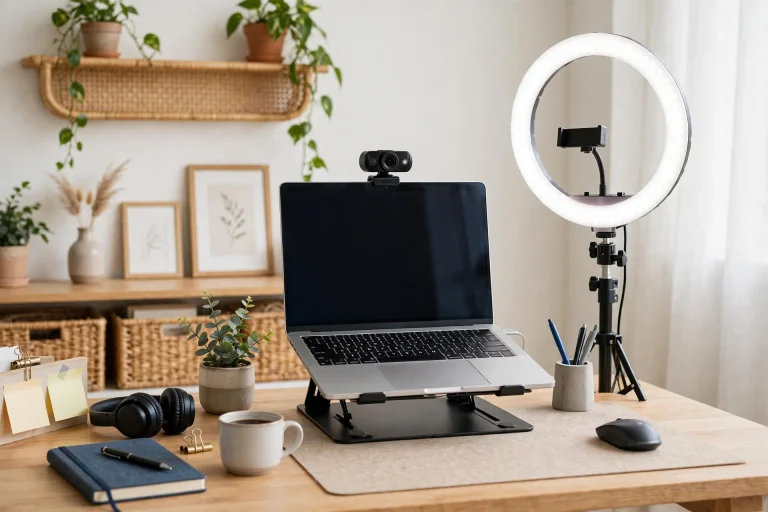
Put the camera near eye level. Face a soft light source rather than sitting with a bright window behind you. Keep your background tidy enough that it does not compete with you. Place the microphone close enough to capture your voice clearly, and use headphones if your room creates echo.
During the conversation, look toward the camera occasionally when making an important point, but do not force constant camera eye contact. It is natural to look at the other person on your screen while listening.
Most importantly, prepare for the meeting itself. A perfect camera setup cannot make up for not knowing why you are there.
Zoom on Desktop vs. Mobile vs. Browser
There is no single “best” way to join every Zoom call.
The desktop app is usually the most comfortable option for work, presentations, screen sharing, and long meetings. Mobile is convenient when you are away from a desk or need a backup device. Browser joining is useful when installation is not practical, although some features can be more limited and browser availability may depend on meeting settings.
If you regularly host meetings, use the environment that gives you enough control to manage participants and presentation materials comfortably. If you are simply joining a short call, convenience may matter more.
Frequently Asked Questions About Using Zoom
How do I use Zoom for the first time?
Open the invitation link sent by the host, allow Zoom to launch or install the official Zoom Workplace app, choose your audio and video settings, enter your name if requested, and join. If the meeting has a waiting room, wait for the host to admit you.
Can I join a Zoom meeting without an account?
Yes, many meetings allow participants to join as guests without creating a Zoom account. Host authentication settings can change what is allowed, so some meetings may require sign-in.
Do I have to download Zoom to join a meeting?
Not in every case. Zoom supports joining from a web browser when the relevant host settings allow it. The desktop or mobile app generally provides the fuller meeting experience.
How do I join Zoom with a meeting ID?
Open Zoom or the Zoom join page, enter the meeting ID supplied by the host, select Join, and enter the passcode if requested. You can then choose your audio and video settings before entering the meeting.
How do I host a Zoom meeting?
Sign in to your Zoom account and start an instant meeting or open a scheduled meeting. As host, you can invite people and manage permissions, participants, waiting-room access, screen sharing, security controls, and available recording options.
How do I share my screen on Zoom?
Use the Share or Share Screen control, then choose the desktop, application, window, or supported content you want to show. Participant screen sharing must be allowed by the host.
Can Zoom meetings be recorded?
Yes, when the account, role, device, and meeting settings support recording. Zoom offers computer recording and cloud recording in supported configurations. Hosts should also follow applicable consent requirements and organizational policies before recording.
Why am I stuck in a Zoom waiting room?
The host has probably enabled the waiting room. This allows the host to control who enters the meeting. You normally just need to wait until the host or co-host admits you.
What are Zoom breakout rooms?
Breakout rooms are smaller sessions created inside a larger Zoom meeting. Hosts and co-hosts can use them for group work, workshops, classes, and discussions, then bring participants back to the main session.
What should I do before an important Zoom interview?
Test your microphone and camera, place the camera around eye level, face a soft light source, check your background, close unnecessary apps, silence notifications, open any documents you need, and join a few minutes early.
Final Thoughts: You Only Need a Few Zoom Skills to Get Started
Zoom can look complicated because the app has features for casual calls, businesses, classes, presentations, workshops, events, and large organizations all in the same ecosystem.
You do not need to learn all of it.
Start with joining a meeting, audio, video, chat, reactions, and screen sharing. If you begin hosting, add scheduling, participant controls, waiting rooms, security, and recording. Learn breakout rooms when you actually need them.
After two or three meetings, the controls that felt unfamiliar usually become routine.
And that is the point of a good Zoom setup: the technology should eventually fade into the background so you can focus on the conversation, class, interview, presentation, or work you opened Zoom to do in the first place.