How to Archive Files: The Archive Method for People Who Can’t Delete
Deleting is not the only way to declutter. Archiving files means moving items you no longer use day to day — finished projects, old records, past years of photos — out of your active workspace and into one clearly labeled archive location, where they stay organized, searchable, and backed up without cluttering the folders you work in every day. Nothing is thrown away. Nothing is lost. It simply stops competing for your attention. This guide explains what archiving really is, how it differs from deleting and from backing up, and gives you a complete, gentle system — the Archive Folder Method — for people who find “just delete it” much easier to say than to do.
Why Is Deleting So Hard?
If you have ever hovered over the delete key for a full minute over a file you haven’t opened in three years, you are not broken. You are running normal human instincts on modern technology, and the instincts usually win.
Most files feel risky to delete for understandable reasons. A receipt might matter for a warranty or a tax question. An old project file might be useful if a client comes back. Photos carry memories, and deleting them can feel like deleting the moment itself. And because storage is cheap and cloud plans keep growing, there’s rarely a forcing moment — no drawer that physically won’t close — telling you the decision has to be made today. So the decision gets postponed, the folders keep filling, and your active workspace slowly becomes a junk drawer with a search bar on top.
That psychology is exactly why so many cleanup attempts stall, and it’s the same pattern behind why we become digital hoarders: the fear of losing something important, combined with decision fatigue, makes “keep it where it is” the default answer to every file.
Archiving works because it sidesteps that fight entirely. You are not deciding whether a file deserves to exist. You are deciding something much easier: does this belong in my daily workspace, or can it live somewhere quieter? Almost everyone can answer that question. And once the “maybe” files have a legitimate home that isn’t the delete key and isn’t your desktop, the backlog starts to move.
What Does It Mean to Archive a File?
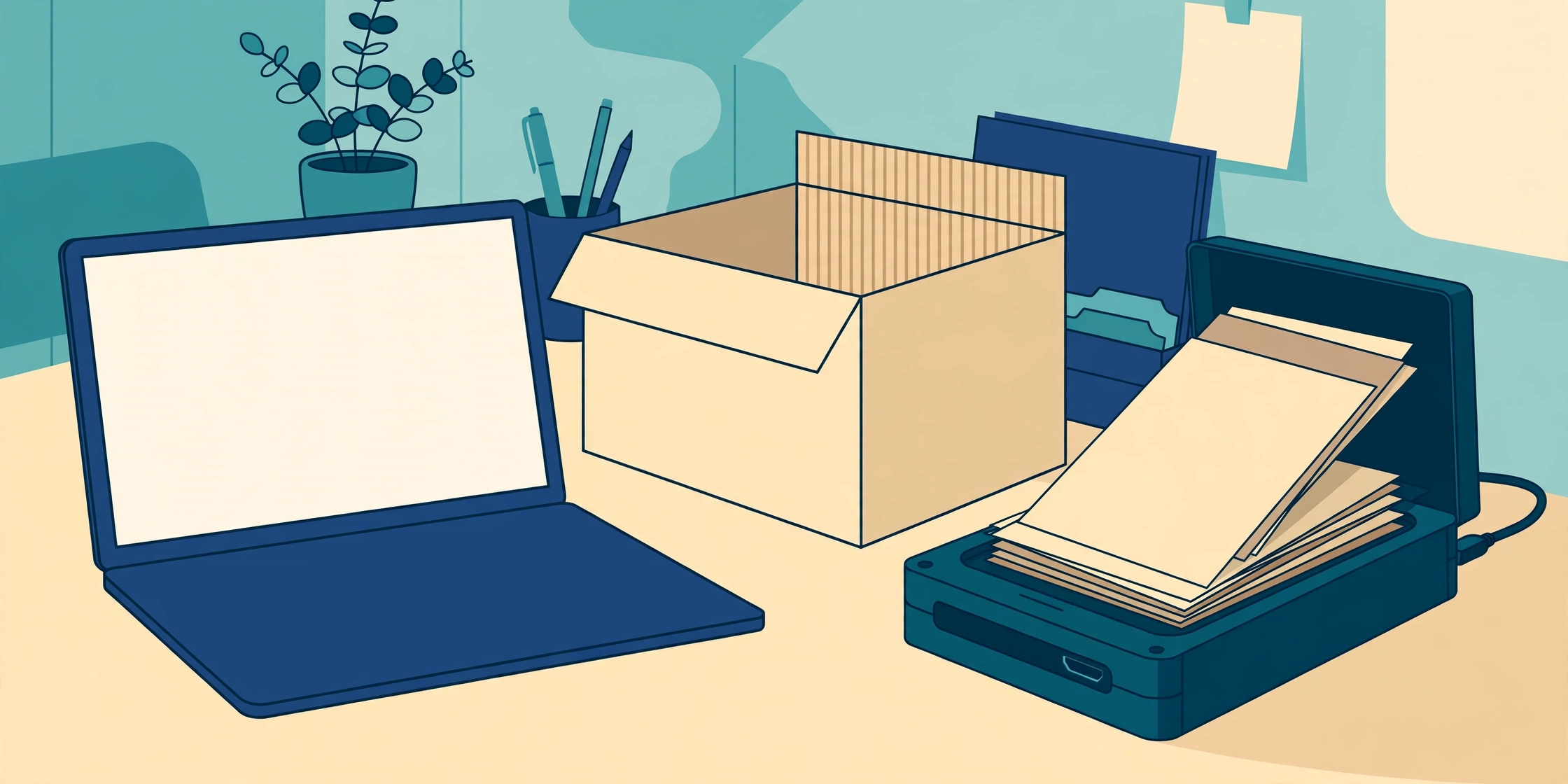
Archiving is the practice of moving inactive material out of your working environment and into long-term, organized storage. Businesses and libraries have done it for centuries with paper — boxes of closed case files in a records room — and the digital version follows the same idea:
- The item is complete or inactive. The project is finished, the tax year is closed, the event is over.
- It’s moved, not copied. The file leaves your active folders and lives in the archive instead.
- It stays organized and findable. An archive is not a dumping ground. It has structure and naming that let you retrieve anything in a minute or two.
- It’s protected. Because archived material is often the stuff you’d be upset to lose, the archive gets backed up properly.
A useful test: your active files are the tools on your workbench. Your archive is the storage shelf in the garage — everything on it has a reason to be kept, a label, and a place, but none of it is in your way while you work.
This applies to far more than work documents. Every one of the common types of digital clutter — files, photos, email, downloads — has an archive-worthy layer: the finished, the old, and the rarely needed.
Archive vs Delete vs Backup: What’s the Difference?
These three words get used interchangeably, but they do very different jobs. Mixing them up causes both kinds of regret: deleting things you should have archived, and “archiving” junk you should have deleted.
Deleting removes a file permanently (after the trash or recycle bin grace period). It’s the right answer for true junk: duplicates, blurry photos, installers, spam, broken files, things with no conceivable future use.
Archiving relocates a file you want to keep but no longer need at hand. The file still exists — you’ve simply decided it no longer earns prime space in your daily folders.
Backing up makes a copy of files so the originals survive a lost, stolen, or dead device. A backup protects data; it does not organize it. Copying a messy folder to an external drive gives you a backed-up mess — safe, but still a mess. Archiving is about where a file lives; backing up is about whether a copy exists somewhere else.
One more distinction that causes real losses every year: sync is not backup. Services like iCloud, Google Drive, and Dropbox primarily sync — they mirror your files across devices. If you delete a file on your phone, sync dutifully deletes it everywhere, often within seconds. That mirroring is wonderful for access and useless as protection against accidental deletion or a ransomware-style event. A true backup keeps an independent copy that doesn’t instantly follow every change. Your archive deserves a true backup, which we’ll set up in the storage section below.
Keep Active, Archive, or Delete? A Quick Decision Table
| Question | Keep active | Archive | Delete |
|---|---|---|---|
| Still working on it, or open it weekly? | ✅ Yes | — | — |
| Finished, but might need it within a year? | — | ✅ Archive | — |
| Records you must keep (taxes, contracts, warranties)? | — | ✅ Archive | — |
| Sentimental value, rarely viewed (old photos, keepsakes)? | — | ✅ Archive | — |
| Might be useful “someday,” untouched for 90+ days? | — | ✅ Archive (probation) | — |
| Duplicate, blurry, broken, or an installer? | — | — | ✅ Delete |
| Spam, junk downloads, empty files, obvious trash? | — | — | ✅ Delete |
| No idea what it is, and nothing breaks without it? | — | ✅ Archive once, review yearly | Delete at the yearly review |
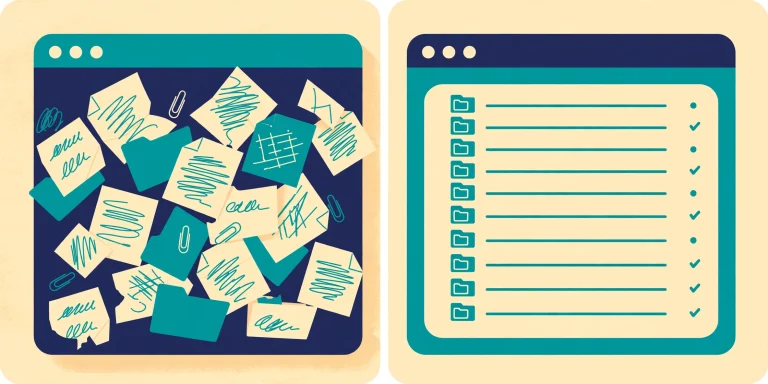
Notice how short the delete column is. Most of a typical backlog isn’t junk — it’s finished material squatting in active space. Archiving clears it in bulk, without the spike of anxiety that a delete-everything purge produces.
The Archive Folder Method, Step by Step
The Archive Folder Method is deliberately plain. No special software, no elaborate taxonomy, no twelve-level folder tree. It has four moving parts: one archive folder per area of your digital life, a simple structure inside it, a habit of moving things as you finish them, and one rule for what qualifies.
Step 1: Create One Archive Folder per Area
Create a single folder named Archive inside each main area you actually use:
- An Archive folder inside your main Documents (or your cloud drive’s documents area)
- An Archive folder or album inside your photo library setup
- An Archive label or folder in your email (most email apps literally have an Archive button — this method gives the rest of your digital life the same treatment)
One per area, never more. The power of the method is that there’s exactly one answer to the question “where does finished stuff go?” — the same reason the folder system in our broader guide to how to declutter digital files works: every file has an obvious home, so filing takes seconds instead of a committee meeting.
Name it plainly. “Archive” beats “Old stuff,” “Misc 2019,” or “To sort” — because an archive is a destination, not a procrastination pile.
Step 2: Structure the Archive by Year
Inside each Archive folder, create one subfolder per year: 2026, 2025, 2024, and so on, going back as far as your material does. That’s it. No project folders, no category tree — the year is the structure.
Why years? Because memory works in years. When you need something from the archive, you almost always remember when it happened — the job you left in 2023, the apartment you moved out of in 2024 — even when you’ve forgotten what the file was called. A year-based archive also ages gracefully: at your yearly review (Step 5 below), whole years can be evaluated at once, and the oldest years are the natural first candidates for final deletion.
Within a year folder, keep the original project or topic folders as they were. If a finished project was called “Website Redesign,” it moves into Archive/2025/ as “Website Redesign,” intact. Don’t re-sort the insides. The goal is retrieval, not perfection.
Step 3: Move Finished Work In — the Archive-as-You-Go Habit
The method only stays effortless if archiving happens at the moment something finishes, not in a giant annual migration. Build the habit with three natural triggers:
- Project ends → the whole project folder moves to Archive/ThisYear/.
- Month ends → receipts, statements, and documents from daily folders get swept into the archive.
- Storage warning appears → before buying more space, archive the oldest active year.
Each move takes under a minute, which is precisely why it happens. Compare that with the alternative most people live with: years of finished material piling up until the cleanup feels like an archaeological dig — the exact buildup described in our breakdown of computer clutter, where Downloads folders and desktops quietly become long-term storage by accident. Archiving as you go is how the dig never becomes necessary.
Step 4: Apply the 90-Day Untouched Rule
For the backlog you already have — and for every future “I’m not sure about this one” — use the 90-day untouched rule: if you haven’t opened a file in 90 days and it isn’t part of something you’re actively working on, it qualifies for the archive.
The rule does three jobs at once. It removes case-by-case agonizing, because the calendar makes the decision. It creates a probation period: archiving isn’t deleting, so a file that turns out to be needed is one search away. And it’s honest — ninety days of not needing something is real evidence about how often you’ll need it in the future.
Two exceptions. First, seasonal files: tax documents, holiday photos, and annual reports may legitimately sit untouched for eleven months. The rule applies to them too — they belong in the archive, filed by year, which is where seasonal material is easiest to find anyway. Second, anything you’re mid-project on stays active no matter how dusty it looks between sessions.
Step 5: Review the Archive Once a Year
Archiving is not a life sentence. Once a year — many people pair it with the new year or with tax season, when they’re touching old records anyway — spend thirty minutes reviewing the oldest material in the archive and ask one question: would I still keep this if I found it today?
By the second or third yearly review, something shifts. Files that felt undeletable two years ago now look like what they are: drafts of finished work, records past every deadline, photos of events you’ve already kept the best shots from. Deleting them at this point is easy, because time has done the emotional work. This is the quiet genius of the method for people who can’t delete: archiving first, and reviewing later, lets you delete in the future what you can’t delete today — and in the meantime, your workspace is already clean.
What Should You Archive?
If it is finished, old, legally worth keeping, or loved but rarely looked at, it probably belongs in the archive. The most common categories:
Finished projects. Completed client work, past jobs, finished courses, sold-house paperwork, planned-and-taken trips. The whole folder moves as one unit, intact, into the correct year.
Past years of everyday documents. Once a new year starts, last year’s bank statements, bills, school documents, and household records can leave your active folders. Year-based archiving keeps them trivially findable.
Receipts and records past their immediate usefulness. You don’t need this month’s grocery receipts in your working folders, but warranty receipts, major purchases, and anything tax-related deserve a kept home. Archive by year and they’re retrievable in seconds when a warranty claim or tax question actually appears — and deletable with confidence once the relevant period has fully passed (keep tax records for at least as long as your country’s tax authority requires; when in doubt, keep longer).
Photos and videos you rarely view. Old camera rolls, transferred phone backups, and event photos you’ve already culled are ideal archive material: photographed life, kept safe, not inflating the library you scroll daily. If you’re unsure how much space your photo habit is really using, the calculators in our tools hub can show you the numbers before you decide where things live.
Old email worth keeping. Contracts, confirmations, and correspondence with lasting value can move to an archive folder or label, emptying the inbox without destroying the record.
Installers and records for things you own. Manuals, license keys, and setup files for current equipment are worth archiving (not the installers themselves if they’re huge and re-downloadable — but the license information, yes).
What Should You NOT Archive?
The archive is not a junk drawer with a respectable name. Some things should skip it entirely and go straight to delete:
- Duplicates. Two copies in the archive is clutter with extra steps. Keep one.
- Blurry, accidental, and near-identical photos. Keep the best frame; let the rest go.
- Installers and setup files for software you can re-download in seconds.
- Spam, promotional email, and notification junk. No archive has ever needed a 2022 sale flyer.
- Empty files, broken downloads, and temp files.
- Anything you would be embarrassed to explain. If your honest answer to “why am I keeping this?” is “no reason at all,” archiving is just hoarding with better branding.
The test is simple: archive what has a plausible future use or genuine sentimental value. Delete what has neither. When something has both plausible use and current activity, it stays active — the archive is only for what’s finished.
How Should You Name and Organize Archived Files?
An archive you can’t search is just a tidier landfill. Three habits keep yours retrievable:
Name files for the search you’ll actually run. Use the format YYYY-MM-DD – Description – Detail: “2025-03-14 – Invoice – Roof repair.” Dates written year-first sort themselves automatically, and descriptive words beat codes you’ll forget (“Scan0047” helps no one). Rename at the moment of archiving — it takes five seconds per file and future-you will be grateful.
Keep names consistent within an area. Pick one pattern for receipts, one for photos, one for projects, and stick to them. Consistency matters more than which pattern you choose.
Don’t over-organize the inside. Year folder + original folder is enough. Adding sub-categories inside the archive creates filing decisions, and filing decisions are what caused the backlog. Search plus year folders will find anything in seconds.
Where Should Your Archive Live?
Because archived files are, by definition, the ones you decided were worth keeping, where they live matters. The rules:
Keep the archive out of your daily sync churn if it’s large. A huge archive inside your main cloud drive still shows up in every search, every sync, and every “storage almost full” calculation. Many people keep the working archive (recent years) in the cloud for easy access, and move older years to an external drive as the primary home.
Follow the 3-2-1 rule. The classic backup guideline, simply explained: keep 3 copies of important data, on 2 different types of media (for example, an external hard drive and a cloud service), with 1 copy off-site (the cloud copy counts, or a drive stored at a different location). Applied to your archive: the archive itself is copy one; an external drive holding a second copy is two; a cloud backup of the archive is three and off-site. It sounds elaborate, but for most people it means: archive folder on your computer or drive, backed up to one external hard drive, backed up to one cloud backup service. Set the backups to run automatically — a backup that depends on you remembering is a backup that silently stopped in March.
Don’t let the archive be your only copy of anything irreplaceable. If the original photos of your kids exist only in an archive folder on one aging laptop, you don’t have an archive — you have a single point of failure with good naming conventions.
Label external drives physically. A sticky label with “ARCHIVE – photos & documents – updated Jan 2026” turns a mystery drive into a known one. Future-you thanks present-you again.
The Monthly 20-Minute Archive Ritual
Systems survive on rituals, not motivation. Here’s the whole maintenance plan for this method, twenty minutes a month:
- Minutes 0–5 — Sweep the desktop and Downloads. Anything finished moves to the archive; anything junk gets deleted; anything active gets filed properly. If those two spots are clean, your computer never develops the classic clutter zones.
- Minutes 5–10 — Sweep active project folders. Anything that wrapped up since last month moves, whole folder, into Archive/ThisYear/.
- Minutes 10–15 — Photos. Move last month’s phone photos you’ve already culled into the archive year folder; delete screenshots and duplicates on sight.
- Minutes 15–20 — Check the safety net. Confirm the external drive backup ran and the cloud copy is current. Glance at archive size so growth never surprises you.
Anchor it to something that already happens monthly — payday, the first Sunday, rent day — and put a repeating reminder on the calendar. Twenty minutes a month is the entire cost of never facing a weekend-long cleanup again.
Frequently Asked Questions
What is the difference between archiving and deleting files?
Deleting removes a file permanently; archiving moves it out of your active workspace into organized long-term storage where it stays findable and backed up. Archive finished or rarely used files you may need again, and delete true junk — duplicates, broken files, spam, and installers.
Is archiving the same as backing up?
No. Archiving decides where a file lives (out of daily folders, in an organized archive). Backing up makes a separate copy so the file survives a lost or failed device. Your archive itself should be backed up — ideally following the 3-2-1 rule: three copies, two different media types, one off-site.
Where is the best place to store archived files?
For most people, recent years live in a cloud drive folder for easy access, and the full archive also sits on an external hard drive, with one copy kept off-site (cloud backup counts). What matters is that the archive is organized by year, clearly named, and never exists in only one place.
How long should you keep archived files?
Keep records at least as long as any legal, warranty, or tax requirement applies in your country — tax-related records commonly need several years. Beyond requirements, review the archive once a year and delete the oldest material you no longer have a reason to keep; most people find that files more than a few years past their usefulness can finally go.
What is the 90-day rule for archiving?
If you haven’t opened a file in 90 days and it isn’t part of active work, it qualifies for the archive. The rule replaces agonizing case-by-case decisions with a simple calendar test, and because archiving isn’t deleting, anything you turn out to need is still one search away.
Does archiving files free up space?
Archiving frees up space in your active folders and on your primary device if the archive’s home is an external drive or a cloud archive tier. It doesn’t reduce your total stored data the way deleting does — that’s the trade-off, and the yearly archive review is what gradually converts “archived” into “finally deleted” for the oldest material.
The Bottom Line
You don’t have to choose between a chaotic workspace and the delete key. Archiving is the honest middle path: finished projects, closed years, old records, and rarely viewed photos move into one archive folder per area, structured by year, named for search, and protected with real backups. The 90-day untouched rule decides what qualifies, a 20-minute monthly ritual keeps it running, and a yearly review quietly finishes the job your present self couldn’t — deleting the oldest files once time has loosened their grip. Start today with a single folder named Archive and one finished project. That’s the whole method, and it works precisely because it asks so little of you.