How to Organize Computer Files and Folders: A Simple System That Actually Works
If finding a document feels like a small investigation every time, your problem probably is not a lack of storage. It is a lack of a predictable system. The good news is that organizing computer files does not require a perfect folder tree, a new app, or a lost weekend. A few simple rules can make your files easier to save, search, share, archive, and back up.
Why Computer Files Get Messy So Easily
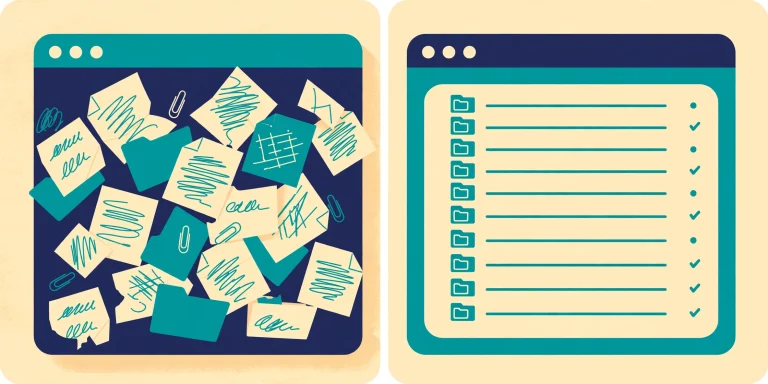
Digital clutter usually begins with reasonable decisions. You download a PDF because you need it for five minutes. A client emails a revised document, so you save it to the desktop because that is quicker than finding the project folder. You export three versions of an image because you are not sure which one will be approved. A month later, the desktop has become temporary storage, the Downloads folder is a time capsule, and there are four versions of the same proposal in different places.
Nothing dramatic happened. That is exactly why the mess grows.
The fix is not to become unusually disciplined. It is to reduce the number of decisions you have to make. A good file organization system gives common files an obvious home, gives them names you can understand later, and provides an easy place for finished material to go when it is no longer active.
Microsoft’s guidance on organizing digital files makes the same basic point: choose a system and use it consistently. Google Drive’s official help also recommends clear names, folders and subfolders, and simple structures that can be adjusted as needed. In other words, the goal is not an elaborate filing cabinet. It is predictability.
If your problem is broader than files—unused apps, inbox overload, old screenshots, notifications, and forgotten accounts—start with our digital decluttering guide. This article goes deeper into one part of that problem: how to organize computer files and folders so they stay usable after the cleanup is over.
Before You Start: Do Not Reorganize Everything at Once
The fastest way to abandon a digital cleanup is to start by moving ten years of files. You open an old folder, find tax documents, college notes, vacation photos, half-finished projects, software installers, and screenshots from a phone you no longer own. Suddenly every file needs a decision.
That is exhausting, and most of those decisions are not urgent.
Start with the files you use now. Your active work matters more than a perfectly sorted archive from 2018. A practical order is:
- Current work: files you open weekly or that are tied to active projects.
- High-value personal records: taxes, insurance, contracts, important receipts, education, property, and identification-related documents.
- Frequently used reference files: templates, manuals, brand assets, checklists, or forms.
- Recent downloads and desktop clutter: the places where temporary files tend to pile up.
- Old archives: only after the active system is working.
This order has an important advantage: you get a useful system quickly. You do not have to finish the entire cleanup before you feel the benefit.
The Best Folder Structure Is Usually Simpler Than You Think
People often over-engineer folders because a complicated structure looks organized on day one. The problem shows up later, when saving a simple document requires opening six nested folders and remembering whether a receipt belongs under Personal → Finance → Expenses → Purchases → Household or under Home → Documents → Receipts.
If there are several technically correct places to save the same file, the structure is too complicated.
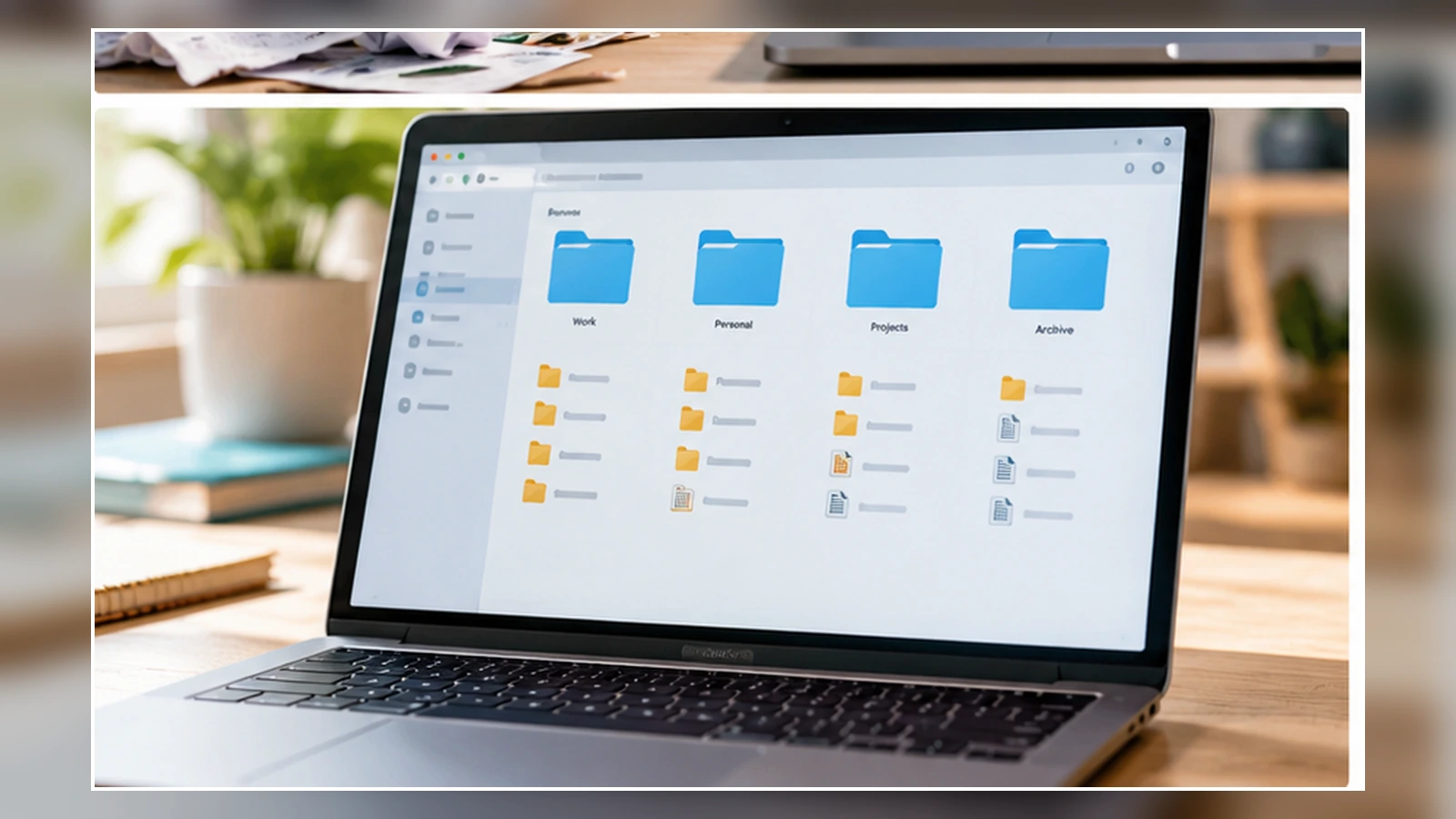
A better starting point is a small number of top-level folders based on the areas of your life or work that stay relatively stable.
Documents/
├── Work/
│   ├── Active Projects/
│   ├── Clients/
│   ├── Admin/
│   └── Archive/
├── Personal/
│   ├── Finance/
│   ├── Home/
│   ├── Education/
│   └── Archive/
├── Reference/
│   ├── Templates/
│   ├── Manuals/
│   └── Resources/
└── Inbox/
This is only an example. A freelancer might organize Work primarily by client. A student might start with School → Year → Course. A photographer may need separate media libraries. A family might care more about Finance, Home, Travel, and Records than Work.
The key is that the top-level structure should match the way you naturally think about your files.
Organize by meaning, not file type
A common mistake is creating giant folders called PDFs, Word Documents, Images, and Spreadsheets. That sounds tidy until you need a tax return. You are more likely to think “Taxes” than “PDF.” A client invoice makes more sense inside the client’s folder than inside a folder containing every PDF you have ever downloaded.
File type can be useful inside specialized media collections, but for everyday documents, organize around purpose.
Keep folder depth under control
You do not need a strict universal limit, but if you constantly click through five or six levels to reach normal working files, simplify. Shallow structures are easier to browse and easier to explain to somebody else.
Use an Inbox folder if you never know where to save things
An Inbox folder can be surprisingly useful. It gives temporary files one controlled landing place instead of letting them spread across the desktop, Documents, and random project folders.
The rule is simple: Inbox is temporary. Review it once a week and either file, archive, or delete what is inside. If your Inbox becomes a second Downloads folder that you never review, it has stopped doing its job.
Create a File Naming Convention You Will Still Understand Next Year
Folder structure helps you get close to the right file. File names help you identify the exact one.
A useful filename answers the obvious question without requiring you to open the document. Compare these:
| Weak filename | Better filename |
|---|---|
| Document1.docx | Website-Redesign-Brief.docx |
| Scan_0042.pdf | 2026-09-Insurance-Renewal.pdf |
| final-final2.pdf | 2026-09-24-Client-Proposal-Approved.pdf |
| IMG_8932.jpg | Kitchen-Renovation-Before-01.jpg |
Official file-management guidance from organizations such as Google and university research-data teams consistently emphasizes meaningful, consistent names. Date-first naming is especially useful when chronological sorting matters.
A practical naming formula
You do not need to include every possible detail. For work files, this pattern is flexible:
YYYY-MM-DD_Project-or-Client_Description_Status.ext

2026-09-24_Acme_Website-Proposal_Approved.pdf
2026-09-24_Acme_Homepage-Wireframe_v03.fig
2026-09-25_Acme_Meeting-Notes.docx
For personal documents, something simpler may be better:
YYYY-MM_Category_Description.ext

2026-09_Insurance_Policy-Renewal.pdf
2026-08_Home_Electricity-Bill.pdf
2026_Tax_Return-Final.pdf
Should you use spaces, hyphens, or underscores?
Consistency matters more than choosing the one “perfect” separator. Hyphens and underscores tend to travel well across operating systems, URLs, cloud storage, and automation. Spaces are readable but can become encoded in web addresses or scripts.
Pick one style and stop thinking about it.
Do not rename every old file
This is where people turn a useful habit into a giant project. Start using the naming convention today. Rename older files when you actually touch them or when a folder is important enough to justify a cleanup. Your system can improve gradually.
Separate Active Files From Archived Files
One of the easiest ways to make folders feel smaller is to stop making completed work compete with current work.
Imagine a Projects folder containing every project from the last six years. Even if the files are perfectly named, opening that folder still requires scanning through a long list of things you do not need. Move finished work into Archive.
An archive is not a trash bin. It is a lower-priority storage area for material you may need again but do not want mixed into daily work.
You can archive by year:
Archive/
├── 2024/
├── 2025/
└── 2026/
Or by category:
Archive/
├── Completed Projects/
├── Former Clients/
├── Old Finance/
└── Previous Versions/
Use whichever structure makes retrieval obvious.
How to Clean Up Desktop and Downloads Without Losing a Weekend
The Desktop and Downloads folders deserve their own strategy because they are not normal folders. They are landing zones. Files arrive there quickly and often have a short life.
Desktop: keep it temporary
Your desktop should not be the permanent home for important documents. It is too easy to create duplicates, forget what is current, or leave sensitive material exposed during screen sharing.
A practical desktop rule is simple: shortcuts and files being actively used this week are fine. Long-term documents belong somewhere else.
Downloads: sort by age and size first
You do not need to inspect every download individually. Start by sorting by date or size.
Large installers, exported videos, duplicate PDFs, ZIP archives, and files you already moved elsewhere are often the easiest wins. If you downloaded a document that matters, move it to its real home and give it a useful name. If it was temporary, delete it.
If you want a broader framework for identifying what is actually clutter, our guide to the types of digital clutter is a useful companion. Files are only one category; inboxes, apps, notifications, tabs, and old accounts create similar friction.
How to Organize Files Across Google Drive, OneDrive, Dropbox, and iCloud
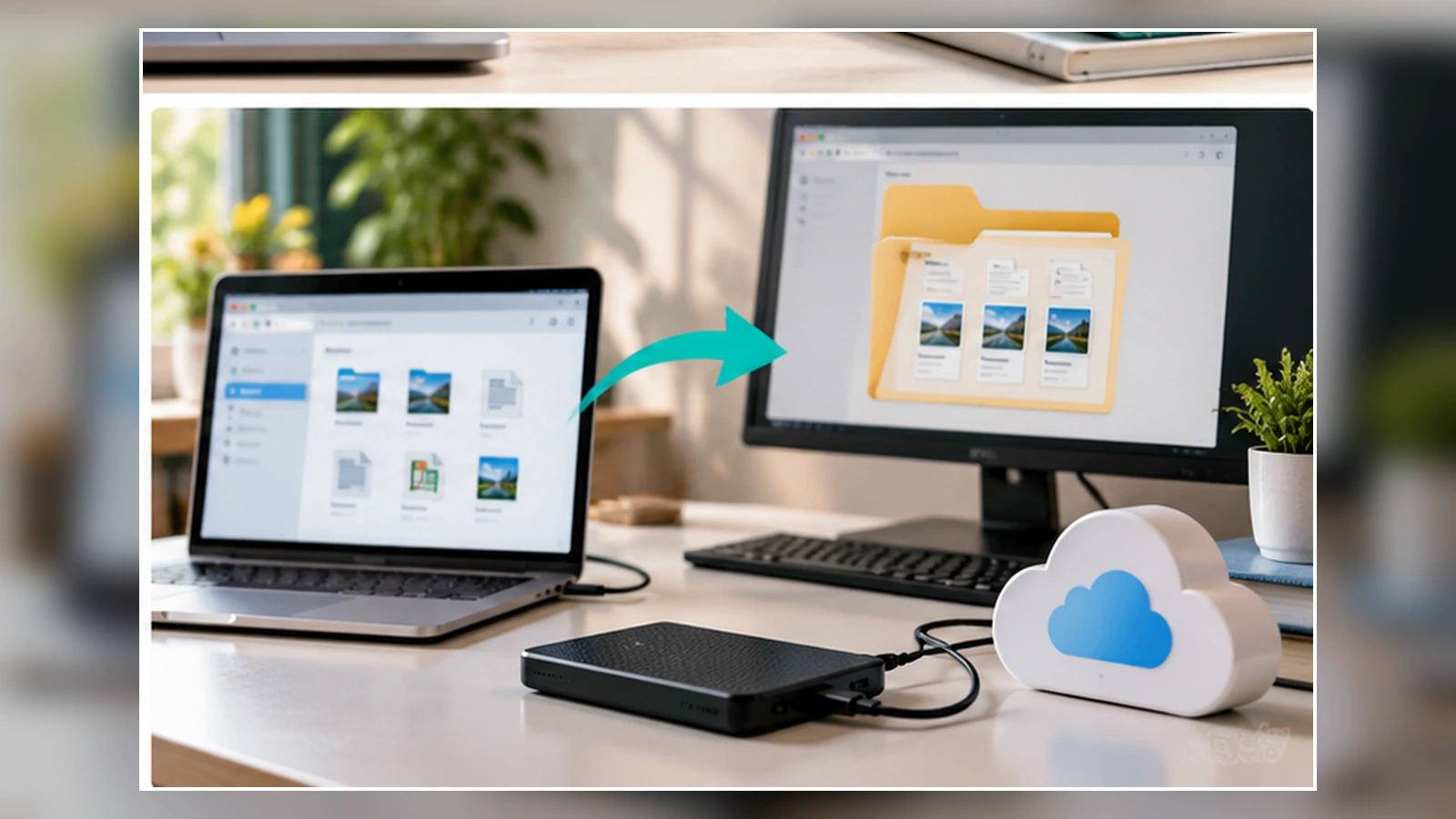
Cloud storage makes files available everywhere, but it also creates a new problem: now the same document can exist on a laptop, in email, in a shared workspace, and in two cloud services.
The first decision is not which cloud platform is “best.” It is which platform is the primary home for a particular kind of file.
Give each storage location a role
- Work files: company OneDrive or SharePoint.
- Personal documents: iCloud Drive or Google Drive.
- Large photo library: a photo service plus a separate backup.
- Archive backup: external drive or dedicated backup service.
The exact services are less important than reducing ambiguity. If you regularly ask yourself, “Was that in Dropbox or Drive?” your system needs clearer boundaries.
Do not duplicate files just to make them appear in two folders
Where supported, shortcuts or links can be better than maintaining two independent copies. Google’s official Drive guidance, for example, supports shortcuts so a file or folder can be easier to reach without creating another full copy.
This matters because duplicate working files eventually drift apart. One gets edited and the other does not. Six months later, nobody remembers which one is authoritative.
Shared work needs shared ownership
Team files should not depend on one person’s personal folder if the organization needs them after that person leaves or goes on holiday. Use the shared workspace your organization provides, and document the basic structure so everybody saves files in roughly the same way.
Duplicates and Version Control: Stop Creating “Final-Final-v3”
Duplicates are not always bad. A backup is a duplicate. A deliberately preserved milestone can be useful. The problem is uncontrolled duplication—multiple files that look current but are not clearly related.
Before deleting duplicates, ask why they exist.
- Is one a backup?
- Is one an old approved version?
- Is one a resized image or exported format?
- Is one simply the same download saved twice?
Delete obvious accidental duplicates. Archive old versions that still have a reason to exist. For active collaborative documents, use built-in version history when available instead of saving a new “final” file after every edit.
A status word is better than emotional filenames
Use statuses such as Draft, Review, Approved, Signed, or Archived when the state matters.
“Final” becomes unreliable the moment a client asks for one more change. “Approved-2026-09-24” is harder to misunderstand.
Use Search—But Do Not Make Search Rescue a Bad System
Modern search is excellent. Windows, macOS, Google Drive, OneDrive, Dropbox, and many other platforms can search filenames, file contents, metadata, dates, owners, and file types. AI-assisted search can go even further by helping retrieve a file when you remember the idea but not the exact name.
That is useful, but search works best when the underlying files still make sense.
A file named Document17.pdf in a random folder gives both you and the search system less context than 2026-09-Home-Insurance-Renewal.pdf.
Learn three search habits
- Search a distinctive keyword from the project, client, person, or subject.
- Filter by date or file type when results are too broad.
- Search inside the most likely location first instead of searching your entire digital life every time.
Good folders and good search are not rivals. Folders reduce the search space; search catches the cases where memory fails.
File Organization Is Not the Same as Backup
This distinction is easy to miss because cloud storage feels safe. If a folder is beautifully organized and synchronized to the cloud, you may assume it is protected. But synchronization and backup solve different problems.
Sync keeps copies aligned across devices. That is convenient. It can also mean that a deletion, corruption, or unwanted change is synchronized too.
A backup gives you another recovery path.
For important documents, photos, and work, use more than one copy and avoid keeping every copy vulnerable to the same failure. That might mean your main cloud workspace plus an external drive, or your computer plus cloud backup and another independent backup location.
Once the structure is settled, backup becomes easier because you know which folders contain material worth protecting.
The 15-Minute File Organization Routine That Keeps the System Alive
Most file systems do not fail because the folder structure was wrong. They fail because nobody maintains them.
The maintenance routine should be short enough that you can do it on an ordinary week—not only when you suddenly feel motivated to “get organized.”
Weekly: 10 to 15 minutes
- Clear obvious junk from Downloads.
- Move important downloads to their real folders.
- Rename vague files created during the week.
- Move completed short-term work out of the Desktop.
- Check the Inbox folder if you use one.
Monthly: 20 to 30 minutes
- Archive completed projects.
- Review large folders for obvious duplicates.
- Check whether your backup is still running.
- Remove old installers, exports, and temporary media you no longer need.
- Review shared folders for files that are stored in the wrong place.
Quarterly: clean the structure, not just the files
Look for folders you never use, categories that overlap, and locations that regularly confuse you. If you always hesitate between two folders, merge them or redefine the rule.
Organization should get easier over time. If maintaining your structure feels like administrative work, simplify it.
The same principle applies to productivity systems more broadly: consistency usually beats intensity. Our guide on building better habits explains why small repeatable behaviors are easier to maintain than occasional all-or-nothing resets.
A Practical File Organization System for Different Types of People
For remote workers
Separate personal and work files clearly, especially if you use the same computer. Keep company documents in the approved company storage rather than personal cloud accounts. Create one folder for current work and archive projects as they close.
For freelancers
A client-first structure is usually intuitive. Each client can contain Admin, Briefs, Working Files, Deliverables, and Archive. Keep reusable templates outside client folders so you do not accidentally edit the master copy.
For students
Organize by academic year or semester, then course. Inside a course, you might use Lectures, Assignments, Reading, Notes, and Submitted Work. Include course names or codes in filenames if documents often leave their folders.
For families
Prioritize records you will need under pressure: Finance, Insurance, Home, Vehicles, Education, Medical Records, and Travel. Sensitive documents need appropriate access controls and backups; organization does not replace security.
For small teams
Write down the naming rule and folder structure. A system that only one person understands is not a team system. Decide who owns maintenance, where completed projects go, and which location holds the authoritative copy.
Common File Organization Mistakes to Avoid
Creating too many folders before you need them
Empty structure can feel productive, but folders should solve real retrieval problems. Add subfolders when a category becomes crowded, not because every possible category deserves one.
Using several cloud services for the same purpose
Multiple services are fine when each has a role. They become a problem when the same type of file could be in any of them.
Saving attachments instead of moving them into the system
Email is not a filing system. If an attachment matters beyond the conversation, save it in its real home and name it properly.
Deleting before backing up
Cleanup creates momentum, and momentum can lead to careless deletion. Back up important material before large changes.
Building a system for your ideal self
If you hate detailed categorization, a folder tree with dozens of rules will fail. Build around your actual habits. A less elegant system you use is better than a perfect system you avoid.
Frequently Asked Questions
What is the best way to organize computer files?
Use a small number of meaningful top-level folders, consistent filenames, separate active projects from archives, and give each cloud or storage location a clear role. Keep the structure simple enough that new files have an obvious home.
How many folders should I create?
There is no ideal number. Start with a few broad categories and add subfolders only when they solve a real navigation problem. If you regularly forget where something belongs, the structure may be too complicated.
Should I organize files by date or category?
Usually both. Use category or project for folders, then include dates in filenames when chronology matters. Date-first filenames are especially helpful for reports, invoices, meeting notes, scans, and recurring documents.
What is a good file naming convention?
A simple pattern such as YYYY-MM-DD_Project_Description_Status works well for many work files. Personal files may need fewer fields. Consistency and clarity matter more than complexity.
Should I delete old files or archive them?
Delete obvious junk and accidental duplicates. Archive files you may need for reference but do not want mixed with active work. Archiving is useful when you are not confident enough to delete something permanently.
How should I organize my Downloads folder?
Treat Downloads as temporary. Regularly delete installers and temporary files, move important documents to their permanent folders, and rename anything worth keeping.
Is Google Drive or OneDrive enough as a backup?
Cloud storage can be part of a backup strategy, but synchronization is not always the same as independent backup. For important data, keep another recovery option that is not vulnerable to exactly the same mistake or failure.
How often should I organize computer files?
Do light maintenance weekly, archive completed work monthly, and review the folder structure every few months. Short recurring maintenance is usually easier than major cleanups.
High-Authority References and Further Reading
Final Thought: Make the Right Place Obvious
The best digital file organization system is not the one with the prettiest folder tree. It is the one that removes uncertainty.
When a new document arrives, you know where it belongs. When you need something six months later, the folder and filename give you clues. When a project is finished, it leaves the active workspace. When a device fails, the important files exist somewhere else.
Start small. Fix the files you use now, choose a naming rule, create an Archive folder, and clean Downloads once a week. Once those habits feel normal, the rest of the system becomes much easier to improve.