
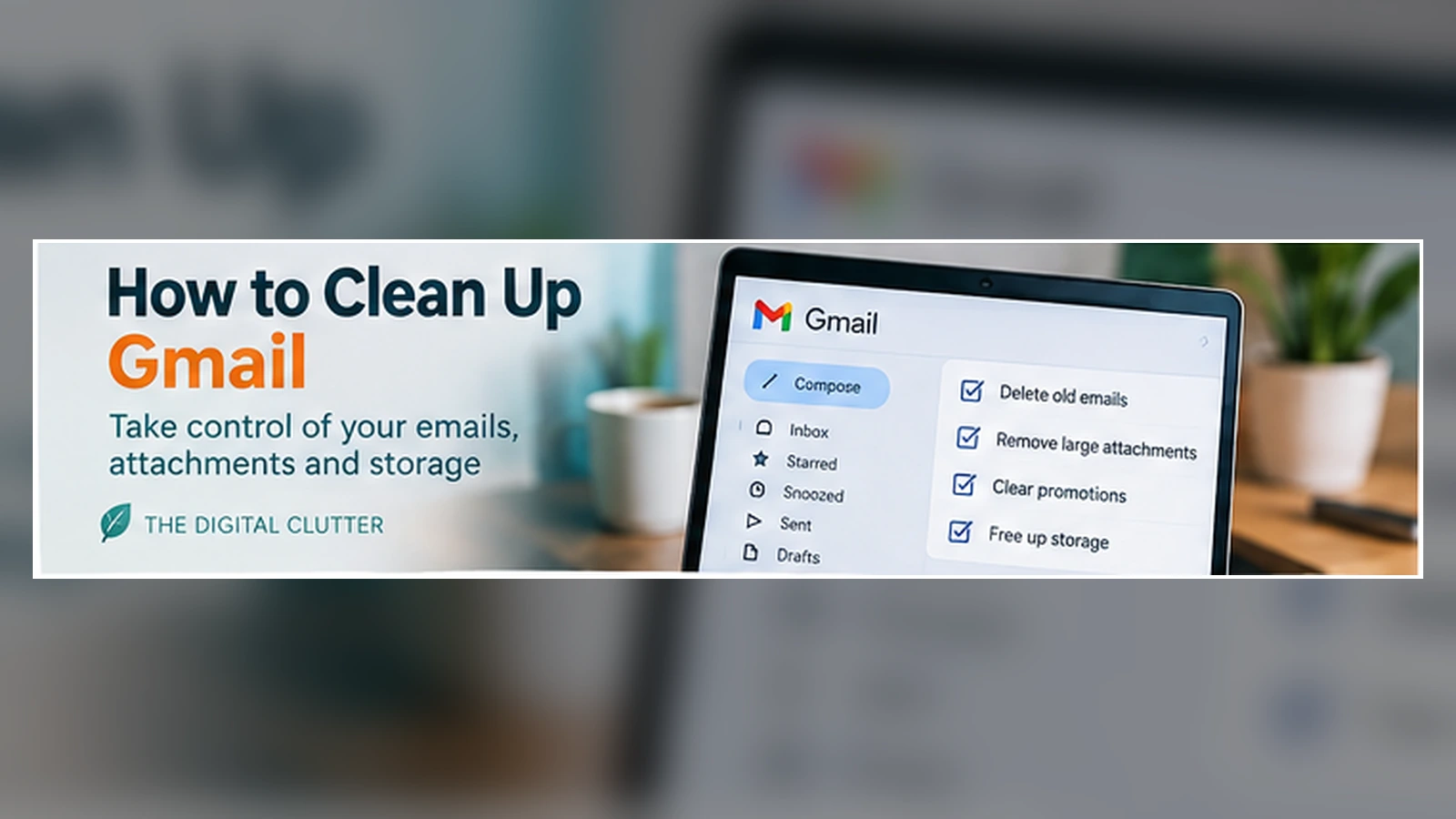
How to Clean Up Gmail: Emails, Promotions, Attachments and Storage
A full Gmail account is rarely full of important mail. In most inboxes, a small number of large attachments, years of promotions, and automated notifications account for almost all of the storage — and almost none of the value. The mistake most people make is deleting messages one screen at a time. Gmail’s search is the real cleanup tool: a handful of targeted searches can surface every oversized, outdated, or unwanted message in your account in minutes.
This guide walks through a complete, safe Gmail cleanup in the order that frees the most space for the least effort: check what’s actually using your storage, delete the biggest messages first, clear whole categories in batches, stop new clutter at the source with unsubscribes and filters, and finish by emptying Trash so the space is actually returned. Every step includes the exact search or menu path, what it does, and what to check before you delete anything permanently.
Quick answer: Open Google’s storage manager (one.google.com/storage/management) to see whether Gmail is really your problem. Then search has:attachment larger:10M and delete the largest messages you no longer need. Clear Promotions with category:promotions, unsubscribe or block repeat senders, and empty Trash and Spam — deleted mail only frees space once it leaves Trash, and Trash deletes itself after 30 days. Remember that a free Google Account’s 15 GB is shared across Gmail, Google Drive, and Google Photos, so the biggest win may be outside Gmail entirely.
Step 1: Check whether Gmail is actually using your storage
Before deleting ten thousand messages, find out where your storage is really going. Your Google storage is a single pool shared by Gmail, Google Drive, and Google Photos. A mailbox that feels enormous may be using 2 GB while a forgotten folder of videos in Drive uses 11 GB.
- Go to one.google.com/storage (or open Google Drive and choose Storage in the left sidebar, which shows the same breakdown).
- Look at the breakdown by service. If Gmail is the largest slice, continue with this guide. If Drive or Photos dominates, clean those first — this site’s guides to freeing Google Drive storage and decluttering Google Drive walk through both.
- Click through to one.google.com/storage/management, Google’s own cleanup tool. It surfaces review-and-delete suggestions such as large emails, large files, and items in Trash across all three services.
Also note your total: free accounts share 15 GB. Google One plans raise the limit, but buying storage before deleting obvious junk just pays rent on clutter.
Safety note: Nothing in this guide requires third-party “email cleaner” apps. Some of those services ask for full access to your mailbox. Everything below uses Gmail’s own search, filters, and settings.
Step 2: Delete the largest messages first
A single email with a video attachment can occupy as much space as thousands of plain-text messages. Deleting by size first gives you visible progress in minutes.
- In the Gmail search bar, run:
has:attachment larger:10M— this lists every message with an attachment over 10 MB, across your whole account, not just the inbox. - Sort order is by date, not size, so skim for the obvious wins: old videos, presentation decks, ZIP files, and photo dumps you already have elsewhere.
- Select messages with the checkboxes, or tick the checkbox at the top of the list to select the whole page, then click Delete (the trash-can icon).
- Repeat with
larger:5Mand thenlarger:1Mif you need more space.
Useful variations, all documented in Google’s official search-operator reference:
| Search | What it finds |
|---|---|
has:attachment larger:10M |
Messages with attachments over 10 MB |
filename:zip or filename:mp4 |
Messages carrying a specific file type |
larger:5M older_than:2y |
Big messages more than two years old |
has:attachment from:me |
Large attachments you sent (often duplicated in Sent) |
Before you delete: if an attachment is the only copy of something important — a signed contract, a tax document, family photos — download it or save it to Drive first. Once a message is permanently deleted from Trash, Google cannot recover it for you.
Step 3: Clear whole categories in batches
Gmail already sorts incoming mail into tabs — Primary, Promotions, Social, and Updates — and each tab is searchable. Promotions and Updates are usually safe to clear in bulk because they are marketing and automated mail by definition.
- Search
category:promotionsto see every promotional message in the account. - To limit the damage window, add a date:
category:promotions older_than:1ydeletes only promotions older than a year — expired sales and offers have no future value. - Tick the top checkbox to select the page, then click the banner link “Select all conversations that match this search” — this is the crucial step most people miss; without it you delete only the 100 conversations on screen.
- Click Delete and confirm.
- Repeat for
category:socialandcategory:updates, reviewing Updates more carefully first: it can contain bank alerts, shipping notices, and statements you may want to keep for the current year.
Do the same with your heaviest senders. Search from:(sender's domain) for the newsletters and stores that mail you most, review what’s there, and batch-delete the backlog. A sender-by-sender pass through your top ten senders usually removes more mail than an hour of random scrolling — and it shows you exactly which lists to unsubscribe from in Step 5.
Step 4: Understand Archive vs. Delete before you go further
These two buttons do very different things, and confusing them is the most common Gmail cleanup mistake.
- Archive removes a message from the inbox but keeps it in your account under All Mail. The inbox looks clean; your storage does not change at all.
- Delete moves a message to Trash. Storage is only returned when the message leaves Trash — either when you empty Trash yourself or automatically after 30 days.
So: archive for visibility, delete for storage. If your goal is a calmer inbox, archiving old Primary mail in bulk (search in:inbox older_than:1y, select all conversations, Archive) is a legitimate, fully reversible strategy. If your goal is space, only deletion counts, and Step 7 finishes the job.
One more distinction that matters: labels are not folders. Deleting a message while viewing it under a label deletes the message itself, from every label and from All Mail. There is no “remove from this label but keep the email” delete button on a message — to keep the email but drop a label, open it and remove the label instead of deleting.
Step 5: Unsubscribe and block, so the clutter stops coming back
A cleaned inbox that refills in a week is not clean. Spend ten minutes at the source:
Unsubscribe (legitimate lists). Open a message from the sender. If Gmail detects a mailing list, an Unsubscribe link appears next to the sender’s name at the top of the message. Use that, or the unsubscribe link in the message footer. In the Gmail mobile app, open the message, tap the three-dot menu, and choose Unsubscribe when offered. Gmail may also offer to block the sender in the same flow.
Block (senders you never want). Open a message, click the three-dot menu at the top right of the message, and choose Block “[sender]”. Blocked mail goes straight to Spam. Blocking is per-address and reversible in Settings → See all settings → Filters and Blocked Addresses.
Report spam — don’t unsubscribe from it. If a message is clearly unsolicited junk or phishing, use Report spam and never click its unsubscribe link: for a spammer, a click only confirms your address is live.
After unsubscribing, delete the backlog from that sender with a from: search (Step 3).
Step 6: Create filters so routine mail files itself
Filters are Gmail’s built-in automation: they can skip the inbox, apply a label, archive, star, or delete matching mail as it arrives. Set them up for the mail you want to keep receiving but never want to handle manually — receipts, statements, notifications.
- Click the Show search options icon (the sliders) at the right of the search bar.
- Enter your criteria — for example, a From address, or words like “your receipt” in the subject.
- Click Create filter.
- Choose actions: Skip Inbox (Archive it) plus Apply the label (e.g., “Receipts”) keeps the mail findable but out of your way. Tick Also apply filter to matching conversations to file the existing backlog too.
- Click Create filter.
Review your filters occasionally under Settings → See all settings → Filters and Blocked Addresses. A warning for cleanup day: resist setting filters to auto-delete anything financial or legal. Storage is cheap compared to a missing tax record.
Step 7: Empty Trash and Spam — the step that actually frees the space
Everything you deleted in Steps 2–3 is sitting in Trash, still counting against your storage. Finish the job:
- In the left sidebar (click More if needed), open Trash. Review it once — this is your last recovery window — then click Empty Trash now and confirm.
- Open Spam and click Delete all spam messages now, after a quick scan for legitimate mail caught by mistake.
Both folders also empty themselves automatically: Gmail permanently deletes messages that have been in Trash or Spam for 30 days. If you are cleaning up for space today, empty them manually; if you deleted something by accident within the last 30 days, it is still in Trash, recoverable with Move to Inbox.
Step 8: A 15-minute monthly routine to stay clean
- Monthly: run
has:attachment larger:10Mandcategory:promotions older_than:6m; delete in batches; empty Trash. - Quarterly: check one.google.com/storage for drift between Gmail, Drive, and Photos; unsubscribe from three senders you never open.
- Yearly: archive the previous year’s Primary inbox (
in:inbox older_than:1y), review your filters, and export anything irreplaceable — Google Takeout (takeout.google.com) creates a downloadable archive of your mail if you want an off-Google backup before a deep purge.
If inbox overload is the bigger problem — not storage, but volume — pair this cleanup with the system in our email inbox declutter guide and the deeper inbox cleanout walkthrough, which cover daily processing habits rather than one-time deletion.
Five mistakes that make Gmail cleanups fail
- Deleting only the visible page. Selecting the checkbox at the top of a search selects one page (100 conversations). Always click “Select all conversations that match this search” before deleting, or a 40,000-message category barely shrinks.
- Archiving when you meant to free space. An archived inbox looks identical to a cleaned one — and uses exactly the same storage. Check the storage page before and after; if the number didn’t move, you archived.
- Deleting a labelled view and losing the only copy. Labels are tags, not folders. Deleting from a label view deletes the message everywhere. When in doubt, remove the label, not the message.
- Unsubscribing from spam. A spammer’s “unsubscribe” link confirms your address works. Report spam instead; reserve unsubscribes for legitimate senders you recognise.
- Emptying Trash without a final scan. Trash is your only undo. One slow scroll through it before clicking “Empty Trash now” is cheap insurance against losing a contract, a ticket, or a recovery email you’ll need next week.
Doing the same cleanup in the Gmail mobile app
The searches above work in the app too — Gmail’s search operators behave the same on mobile — but batch selection is more limited, so treat the app as a maintenance tool and do the deep purge on desktop.
- Tap the search bar and run the same searches (
has:attachment larger:10M,category:promotions older_than:1y). - Long-press one message to enter selection mode, then tap additional messages to add them, and tap the trash icon.
- To empty Trash in the app: open the menu (☰), tap Trash, then Empty trash now. Spam is emptied the same way.
- Unsubscribing in the app: open the message, tap the three-dot menu at the top, and tap Unsubscribe when the option appears.
Still full after all of this? Work through the numbers
If Gmail cleanup freed less than you expected, the space is almost certainly in the other two services. A realistic example from a typical “full” free account:
| Service | Common hidden weight | Where to look |
|---|---|---|
| Google Photos | Backed-up phone videos (a single 4K clip can exceed 500 MB) | photos.google.com — search “videos”, review the largest |
| Google Drive | Old ZIP backups, shared folders you own, app backups | drive.google.com/settings/storage — files listed largest first |
| Gmail | Attachment-heavy threads, Sent copies of large files | has:attachment larger:10M, then larger:5M |
Google’s storage-management page (one.google.com/storage/management) puts all three services’ largest items in one review list, which is the fastest final pass. Only after that review is it worth considering a Google One upgrade — and if you do upgrade, the cleanup still pays off, because every plan tier fills at the speed your habits dictate.
Frequently asked questions
Does deleting emails actually free up Google storage? Yes — but only once the messages leave Trash. Deleted mail sits in Trash for up to 30 days, still counting toward your quota. Empty Trash manually to free the space immediately.
Will I lose emails if I delete by category search? Only the conversations matching that search. Date limits like older_than:1y are the safety rail: they protect everything recent while clearing the backlog.
What is the difference between archiving and deleting? Archiving hides mail from the inbox but keeps it in your account and uses the same storage. Deleting (and emptying Trash) is the only way to reclaim space.
Gmail says my storage is full but my inbox looks small. Why? Because the 15 GB free quota is shared with Google Drive and Google Photos. Check the breakdown at one.google.com/storage — large Drive files or backed-up videos are the usual culprits.
Can I recover an email I permanently deleted? Once a message is gone from Trash — emptied by you or aged past 30 days — it cannot be recovered through Gmail. For Google Workspace accounts an administrator has a short additional restore window, but personal accounts do not.
Is it safe to use a third-party app to clean my Gmail? Be cautious: many require broad access to read and delete your mail. Everything in this guide works with Gmail’s own tools, so no third party needs access to your account.
Sources (official documentation)
- Google’s storage manager and cleanup suggestions: one.google.com/storage/management
- Gmail Help — Search operators you can use with Gmail
- Gmail Help — Create rules to filter your emails
- Gmail Help — unsubscribe, block, delete and recover messages: support.google.com/mail

