How to Mass Unsubscribe from Emails: The Fast, Safe Way to Stop the Flood
Most inboxes do not fill up because people receive too much important mail. They fill up because of hundreds of small subscriptions: store promotions, newsletters you forgot you joined, app notifications, and loyalty programs that email every day. If you want to know how to mass unsubscribe from emails without spending your whole weekend clicking tiny links, this guide shows you a fast, safe, step-by-step method.
You will learn how to find your biggest senders, how to use the built-in tools in Gmail, Outlook, Yahoo, and Apple Mail, how to tell a safe unsubscribe link from a trap, what to do when a sender ignores you, and how to stop the clutter from returning. The whole process takes about 45 minutes the first time, and it is one of the highest-impact steps in any digital decluttering plan.
Quick answer: how do you mass unsubscribe from emails?
- Search your inbox for the word “unsubscribe” to see every subscription at once.
- Use your email app’s built-in subscription tool or unsubscribe banner on each sender.
- Only use unsubscribe links from senders you recognize; mark unknown junk as spam instead.
- Create a filter to catch senders who keep emailing, then archive or delete the old mail in bulk.
- Use a separate or masked email address for future sign-ups.
Why Promotional Email Piles Up So Quickly
Every time you buy something online, join a loyalty scheme, download an app, or enter a competition, there is a good chance a checkbox quietly added you to a marketing list. One signup becomes ten sends a month. Over a few years, a single address can collect hundreds of senders, and each one is individually reasonable. Together they bury the messages that matter.
This clutter has real costs. It makes important emails harder to find, adds to the pile of unread messages that creates stress, and uses storage that counts against your Google account’s shared 15 GB or your other providers’ limits. If you are already close to the limit, see our guide on what to do when Google storage is full. It also increases the chance you miss something time-sensitive, like a bill or a delivery update.
Step 1: Find Out Who Is Emailing You
Before you unsubscribe from anything, get a clear picture. You want to find the senders that fill your inbox the most, because a small number of them usually cause most of the noise.
Search for the word “unsubscribe”
Legitimate marketing emails almost always contain the word “unsubscribe” in the footer. Type it into your email search bar. In Gmail, you can narrow it further with search operators:
unsubscribe category:promotionsshows promotional mail.unsubscribe older_than:1yreveals subscriptions you have been ignoring for a year.unsubscribe is:unreadshows newsletters you never open, which are the best candidates to remove.
Sort by sender
Scan the results and note repeat names. If one retailer or app appears dozens of times, that sender goes first. A quick pass through the first 100 results usually reveals your top 10 to 20 offenders.
Decide with a three-question test
For each sender, ask yourself:
- Have I opened an email from them in the last three months?
- Would I notice or care if their emails stopped tomorrow?
- Do they give me something useful, like real discounts I use or news I read?
If the answer to all three is no, unsubscribe. If you are unsure, move the sender into a filter that skips the inbox, which we cover below.
Step 2: Use the Built-In Unsubscribe Tools
Every major email provider has a faster way to unsubscribe than hunting for a tiny link in the footer. Start with what you already have.
Gmail
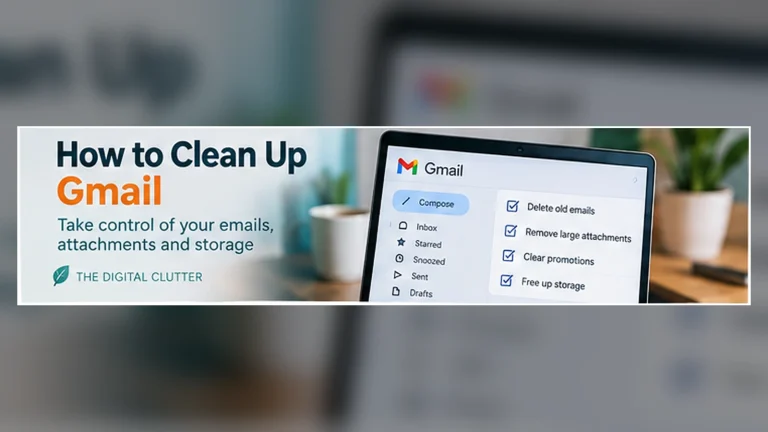
Open a promotional email and look next to the sender name at the top. Many messages show an Unsubscribe link there. Click it and confirm. Gmail sends the request on your behalf, using the sender’s list-unsubscribe feature. In recent versions of Gmail you may also find a Manage subscriptions page, listed with the other items in the left sidebar, that groups your subscriptions by sender and lets you unsubscribe from several in one place. If you do not see it yet, the rollout may not have reached your account, and the sender-level link works fine.
For the senders that remain, use Gmail’s search and bulk-select tools to archive or delete their past messages. Our complete Gmail cleanup guide covers this with step-by-step searches.
Outlook and Microsoft 365
In Outlook on the web and the newer Outlook apps, open a message and look for an Unsubscribe option near the top or in the “more actions” menu (the three dots). Outlook also has a rule engine and a Sweep feature in some versions that can delete or move all messages from a sender and keep doing so going forward. We explain these tools in our Outlook Inbox Zero guide.
Yahoo Mail
Yahoo Mail includes a subscriptions view that lists senders you are subscribed to. You can unsubscribe from the list or from within an individual message. As with other providers, you will normally see a confirmation.
Apple Mail (iPhone, iPad and Mac)
When Apple Mail detects a mailing list, it displays a banner at the top of the message that says Unsubscribe. Tap it and confirm. This works across iCloud and many other accounts that you read in Mail.
| Email app | Where to find unsubscribe | Bonus feature |
|---|---|---|
| Gmail | Link beside the sender name; Manage subscriptions where available | Filters, search operators, bulk select |
| Outlook | Unsubscribe option in the message or “more actions” menu | Rules and Sweep |
| Yahoo Mail | Subscriptions view or link in the message | Subscription list |
| Apple Mail | Unsubscribe banner at the top of the message | Hide My Email for iCloud+ users |
Step 3: Know Which Unsubscribe Links Are Safe
This is the part most people skip, and it matters. Legitimate unsubscribe links are safe. Fake ones are a way for scammers to confirm that your email address is real, or to lead you to a phishing page.
When it is safe to unsubscribe
- You recognize the sender, such as a store you bought from or a newsletter you remember joining.
- The email arrived at the address you used for that signup.
- The sender name and domain look consistent with the company.
When you should not click
- You have never heard of the sender.
- The message is unsolicited, with spelling mistakes, odd urgency, or prizes you did not enter.
- The unsubscribe link goes to a page asking for your password or payment details.
In those cases, do not click anything. Mark the message as spam or report it as phishing, then delete it. The Federal Trade Commission has plain-language advice on how to recognize and avoid phishing scams, which is worth a read if you are unsure.
A good habit is to hover over a link before you click to see where it leads. A genuine unsubscribe page is usually on the same company domain, or on a recognized email platform used by the sender. A legitimate unsubscribe never needs your password.
Step 4: Understand Your Unsubscribe Rights
In many countries, the law gives you the right to opt out of marketing email, and senders must honor it. Knowing the basics helps when a sender ignores you.
- United States: The CAN-SPAM Act requires commercial emails to include a working opt-out method and requires senders to honor requests within 10 business days. You can read the official CAN-SPAM compliance guide from the FTC.
- Canada: Canada’s anti-spam law, known as CASL, requires consent for commercial messages and a working unsubscribe mechanism that is honored promptly.
- United Kingdom and European Union: Privacy and data protection rules, including UK PECR and GDPR, require consent for most marketing email and give you the right to withdraw it.
- Australia: The Spam Act 2003 requires an unsubscribe facility in commercial messages and requires senders to act on requests within a few working days.
Laws differ and have exceptions, such as transactional messages like receipts and security alerts, which senders can usually keep sending. Treat this as general information rather than legal advice.
Step 5: Handle the Senders That Will Not Stop
Sometimes you unsubscribe and the emails keep coming. There are a few common reasons and fixes.
Allow a few days
Some senders take several days to process requests. Wait a week before deciding the unsubscribe failed.
Check for multiple lists
Large companies often run several lists: offers, newsletters, product updates, account notices. Unsubscribing from one does not remove you from the others. Open the preference center if the sender offers one and switch everything off at once.
Look for a different sender address
Some brands send from several addresses. If you still receive mail, check whether the sender or the “from” domain is slightly different and unsubscribe again.
Create a filter as a safety net
If emails keep coming, create a filter so they never reach your inbox:
- Open one of the unwanted messages.
- Choose the option to filter messages like this (in Gmail, via the three-dot menu).
- Select “Skip the Inbox (Archive it)”, “Mark as read”, and, if you want, “Delete it”.
- Apply it to existing matching messages to clean up the backlog.
Block the sender or report spam
For senders who ignore legal requests, or for unsolicited mail, use Block sender or Report spam. Both reduce future messages and help your provider improve its filters.
Step 6: Clear Out the Old Mail in Bulk
Unsubscribing stops new messages, but the existing ones still fill your storage. Clean them up in a few minutes.
- Search for the sender or for a category such as promotions older than 90 days.
- Select all messages in the results, and if your app shows a prompt to select all matching conversations, accept it.
- Delete or archive them.
- Empty Trash and Spam. In Gmail, deleted messages remain in Trash for 30 days unless you empty it.
If you want a clean slate, archive everything older than a cut-off date. This works well alongside the method described in our guide to Inbox Zero.
Should You Use a Third-Party Unsubscribe Tool?
Several services promise to find all your subscriptions and remove them in one click. They can save time, but think carefully before you hand over access to your inbox.
| Option | Pros | Cons |
|---|---|---|
| Built-in tools | No new permissions; private; free | Slower and may be limited to some senders |
| Manual search and filters | Full control; works in any provider | Takes the most time |
| Third-party apps | Fast bulk actions; summaries | Require inbox access; privacy policies vary |
If you consider a third-party service, read its privacy policy to see how it handles your data. Some free tools have been criticized in the past for how they make money from anonymized data. Review which apps have access to your account in your Google, Microsoft, or Apple security settings, and remove any you no longer use. Our guide to cleaning up your digital footprint covers this kind of access review.
Step 7: Stop the Clutter From Coming Back
A one-time cleanup helps, but the real win is a system that keeps your inbox quiet.
Use a separate email address for sign-ups
Create a second address just for shopping, coupons, and one-off registrations. Check it when you want a deal, and keep your main address for people and important accounts.
Use masked or alias addresses
Some services create unique forwarding addresses for each site. Apple’s Hide My Email (for iCloud+ subscribers), Firefox Relay, and DuckDuckGo Email Protection all offer this. Gmail also supports plus-addressing, such as yourname+shopping@gmail.com. Emails sent there still reach you, and you can filter by that address.
Uncheck the boxes
When you check out online or sign up for something, look for pre-ticked marketing boxes. Uncheck them. It is the simplest way to avoid the problem.
Add a new-subscription rule
Before you join a list, ask whether you will read the emails. If not, skip it. If you want the discount code, sign up, use the code, and unsubscribe the same day.
Schedule a monthly mini-clean
Set a reminder for the first of each month. Spend five minutes searching for “unsubscribe is:unread” and remove new offenders. This fits neatly into a monthly digital cleaning routine.
A 45-Minute Mass Unsubscribe Plan
| Time | Task |
|---|---|
| 0 to 5 minutes | Search “unsubscribe” and list your top 15 senders |
| 5 to 25 minutes | Unsubscribe from recognized senders using the built-in link or tool |
| 25 to 30 minutes | Report and delete any unknown or suspicious messages without clicking links |
| 30 to 38 minutes | Create filters for stubborn senders and newsletters you want to keep but not see |
| 38 to 45 minutes | Bulk delete or archive old promotions; empty Trash and Spam |
Common Mistakes to Avoid
- Unsubscribing from everything blindly. You might lose security alerts, bills, or receipts you need. Review the sender first.
- Clicking links in obvious spam. This can confirm your address is active. Mark and delete instead.
- Forgetting your other addresses. Old email accounts collect subscriptions too. Run the same process on each.
- Not cleaning up afterward. The stored mail still takes up space and clutters search results.
- Giving broad access to unknown apps. Prefer built-in tools unless you trust the service.
Key Takeaways
- Search for “unsubscribe” to see all your subscriptions at once, then target the biggest senders first.
- Use the built-in unsubscribe tools in Gmail, Outlook, Yahoo, and Apple Mail before turning to third-party apps.
- Only unsubscribe from senders you recognize. Report suspicious mail as spam without clicking.
- Use filters to catch senders that ignore your request, then bulk delete old messages.
- Prevent a repeat with a separate sign-up address, masked emails, and a short monthly review.
Learning how to mass unsubscribe from emails is a small investment that pays back every single day. Fewer promotional messages means less noise, less stress, and more chance that the important emails get your attention. Give yourself 45 minutes this week, then keep it tidy with five minutes a month. Your inbox, and your focus, will feel noticeably lighter. If you want to go further, our complete inbox cleanout guide shows what to do next.
Frequently Asked Questions
What is the fastest way to mass unsubscribe from emails?
Search your inbox for the word ‘unsubscribe’, work through your top senders using your email app’s built-in unsubscribe link or subscription tool, then create filters for any that continue and bulk delete the old messages. About 45 minutes is enough for most inboxes.
Is it safe to click unsubscribe in emails?
It is generally safe for senders you recognize, such as a store you bought from. Do not click unsubscribe links in suspicious or unsolicited mail. Mark those as spam or report them as phishing instead.
How do I unsubscribe from multiple emails at once in Gmail?
Use the Unsubscribe link beside the sender name on each promotional message, and use the Manage subscriptions page if it is available on your account. Then search for the sender and bulk-delete old messages, or create a filter to archive new ones.
Why do I still get emails after unsubscribing?
Senders can take several days to process requests, you may be on several lists from the same company, or the mail may come from a different sender address. Unsubscribe from each list, wait a week, and create a filter if it continues.
Are third-party unsubscribe apps safe?
Some are reputable, but they need access to your inbox, so privacy policies matter. Prefer built-in tools when possible, read how a service uses your data, and remove access you no longer need from your account security settings.
How many days do companies have to honor an unsubscribe request?
Under the US CAN-SPAM Act, senders must honor opt-outs within 10 business days. Other countries, such as Canada and Australia, have their own rules and time limits.
How do I stop promotional emails from coming back?
Use a separate email address for shopping, use masked or alias addresses, uncheck pre-ticked marketing boxes when you sign up, and do a five-minute subscription review each month.
Will unsubscribing delete my existing emails?
No. Unsubscribing only stops future messages. You need to delete or archive the existing emails yourself, which you can do quickly by searching for the sender and selecting all results.